EB360: Contact Upload Delete Option in Everbridge 360™

2026-04-18 17:15:41 UTC

Topic

This article describes how to remove contacts via a CSV file upload using the Delete option in Everbridge 360™.

Description

When managing contacts using a CSV file (Contacts > Uploads > Upload to portal), there are four options; UpdateReplaceRestore and Delete. This knowledge article explains the contact upload Delete option.

The Delete option permanently removes contacts included in the uploaded contact file from the system. When this option is selected, the system evaluates the records in the CSV file and deletes all matching contacts from the existing contact database.

Contacts can also be deleted manually by following the steps found in this knowledge article: EBS: Deleting Contacts in Everbridge Suite.

Deleted contacts can only be restored within thirty (30) days of deletion. After thirty (30) days, contact records are permanently removed and cannot be recovered.

The recommended way to remove Contacts so they can be fully wiped is to first download your current Contact List, then upload that file using the Delete option described below.

When uploading a file to delete contacts, the External ID is the only value required to properly delete Contacts from an Organization.

In this video, we’ll walk through how to delete contacts in Everbridge using a CSV file upload.

Go to manager.everbridge.net

1. Delete Upload
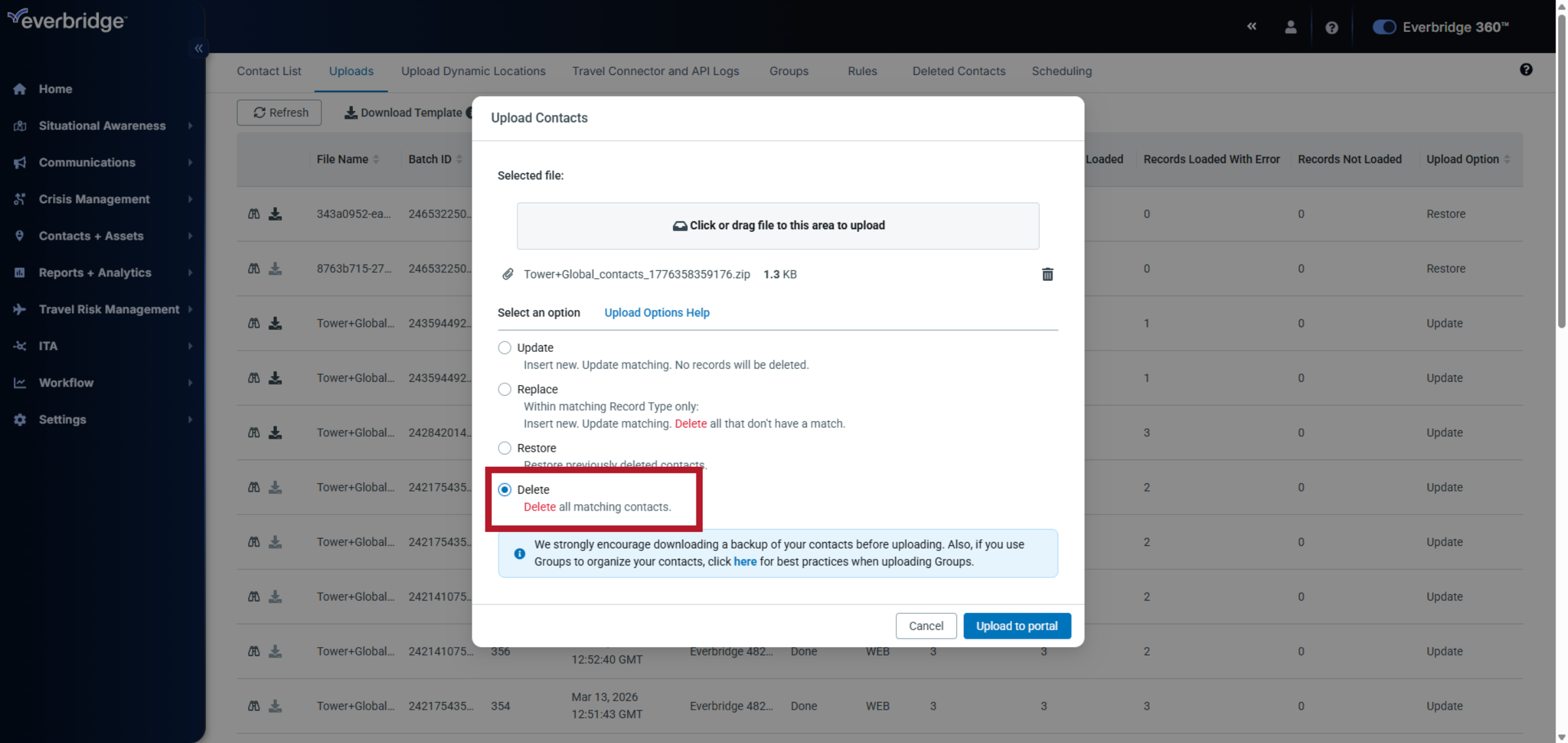
The Delete CSV upload allows you to remove multiple contacts at once from your organization in a fast and controlled way.

Delete Upload 

2. Access Contacts and Assets
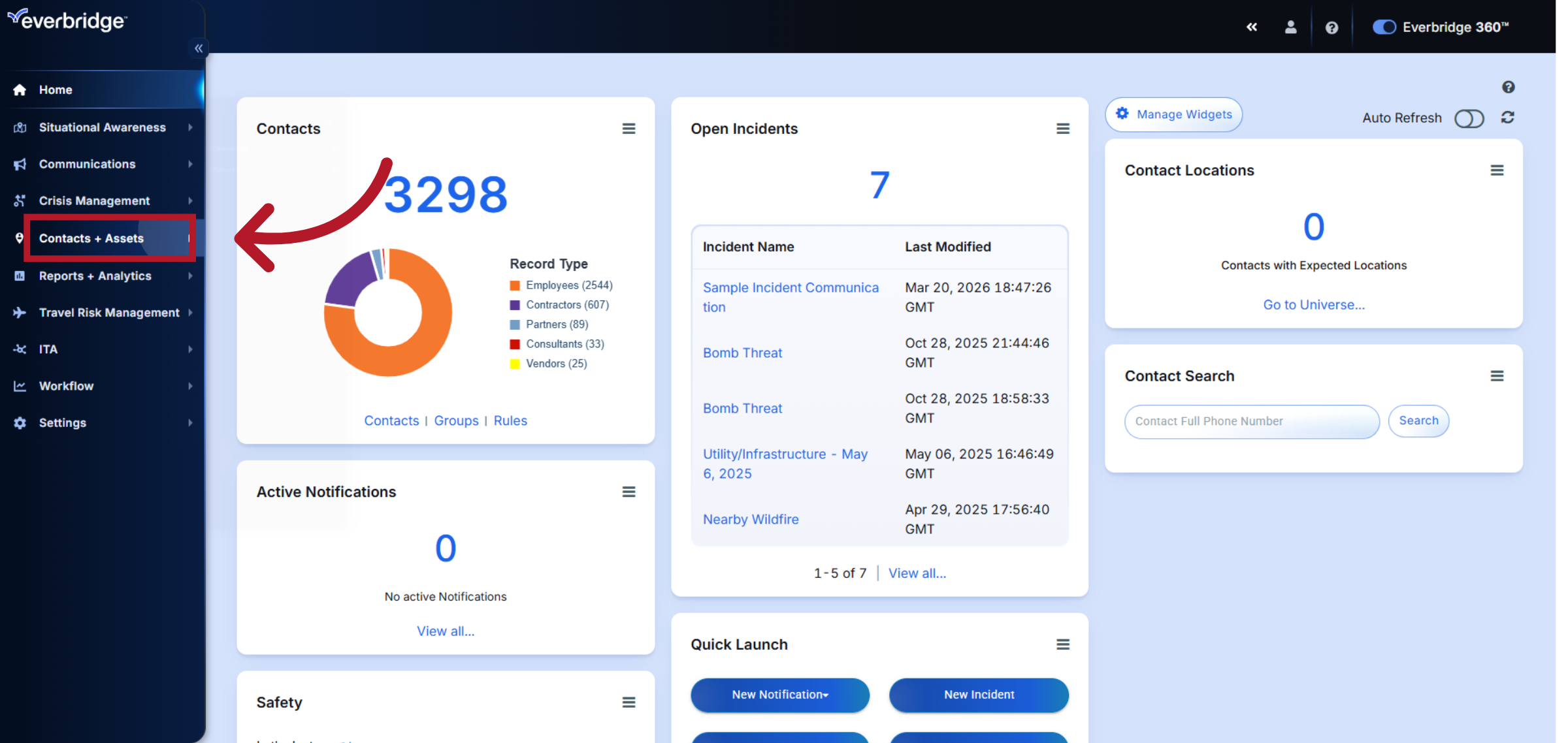
Click "Contacts + Assets" to open the contacts and assets section in Everbridge.

Access Contacts and Assets 

3. Open Contacts Section
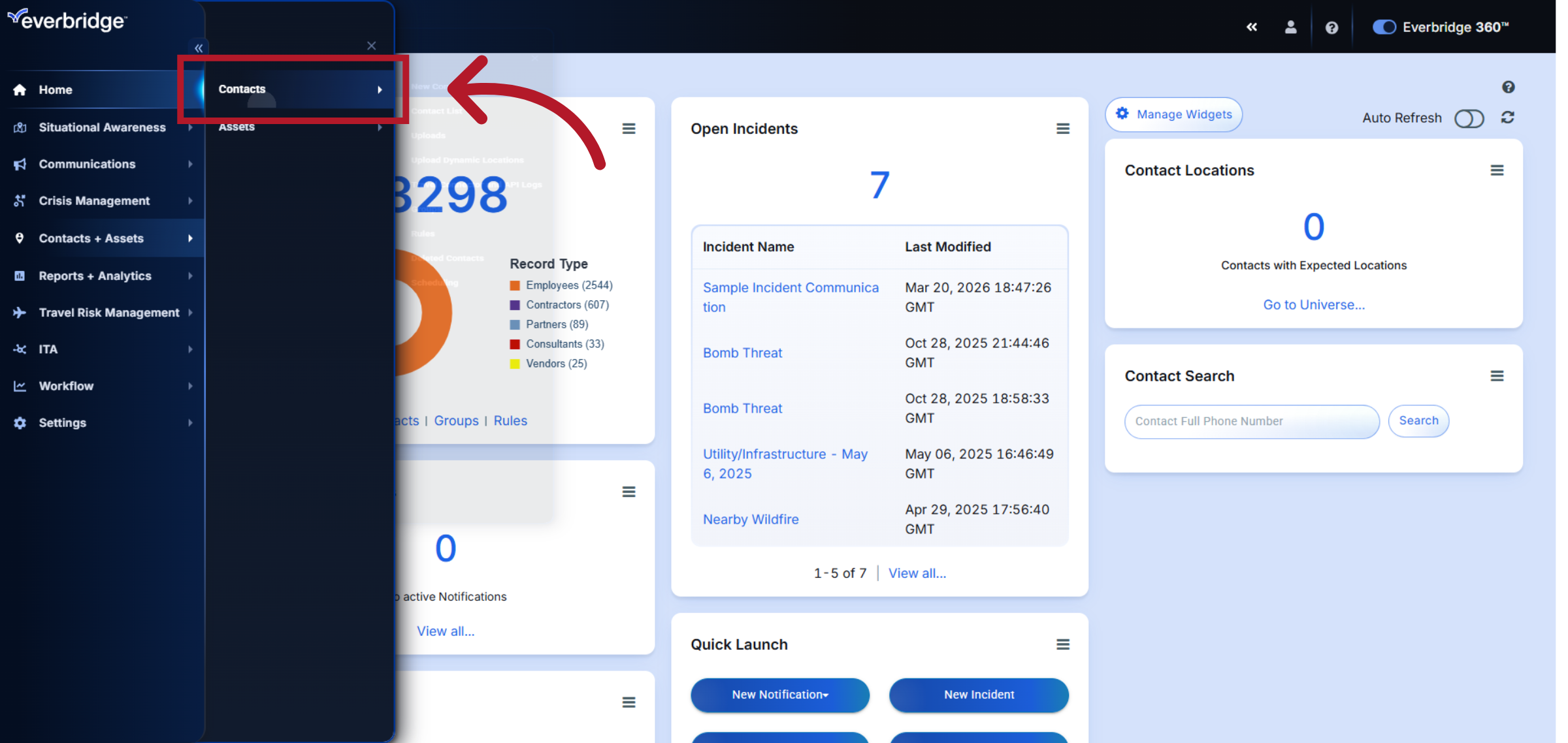
Click "Contacts" to view the contacts management area.

Open Contacts Section 

4. Navigate to Contact List
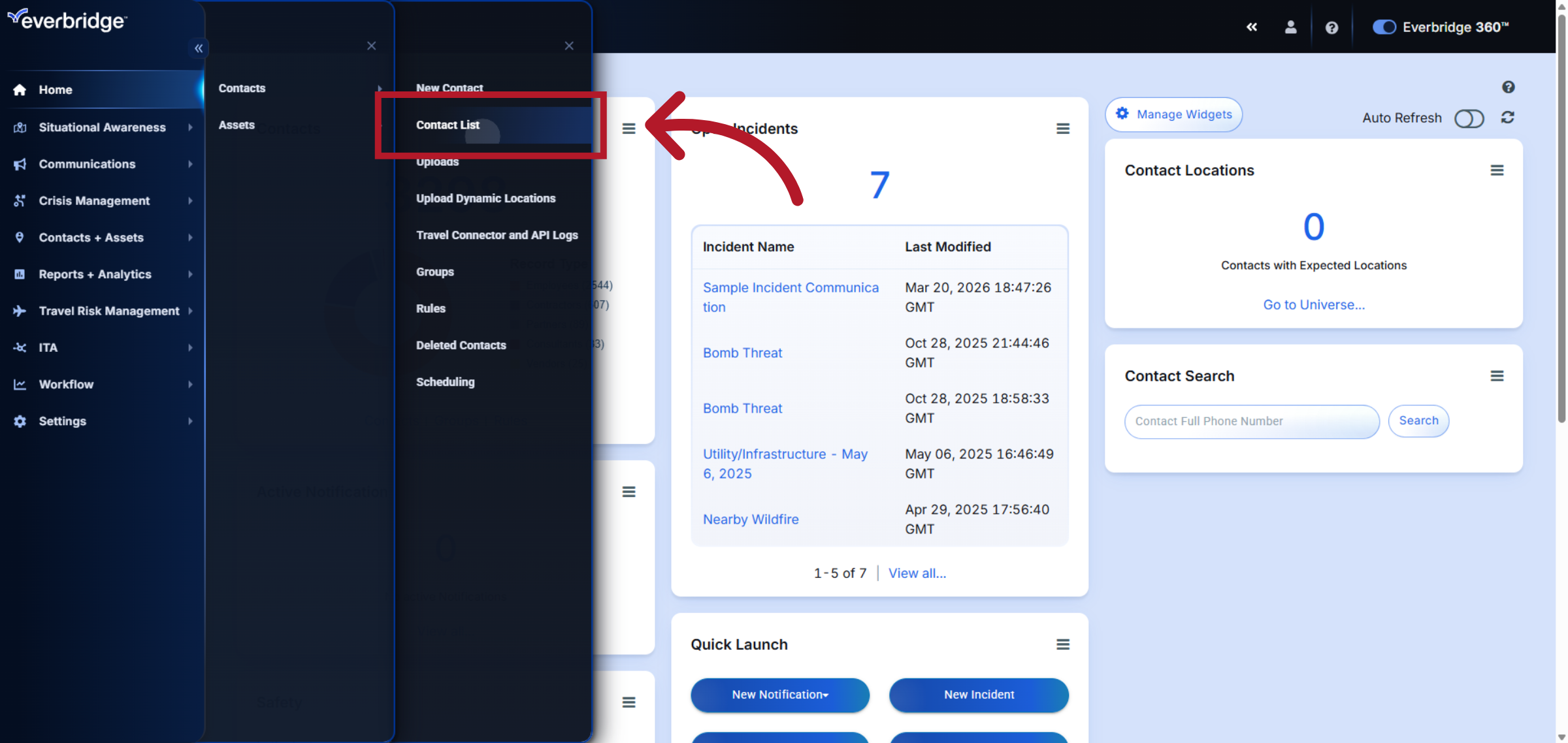
Click "Contact List" to access the list of all contacts.

Navigate to Contact List 

5. Contact List
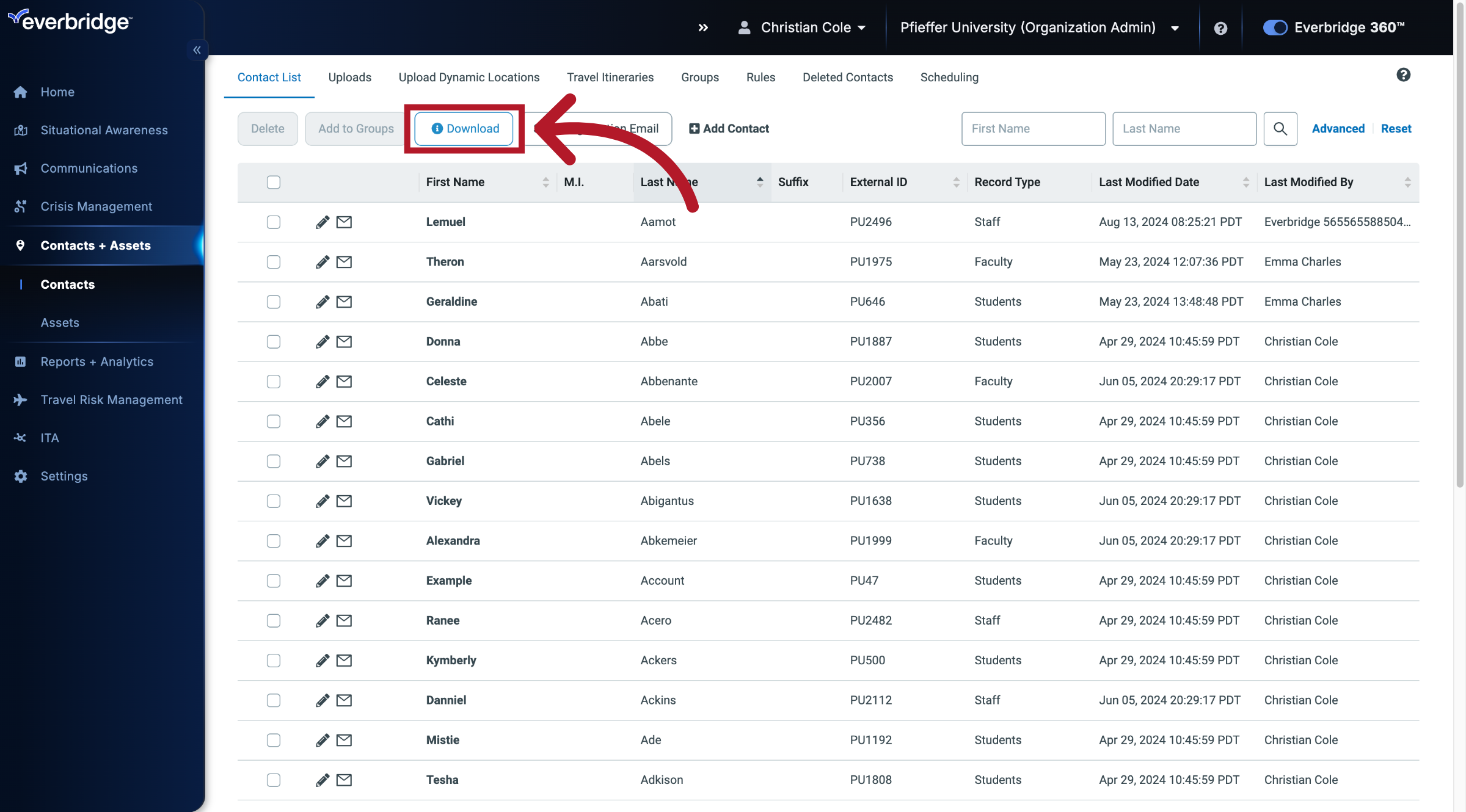
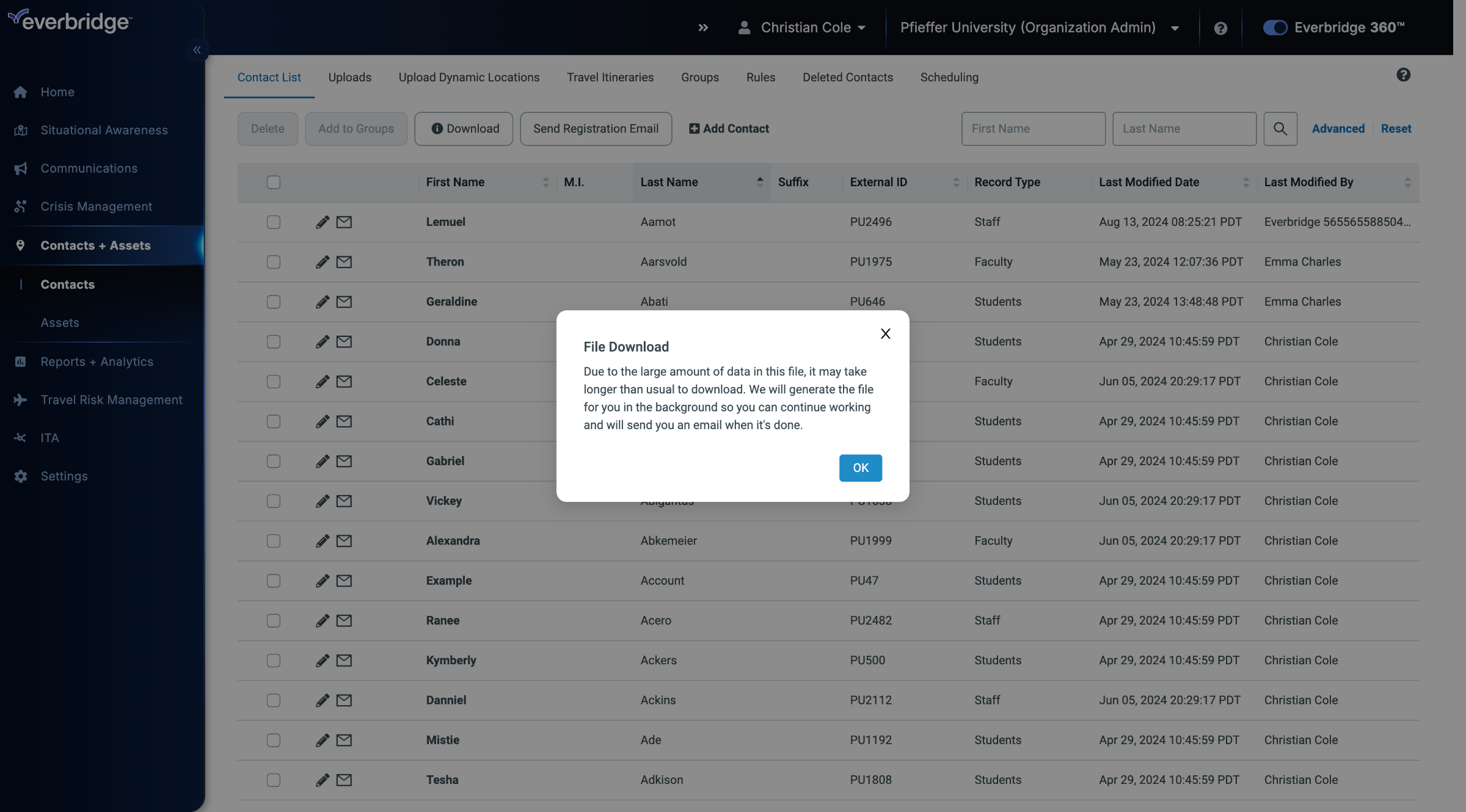
As always, we recommend downloading a backup of your current contact information before making any changes.

Contact List 

6. File Download

If you have a large contact base, the contact file will be emailed to you.

File Download 

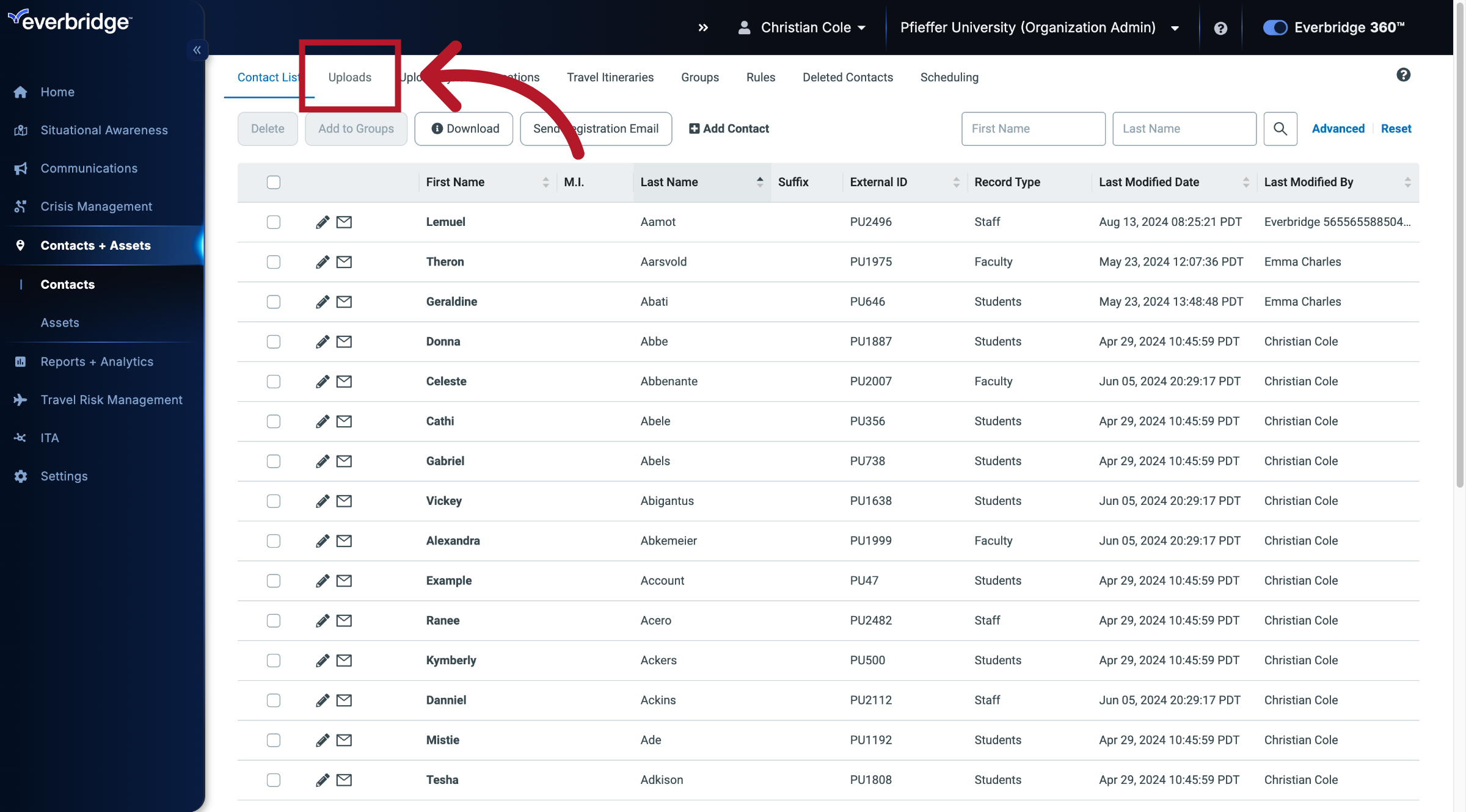
7. Uploads

Once you have backed up the contact data, click on the Uploads tab.

Uploads 

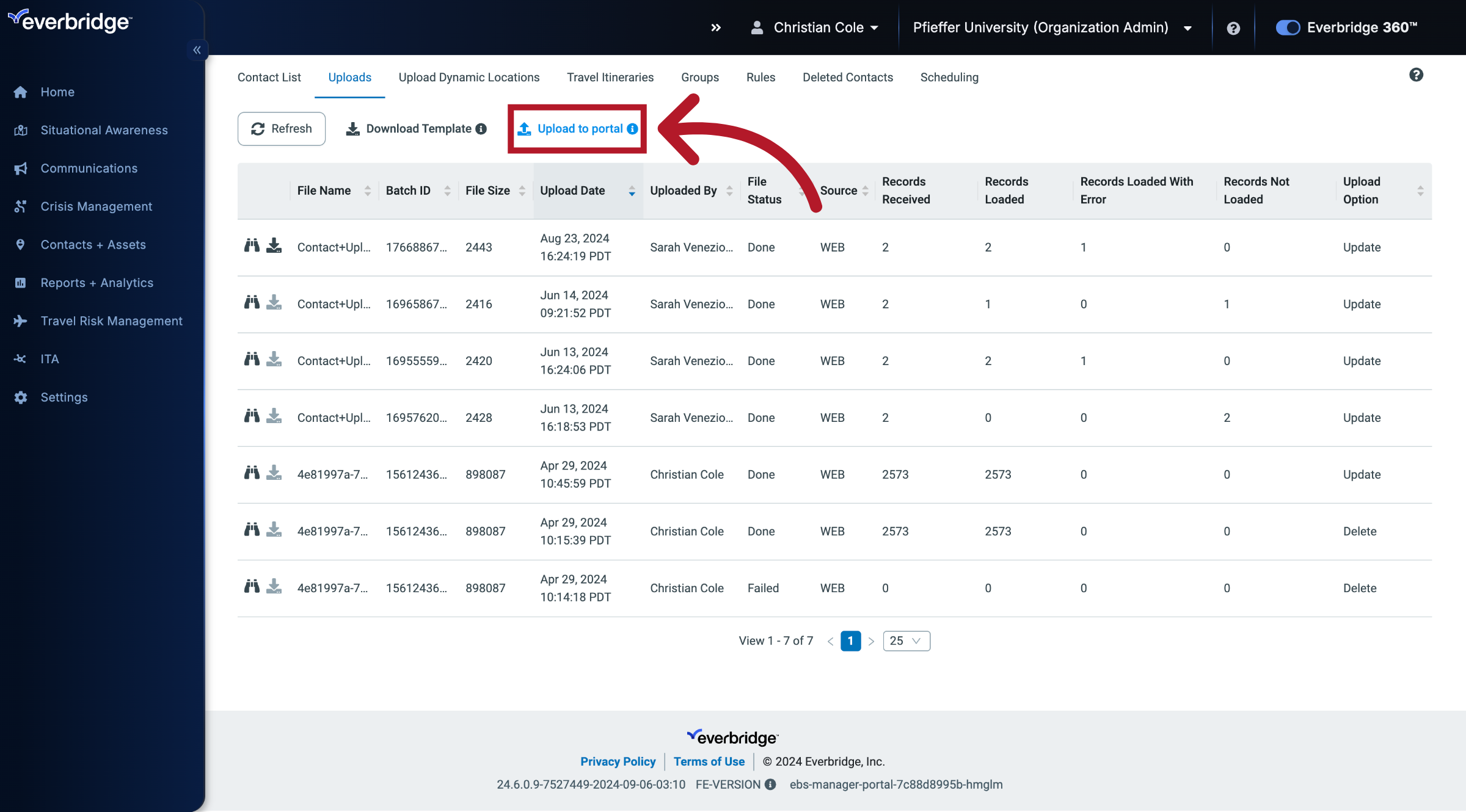
8. Upload to Portal

Select the option to upload to the portal.

Upload to Portal 

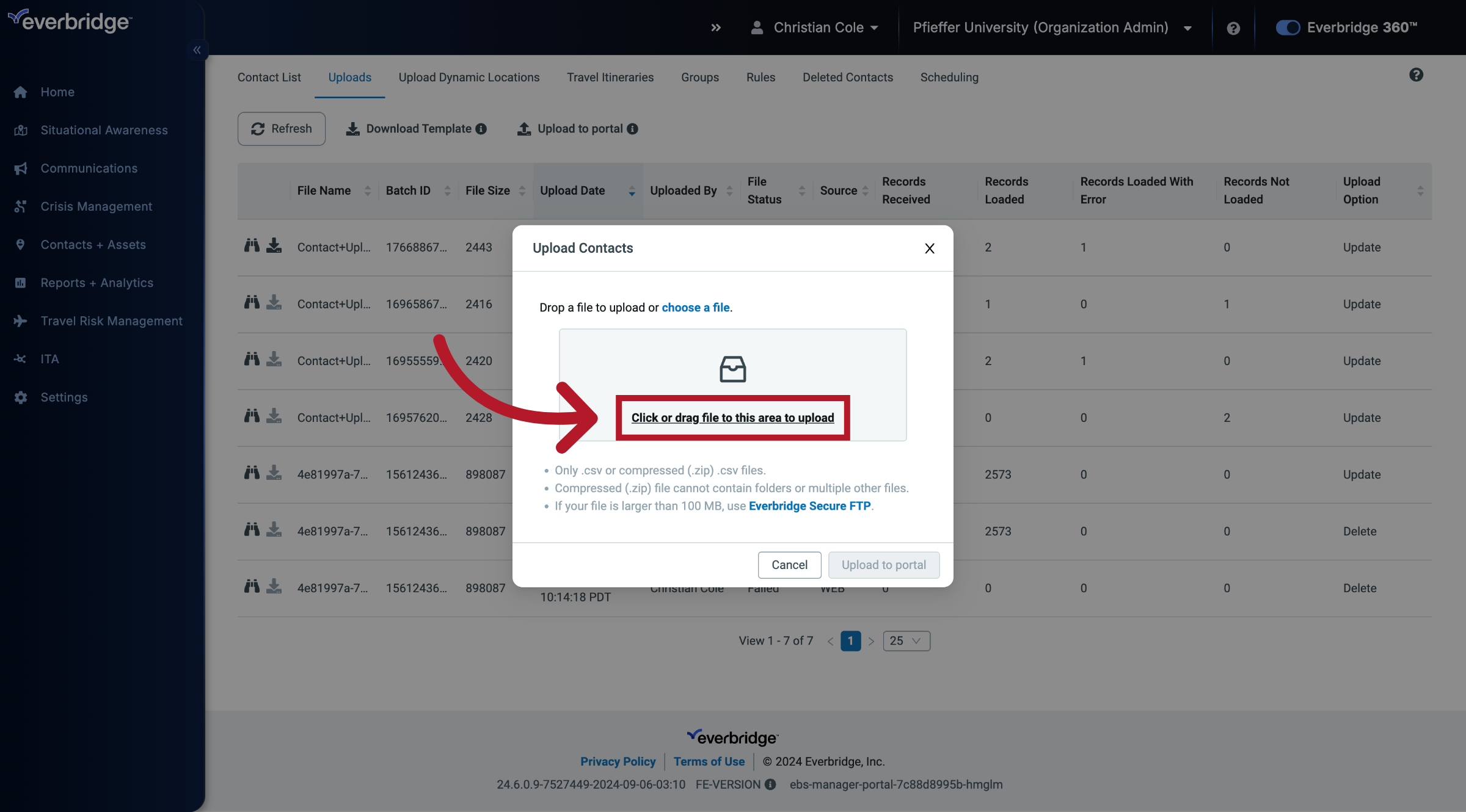
9. Upload Contacts

Click the highlighted text to upload your file, or drag your file to this area to upload. For this example we'll drag the file.

Upload Contacts 

10. Delete Matching Contacts
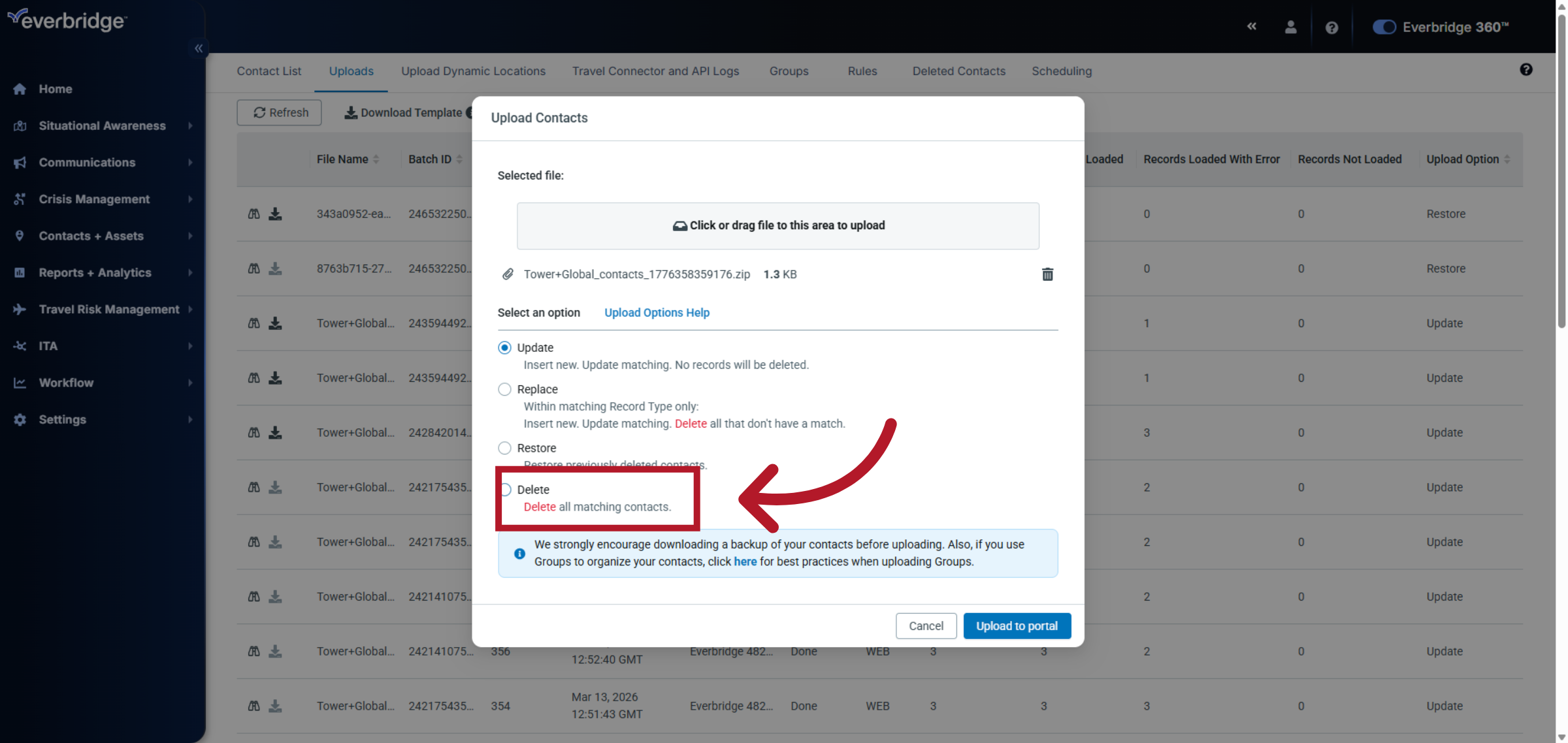
Seletct the "Delete" option to remove contacts matching the upload criteria.

Delete Matching Contacts 

11. Proceed With Upload
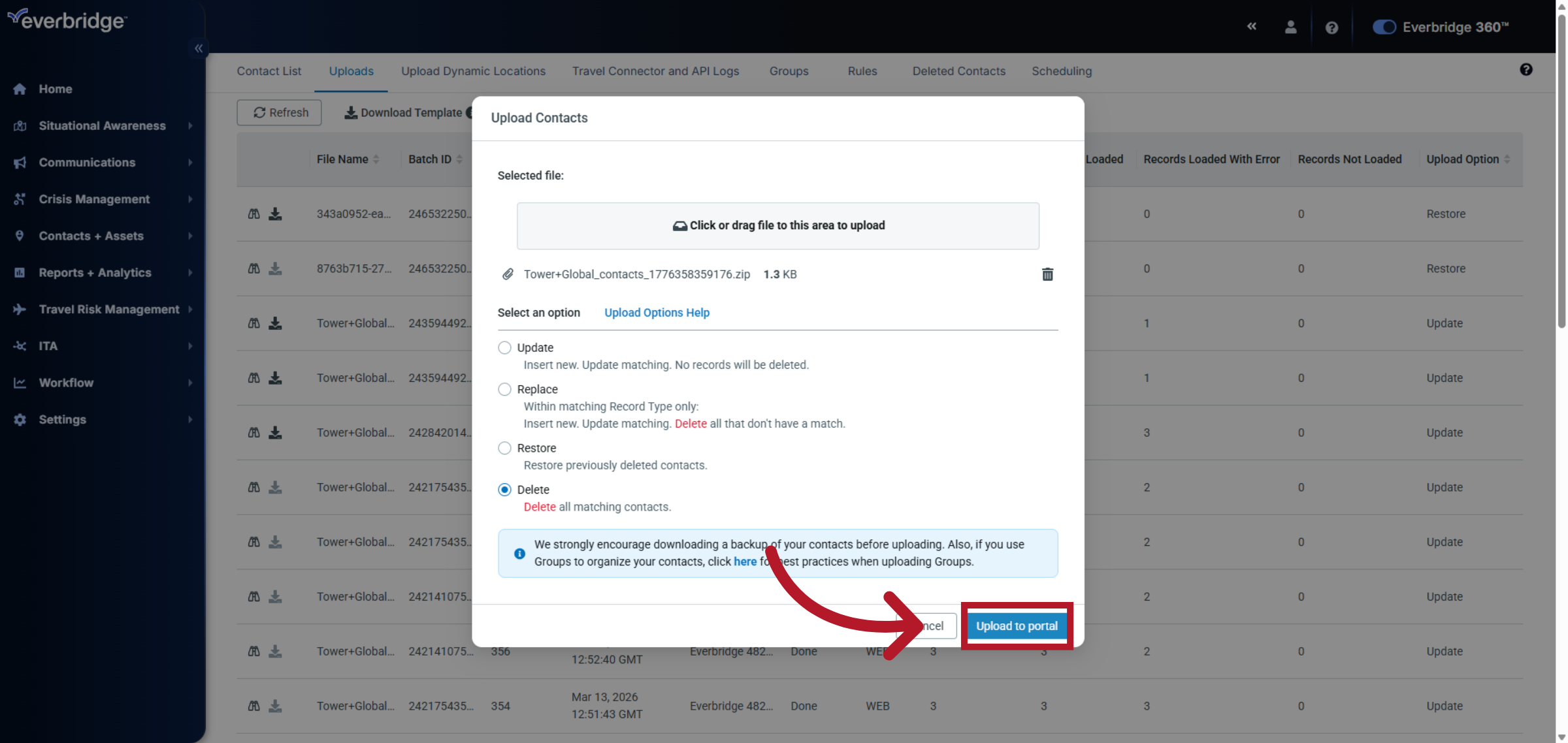
Once you're ready, click Upload to portal.

Proceed With Upload 

12. Confirm Upload
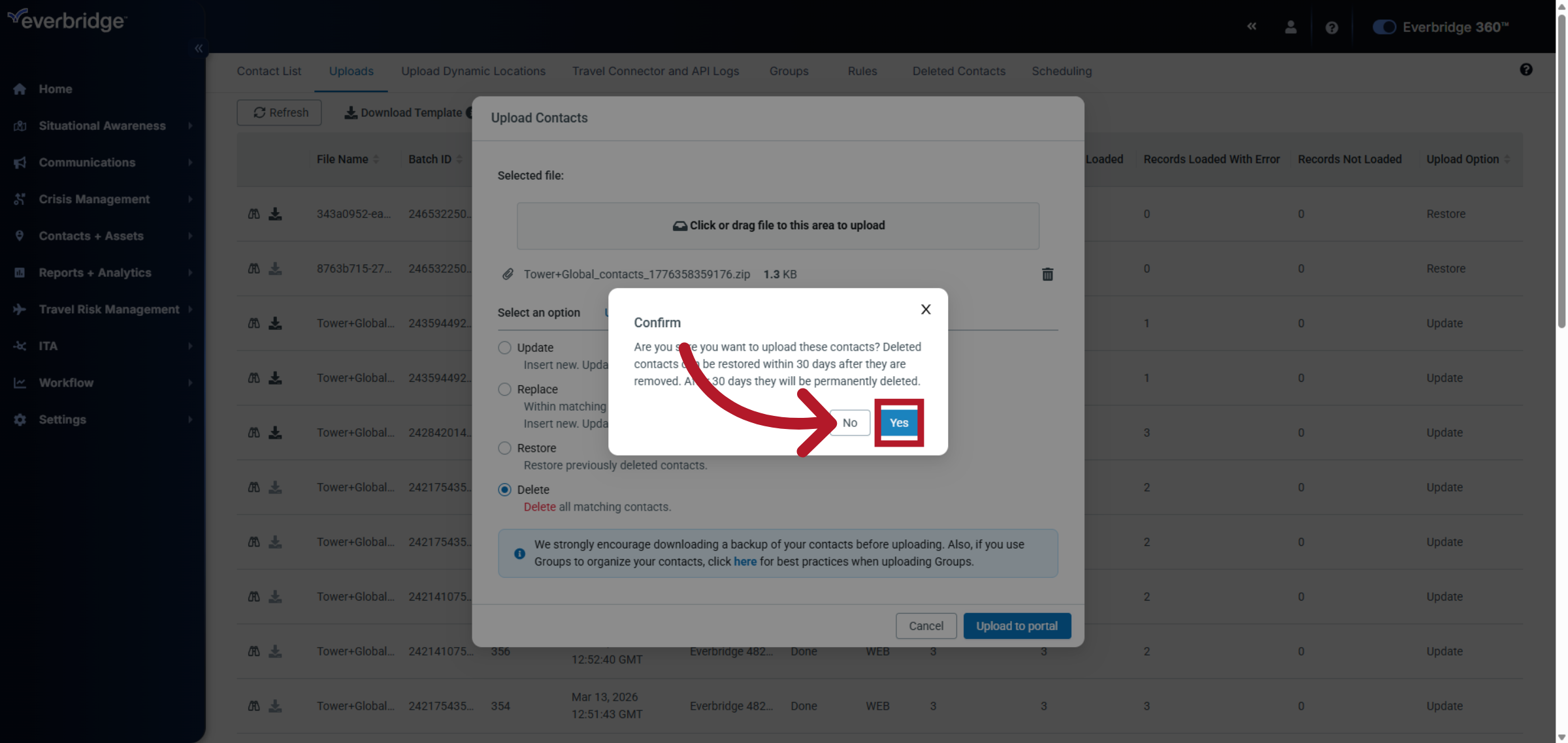
Click "Yes" to confirm the upload process.

Confirm Upload 

13. Acknowledge Confirmation
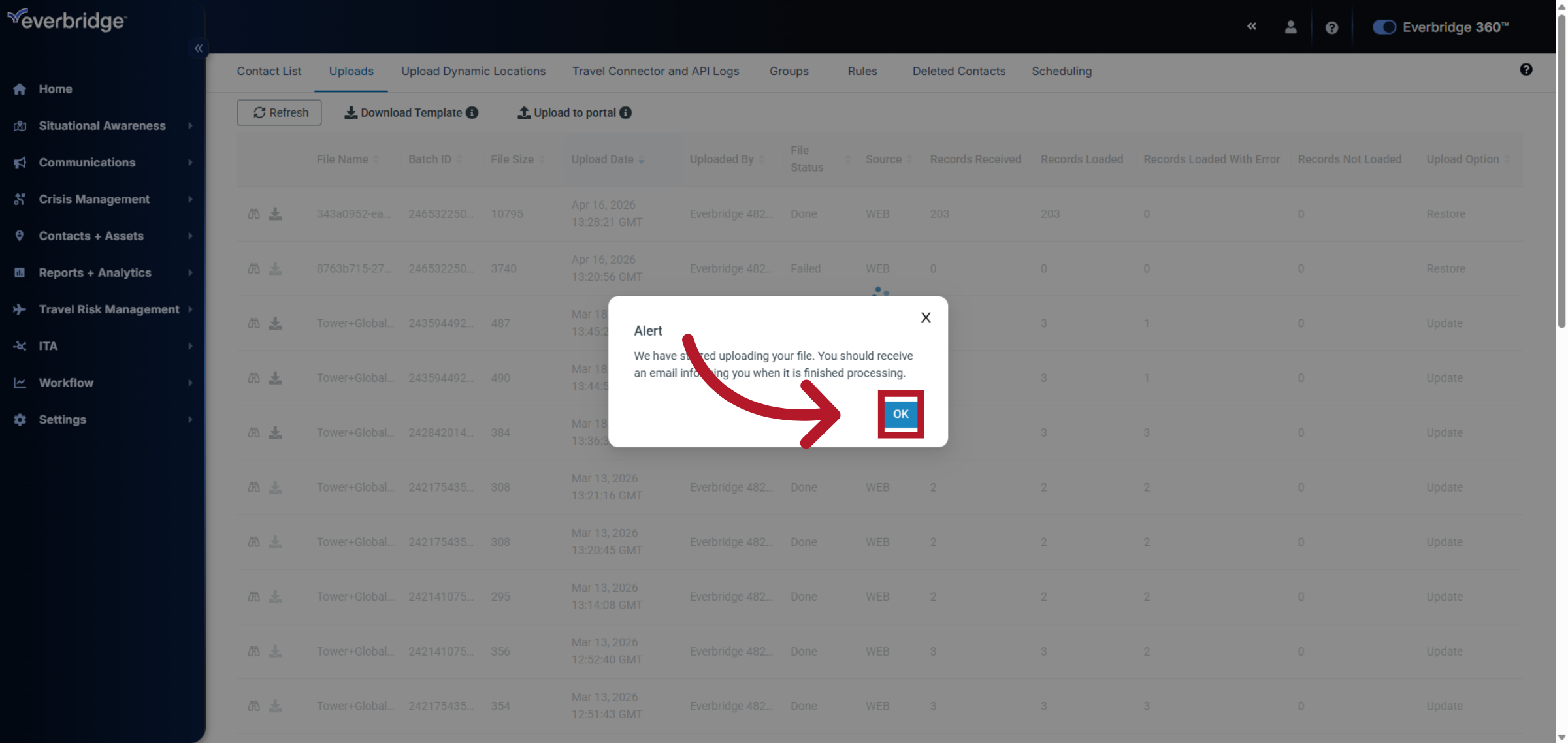
An alert will display to indicate that the upload process has started. An email will be sent to you to indicate the start and when the upload file has completed processing.

Acknowledge Confirmation 

14. Upload Result
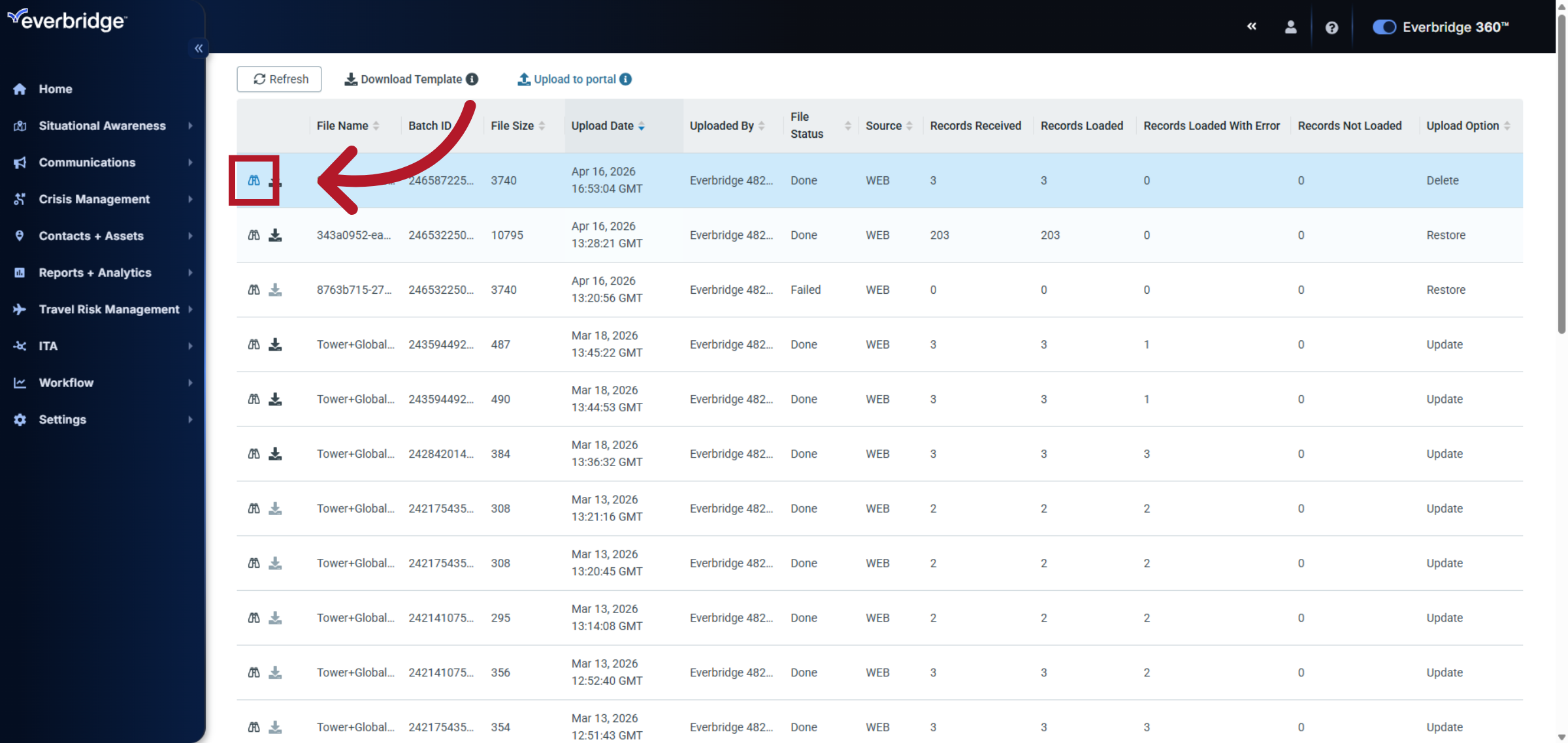
It's a best practice to make sure that the upload went smoothly, and the information was added without issues. This is done by clicking the Binoculars beside the upload.

Upload Result 

15. View Received Records
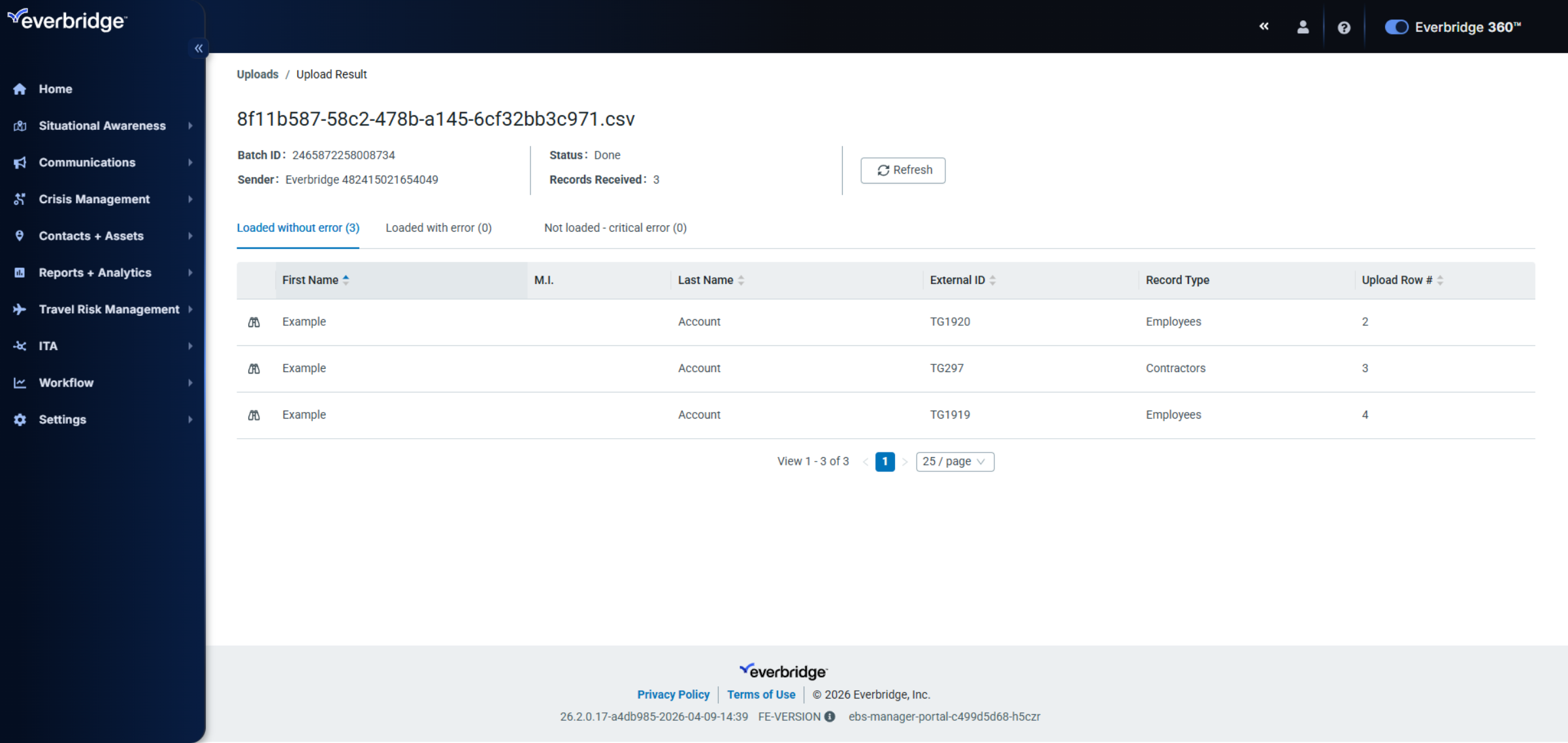
This brings you to a screen that breaks down all of the possible outcomes.

View Received Records

This video outlines the steps necessary to remove contacts from Everbridge using the Delete option.
Was this article helpful?
0 out of 0 found this helpful