
Topic
Migrating from the Everbridge Mobile Application to the Everbridge 360 Mobile Application on an IOS mobile device.
Description:
This video demonstrates how to migrate from the Everbridge Mobile Application to the new Everbridge 360 Mobile Application on an iOS device.
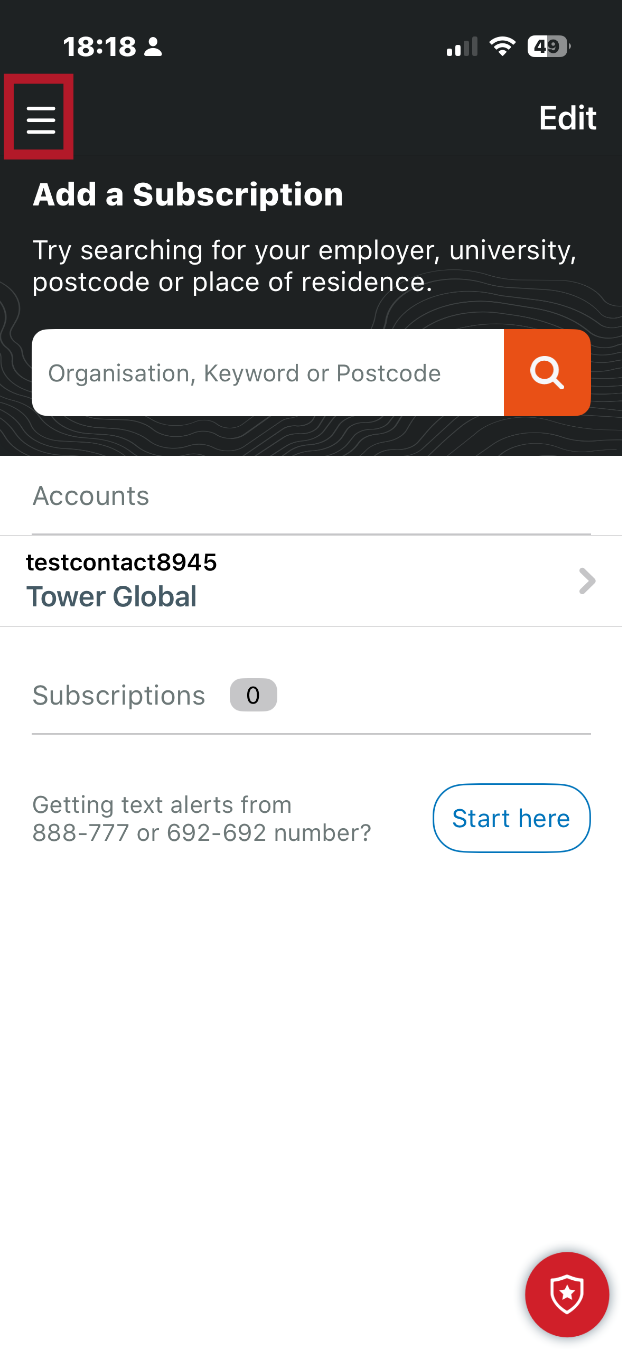
1. Accessing the Everbridge Mobile App
Start by launching the Everbridge Mobile Application on your iOS device, then tap the menu icon located in the top left corner.
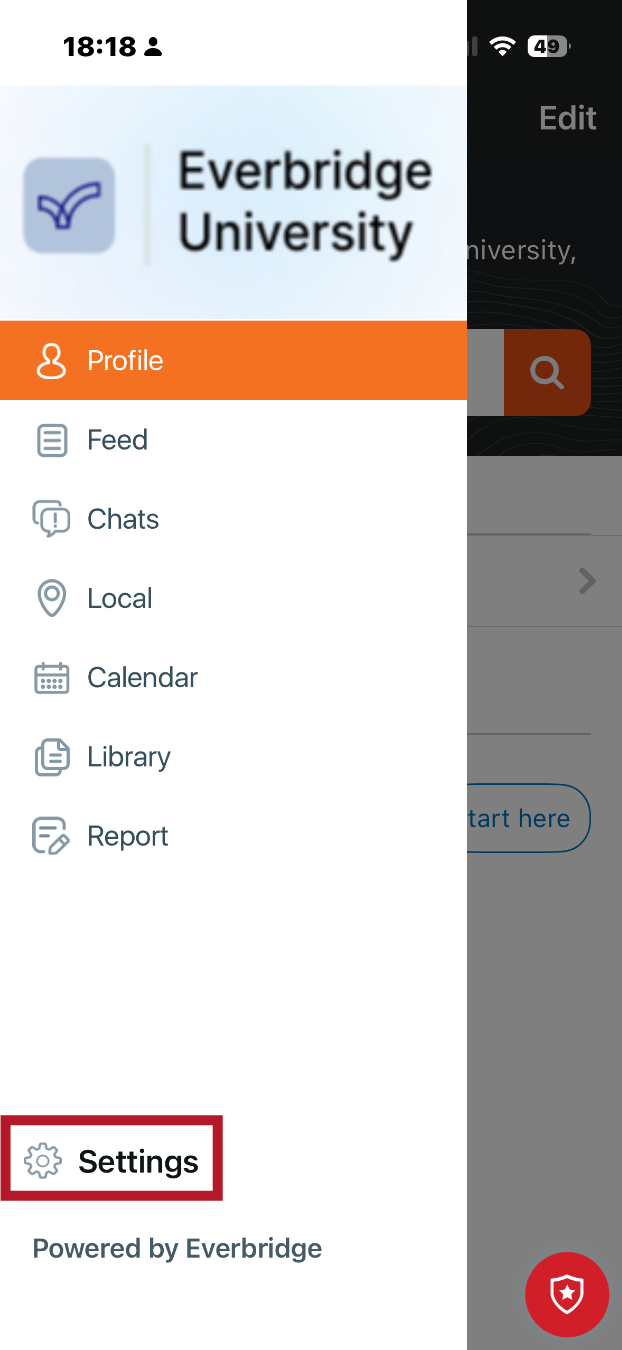
2. Navigating to Migration Settings
From the menu, select Settings.
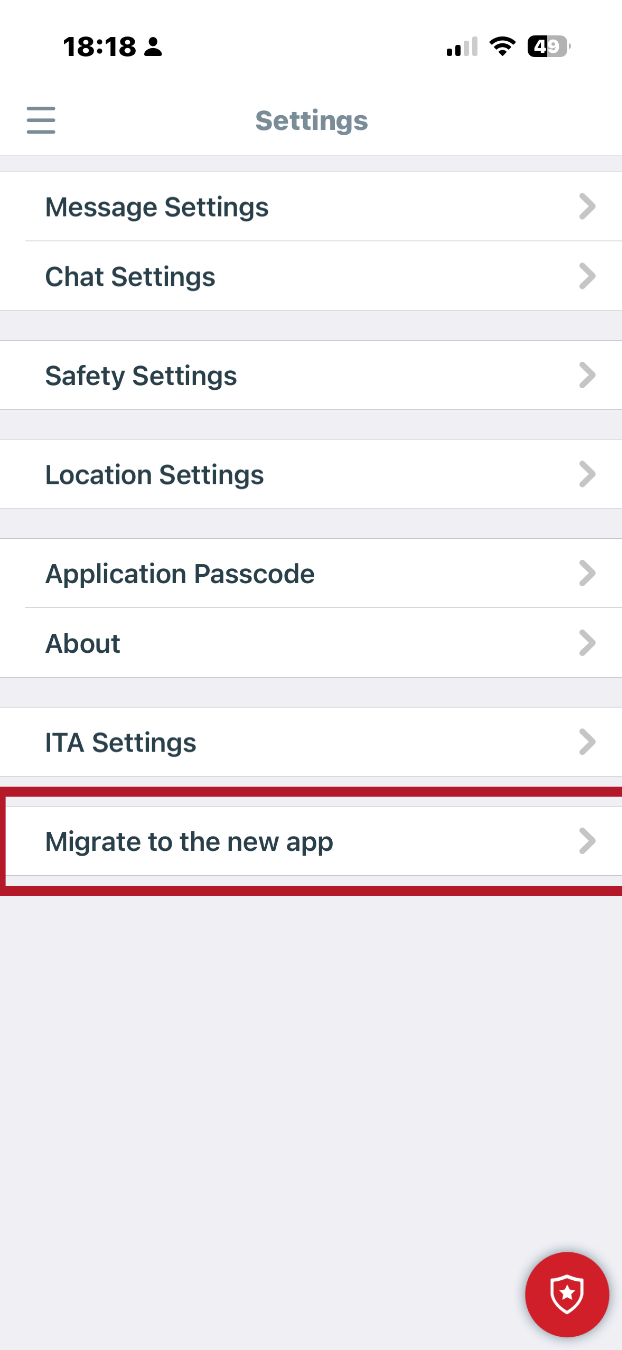
3. Migrate to New App Option
Then select the option Migrate to New App.
4. Reviewing Everbridge 360 Highlights
A series of screens will introduce key features of the Everbridge 360 Mobile Application.
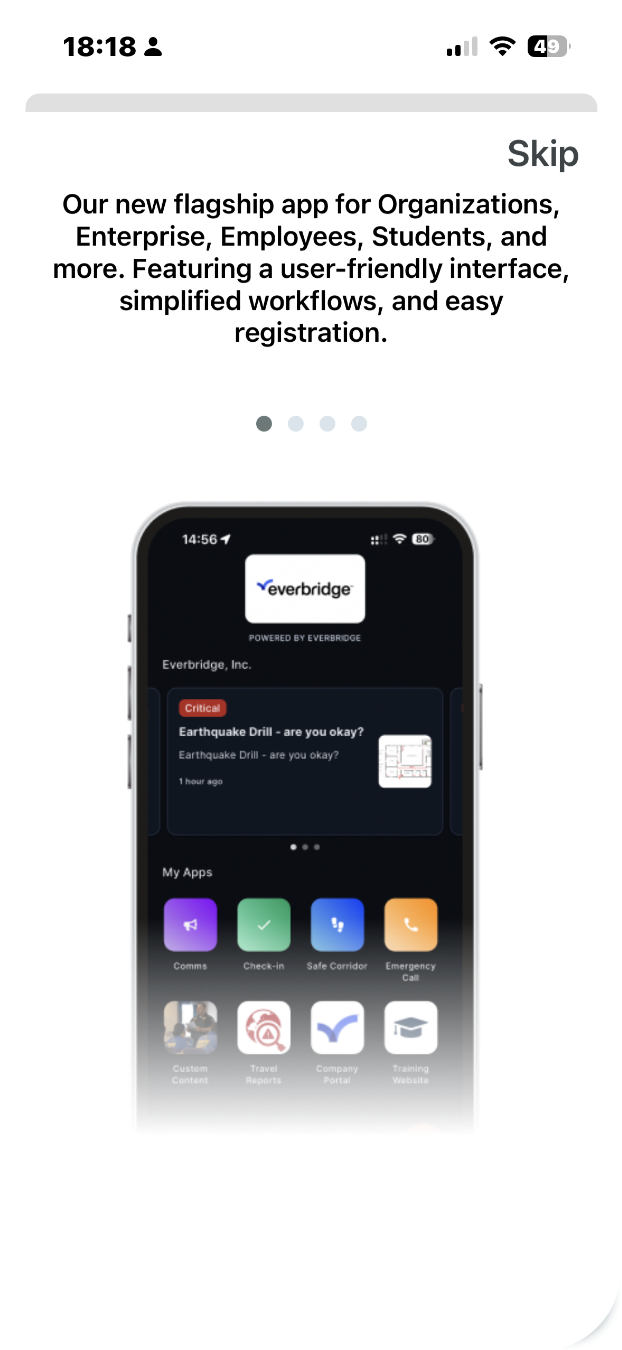
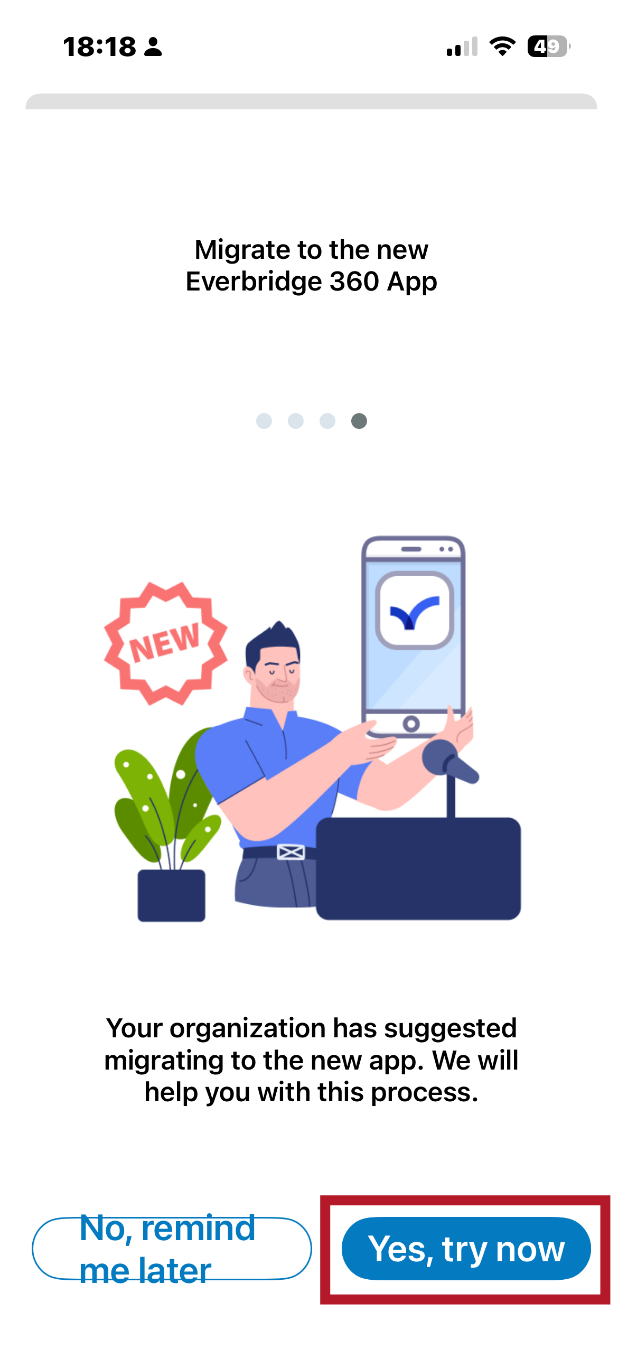
5. Click Yes
Review the highlights, then select Yes, Try Now to continue.
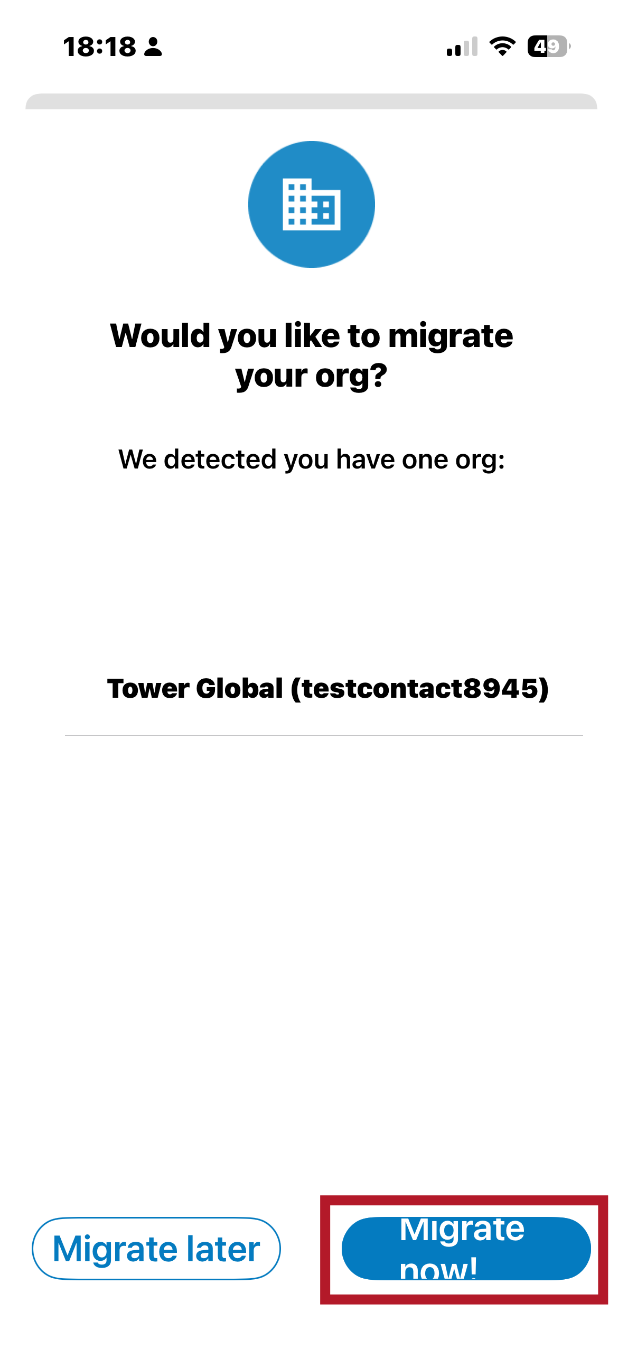
6. Initiating Migration
Select Migrate Now to begin the migration process.
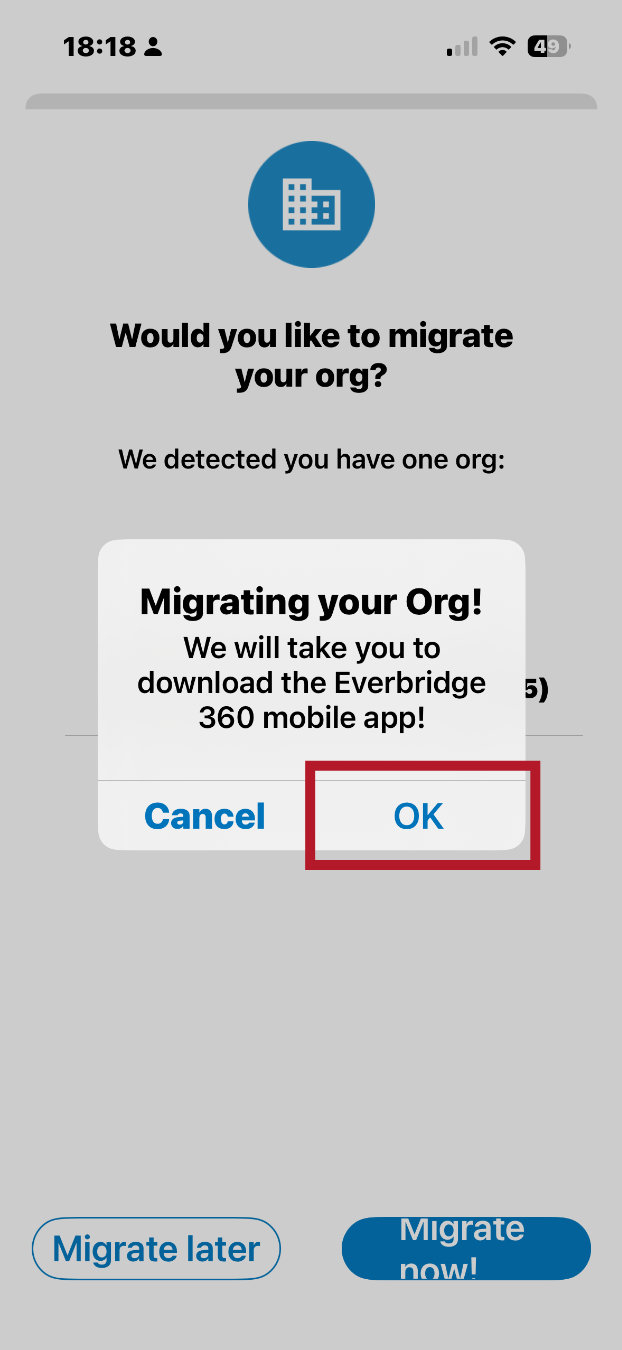
7. Click Ok
Select OK to proceed to the new app.
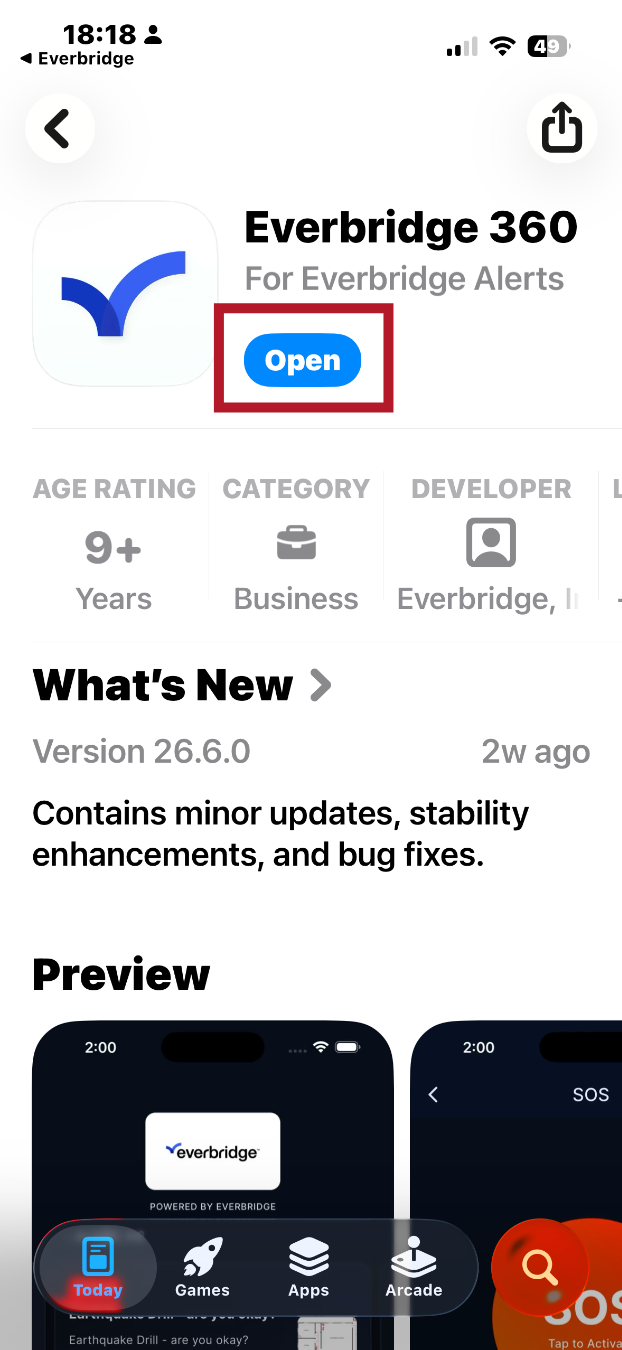
8. Installing the Everbridge 360 App
The App Store opens automatically.Download and install the Everbridge 360 Mobile Application. Once installation is complete, open the Everbridge 360 Mobile Application.
9. Opening the Everbridge 360 App
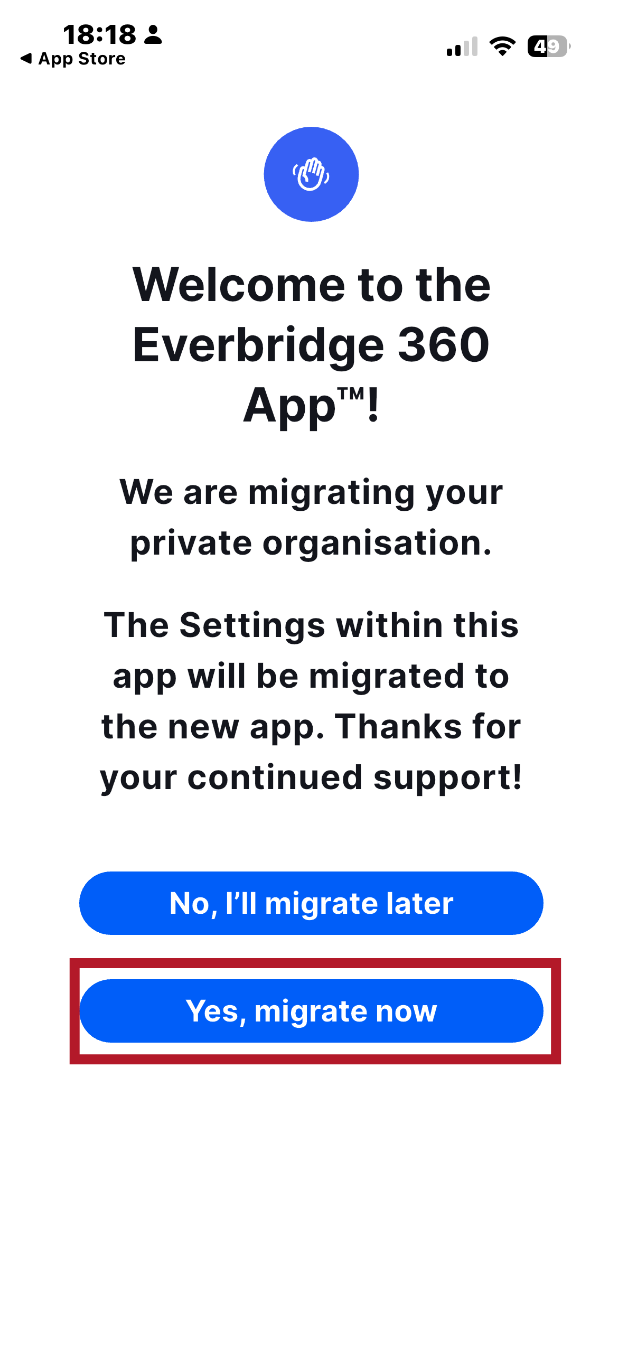
On the welcome screen, select Migrate Now.
10. Configuring Permissions
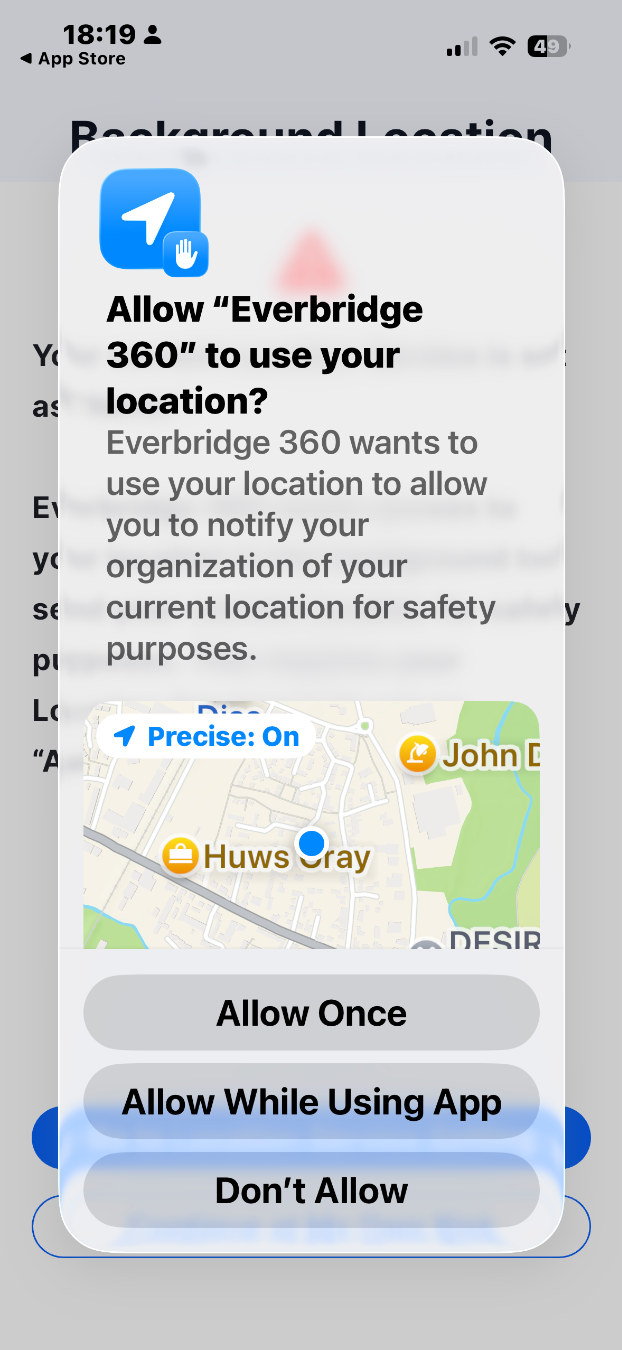
The application prompts for permissions such as notifications, camera access, and microphone access. Select preferences based on your requirements.
11. Completing Migration
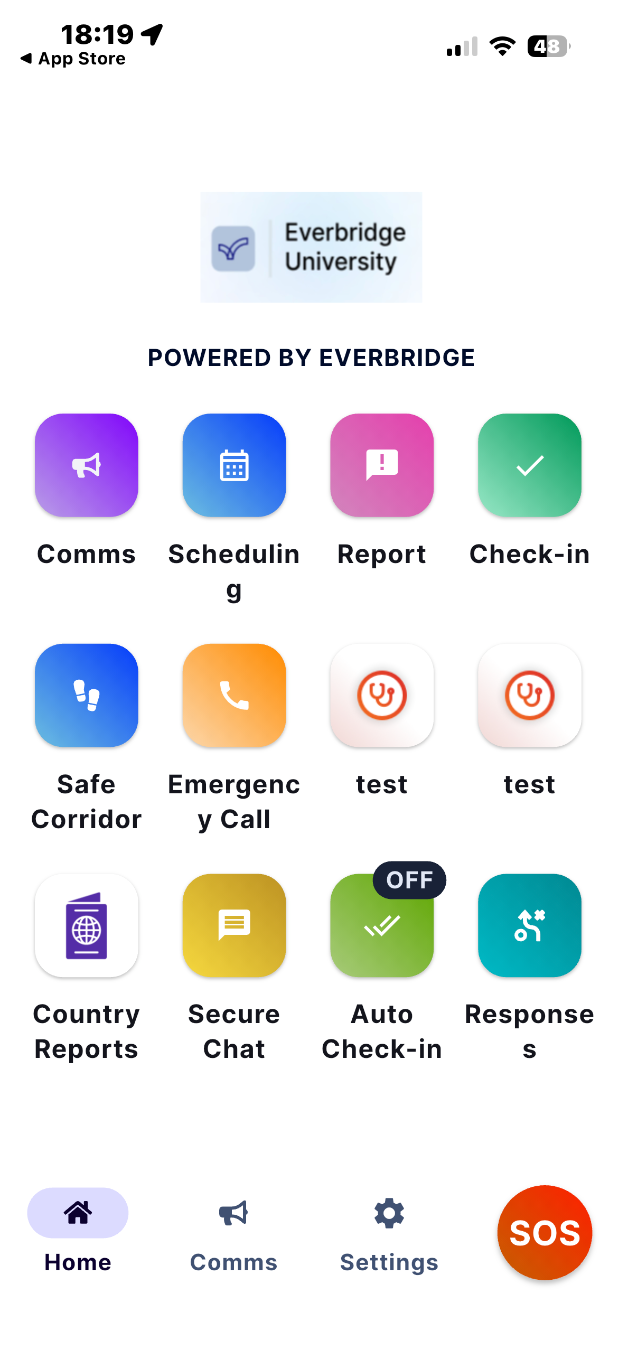
After permissions are configured, the account is successfully migrated and logged into the Everbridge 360 Mobile Application.
12. Logging Out of the Legacy App
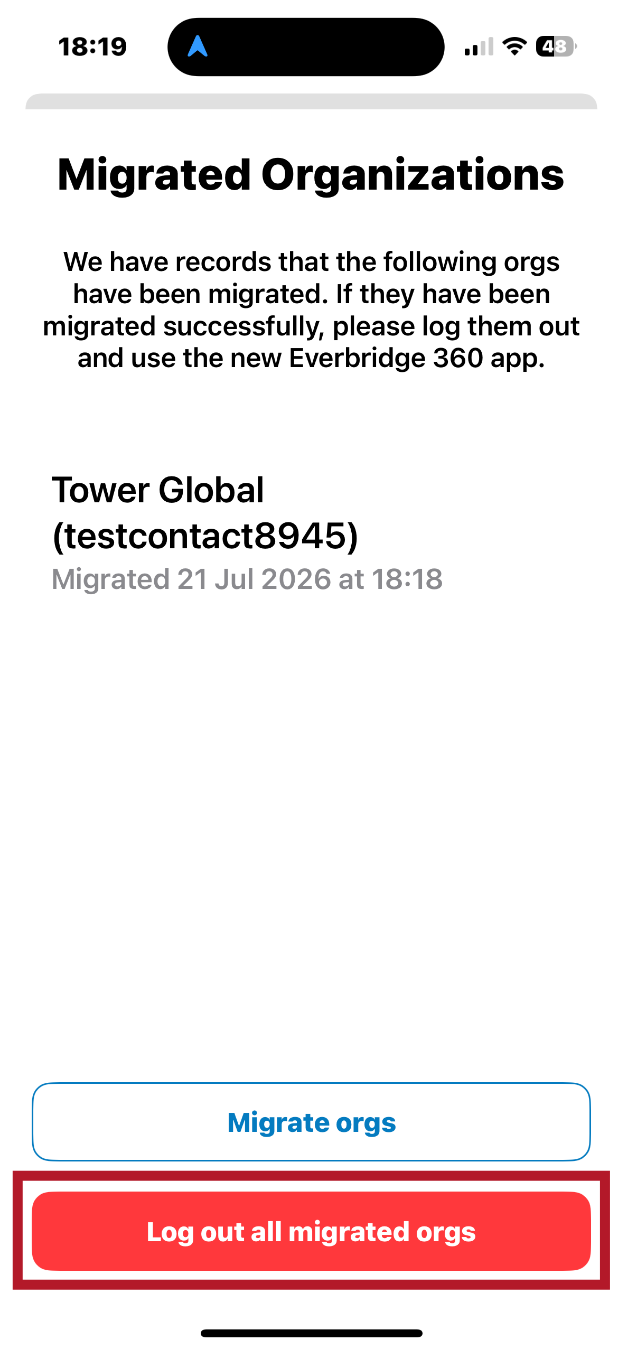
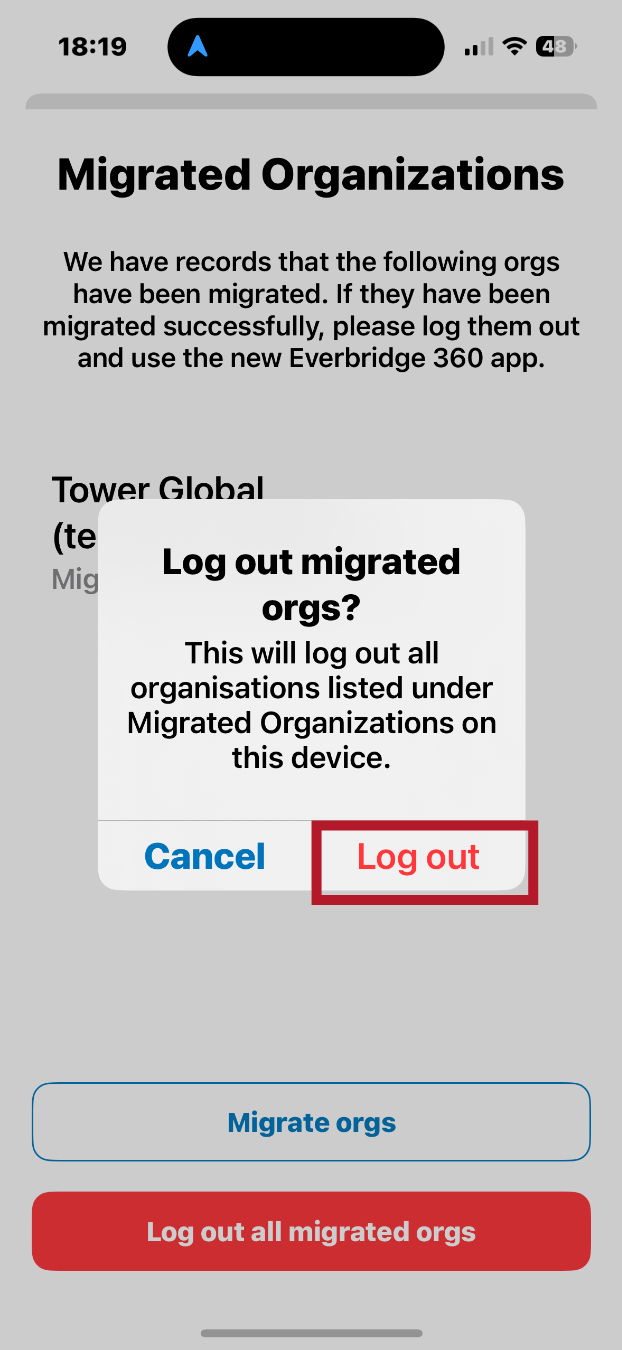
Return to the Everbridge Mobile Application and select Log out of all migrated organizations to complete the transition.
13. Logging Out of the Legacy App
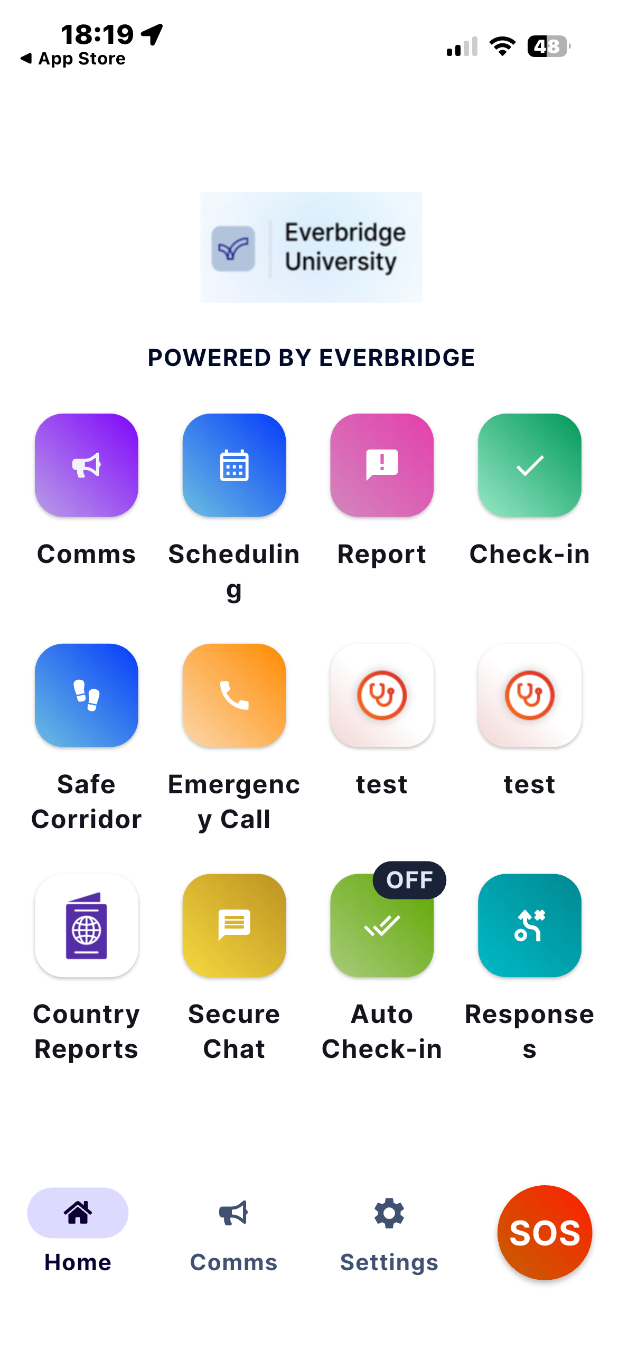
Migration to the Everbridge 360 Mobile Application is now complete.The dashboard and available features may vary based on organizational settings.
14. Completing Migration
Migration to the Everbridge 360 Mobile Application is now complete. The dashboard and available features may vary based on organizational settings.
This video covered the process of migrating from the Everbridge Mobile Application to the Everbridge 360 Mobile Application on an iOS device. Thank you for watching.