Topic
Migrating from the Everbridge Mobile Application to the Everbridge 360 Mobile Application on an Android mobile device.
Description:
1. Accessing Everbridge Mobile App
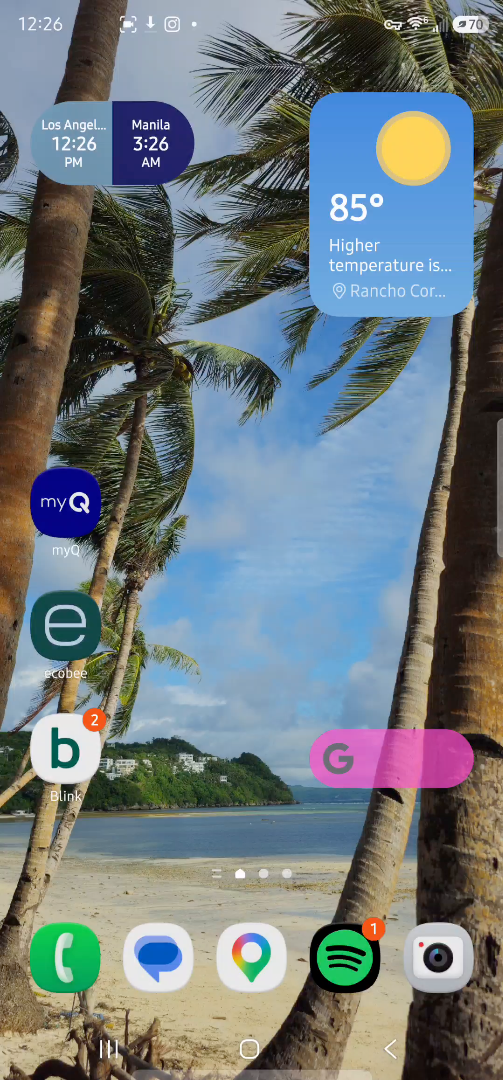
To migrate from the Everbridge Mobile App to the Everbridge 360 mobile app, you want to start by accessing the Everbridge mobile app.
2. Navigating To Migration Option
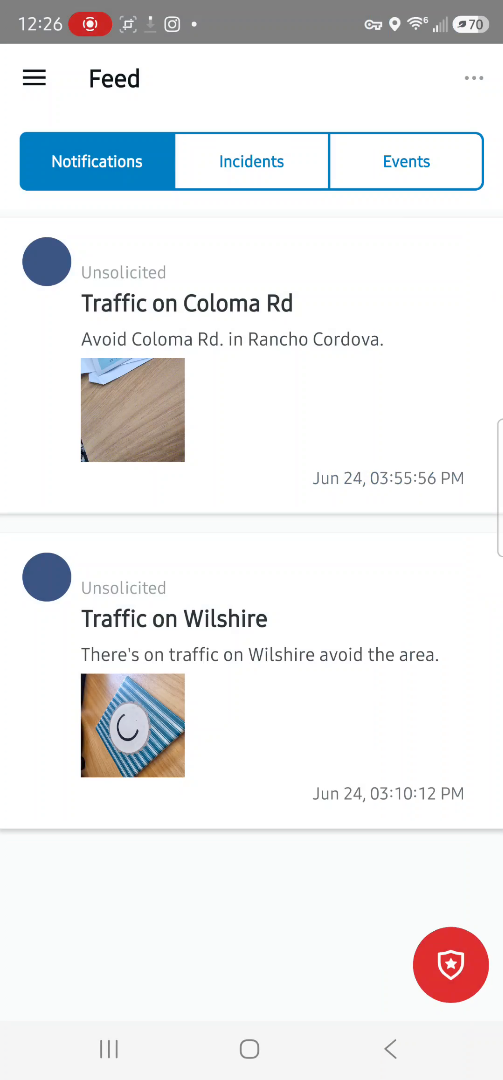
Once inside, select the three lines at the top left, toggle to settings, and select migrate to the new app.
3. Responding To Migration Prompt
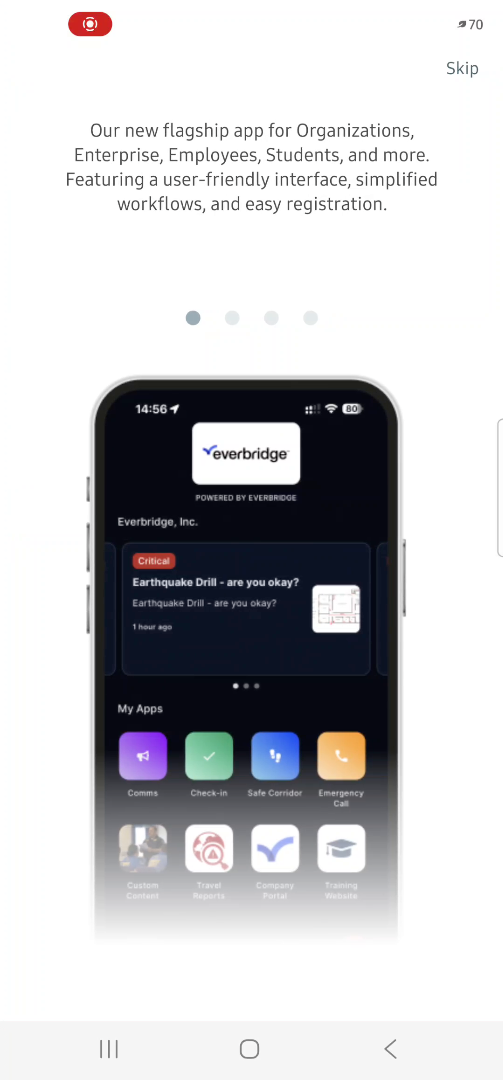
You'll scroll through a few introductory prompts. Then select Yes, Try Now.
4. Confirming Organization And Migration
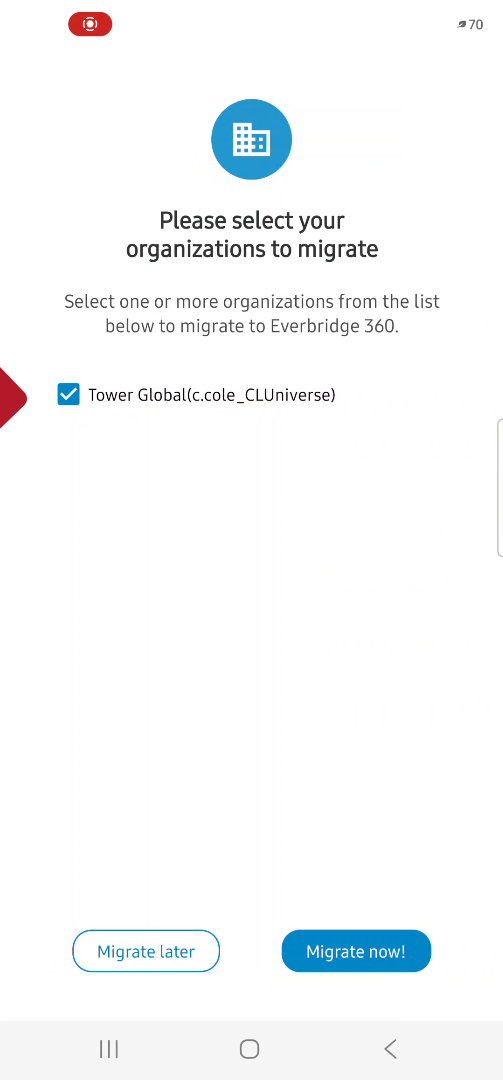
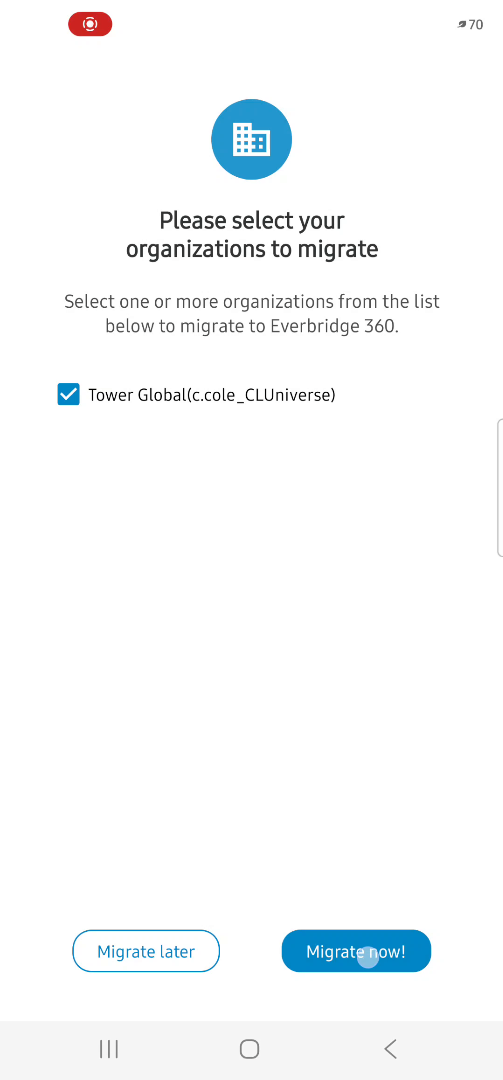
This is the organization that I'm currently logged into. and my username Select Migrate Now, to proceed.
5. Segment
6. Installing Everbridge 360 App
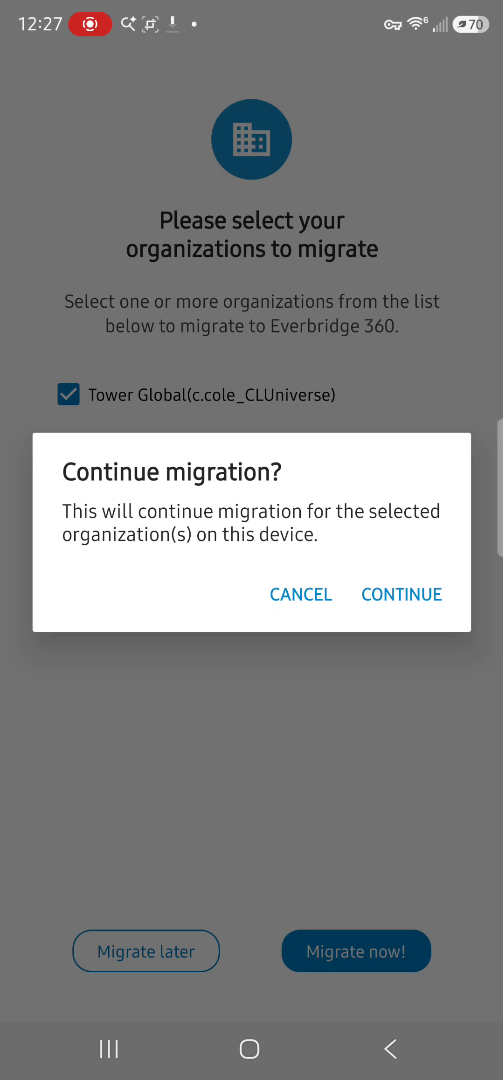
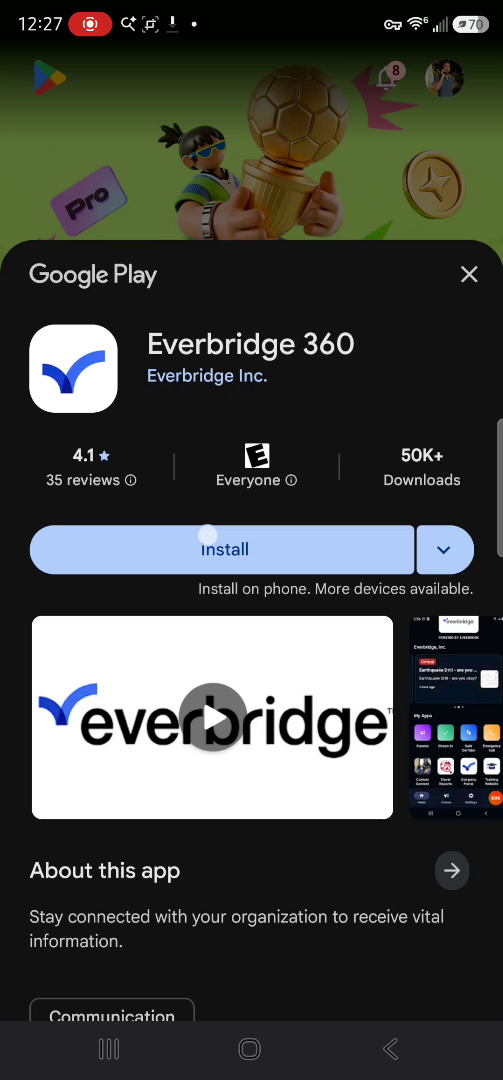
Select continue. I've been automatically forwarded to the Google Play store to download the Everbridge 360 Mobile App. Next, I'll select Install.
7. Segment
8. Segment
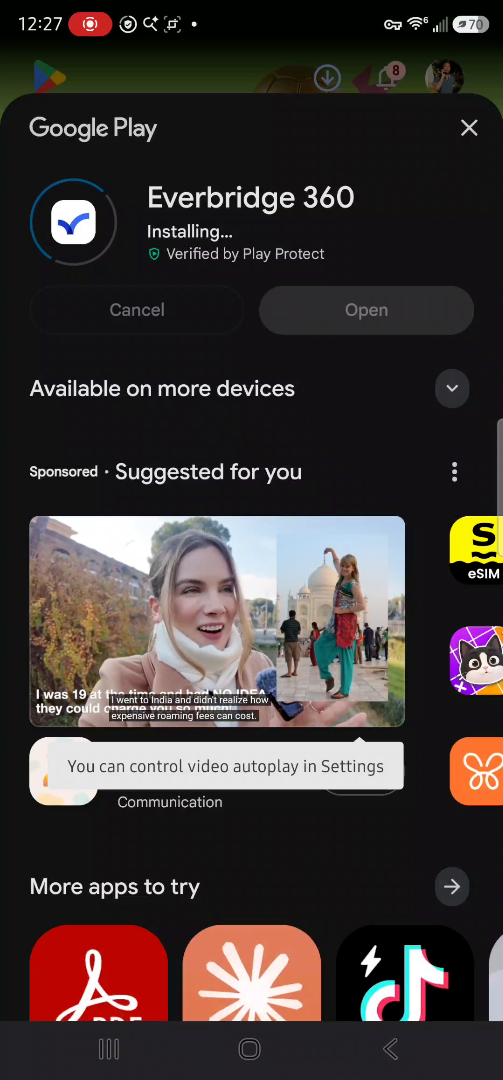
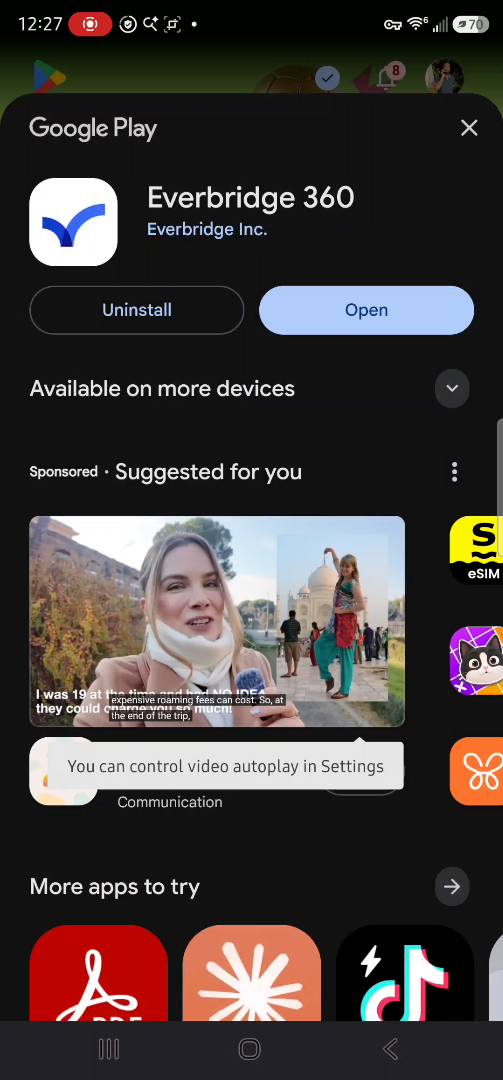
9. Opening And Starting Migration
It's now installed, and I'll select Open to open the Everbridge 360 mobile app. From the Welcom page, selec Yes, Migrate Now.
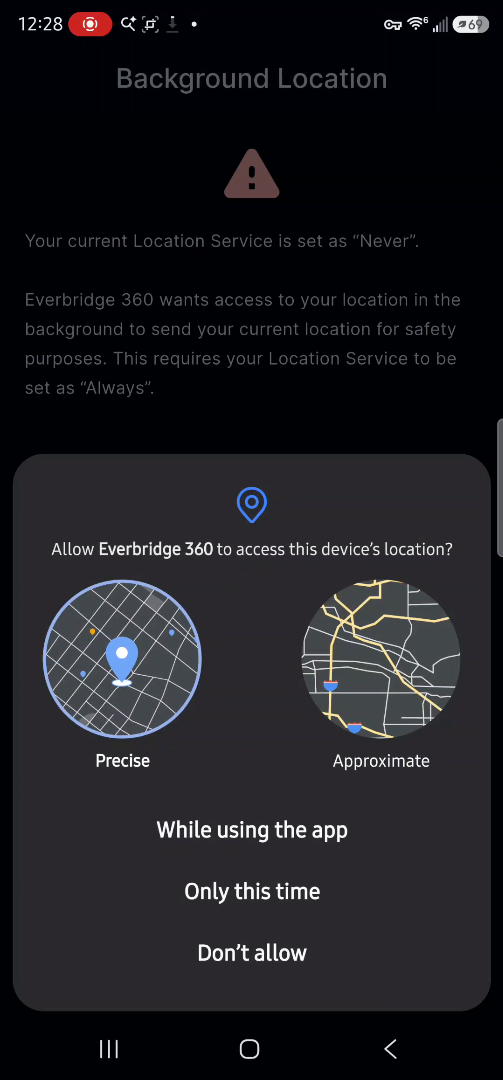
10. Adjusting Notification Permissions
Adjust your permission settings applicable to what's needed for your organization. Adjust Do Not Disturb permissions if needed. It's reccomended to allow the Everbridge 360 app to send you notifications
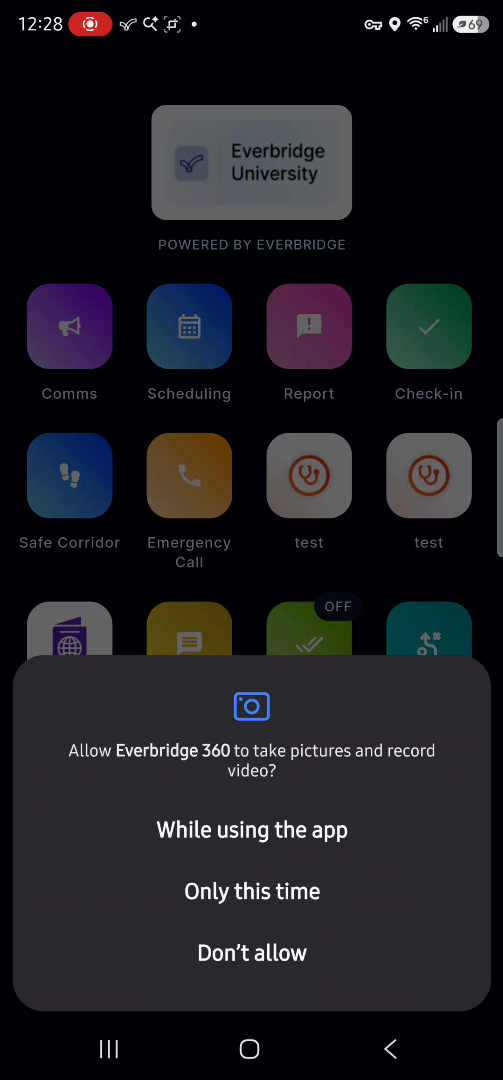
11. Enabling Safety Features Permissions
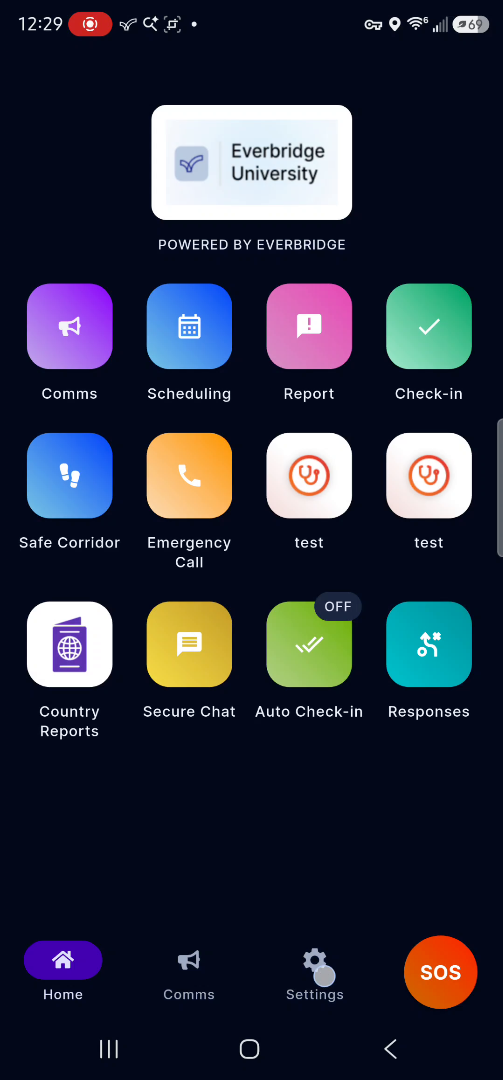
Optionally, allow Everbridge 360 to take pictures and record video. This is important for safety connection features. Optionally, allow audio. I have successfully migrated to the Everbridge 360 mobile application. Your dashboard may look different depending upon what features your organization has enabled.
12. Verifying Account Transfer And Profile Management
When I select the settings icon. I can see that my account has transferred. The organization is correct. I can manage my profile here or log out if needed.