Topic
Profile settings available in the Everbridge Community.
Description
This guide will help you navigate the profile settings available on the Everbridge Community site.
Go to public.everbridge.net
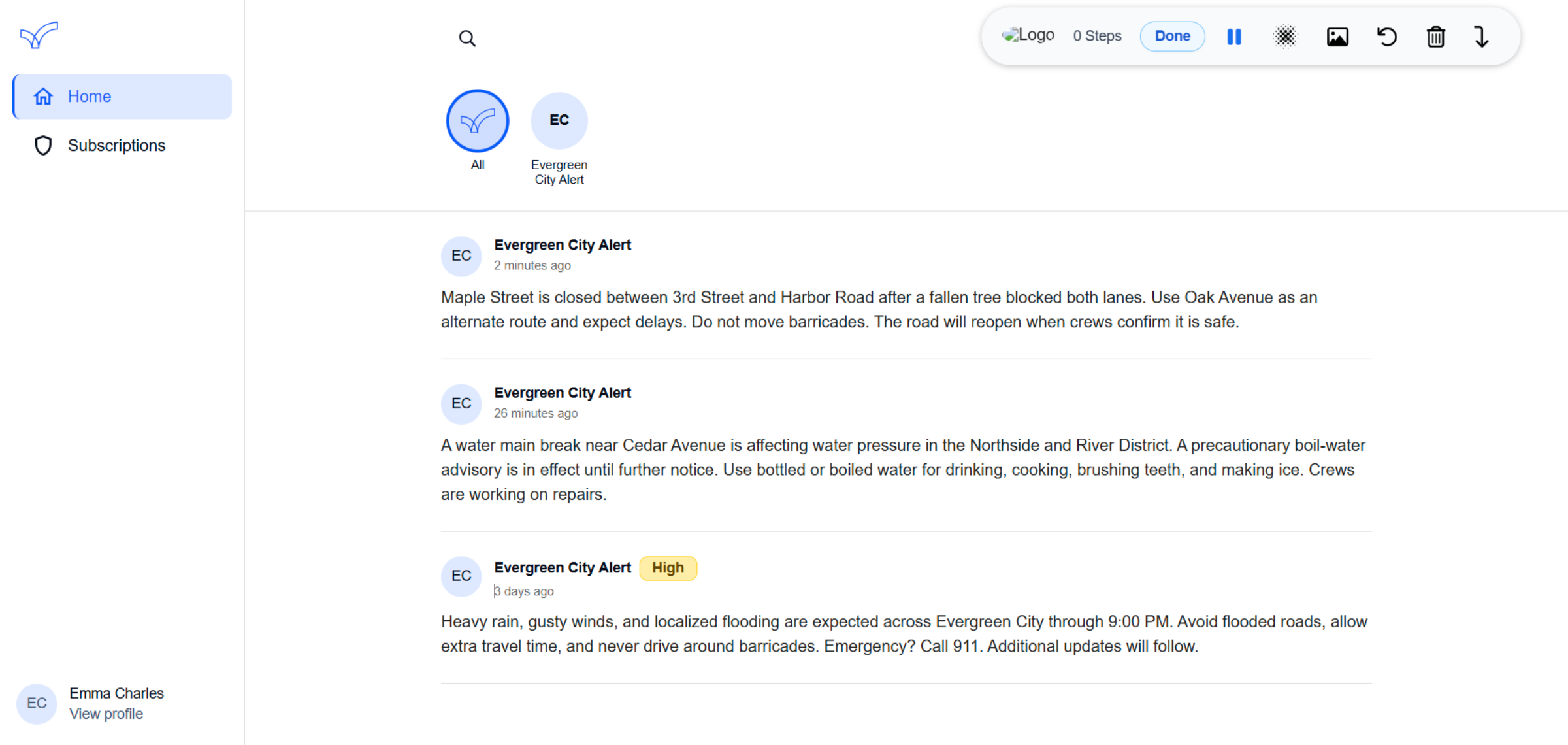
1. Access Community
Begin by logging in to the community.
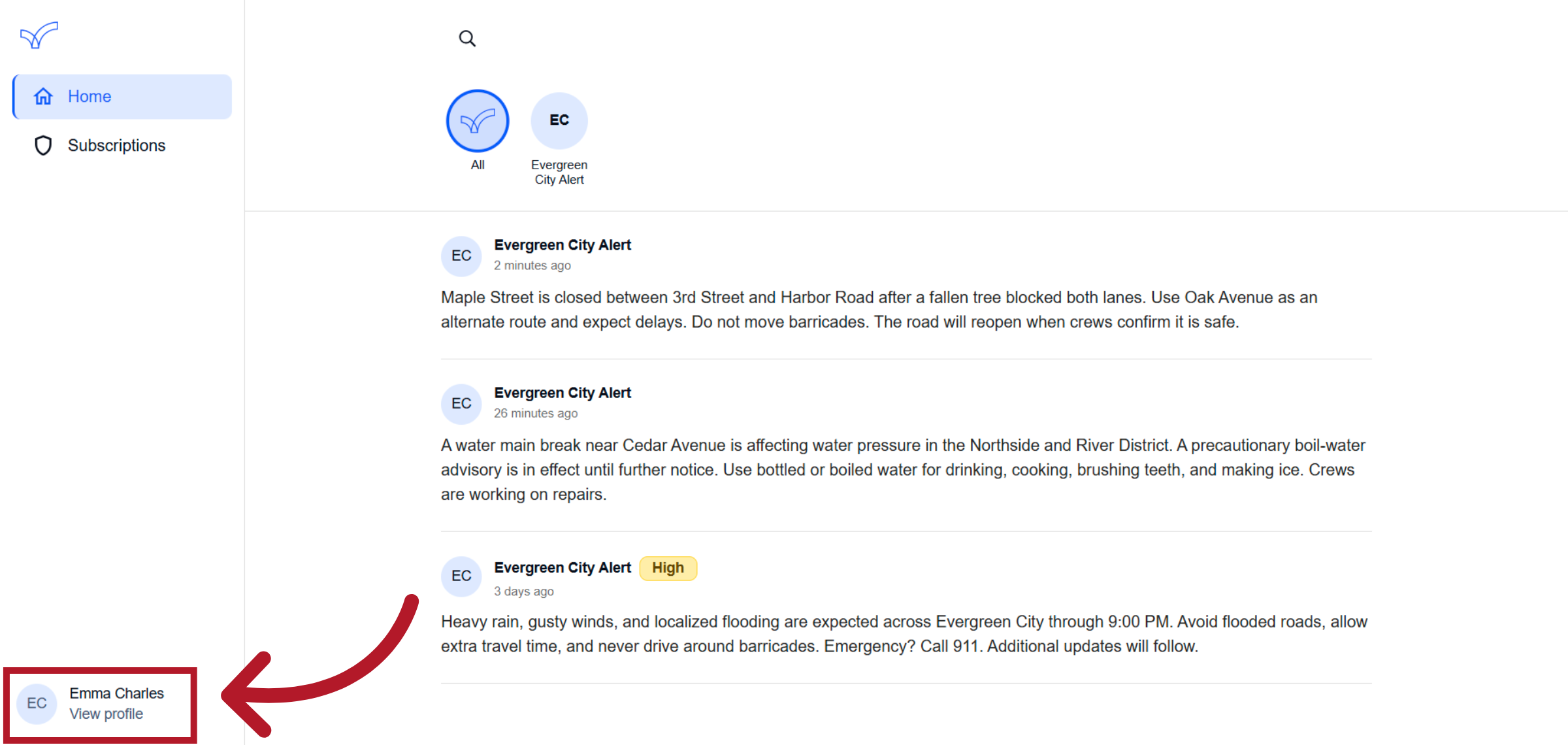
2. View User Profile
Navigate to the user profile to manage account settings and personal information.
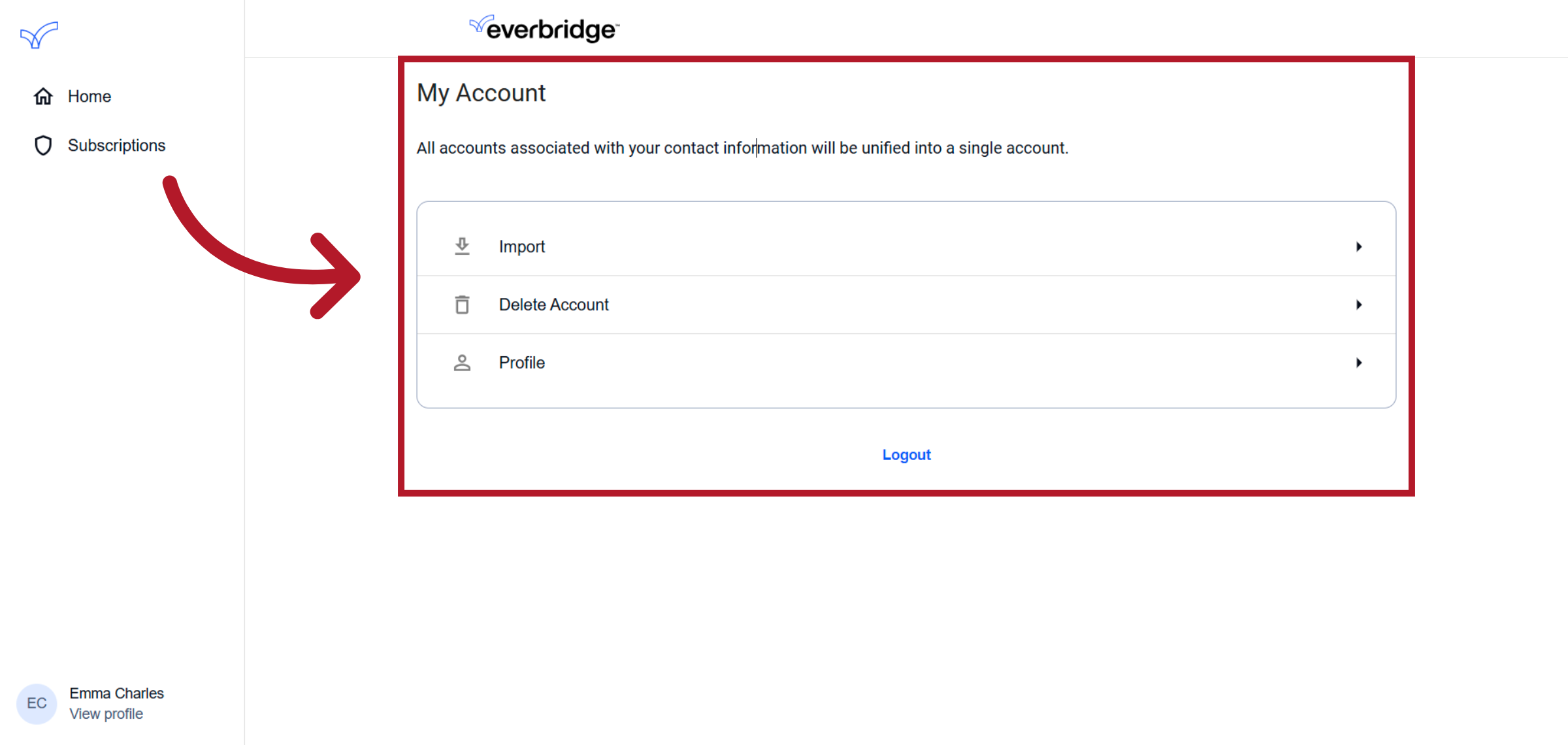
3. View User Profile
You can configure items like editing your account profile directly from the profile page.
4. Link Existing Accounts
In this section, we will explore the process of linking existing accounts.
5. Start Account Import
Initiate the account import process to link existing accounts using your contact information.
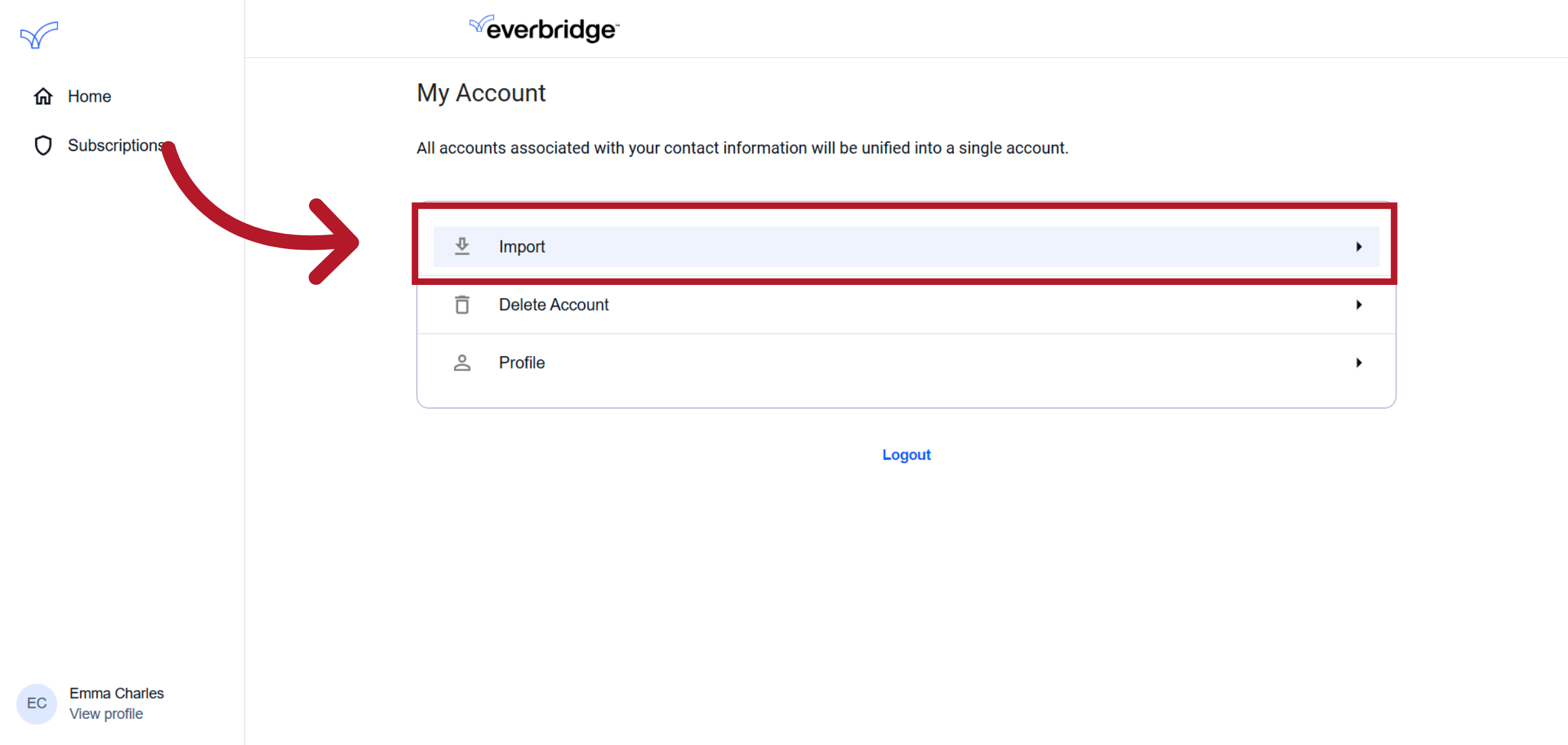
6. Account Linking
Linking can either be done automatically or manually.
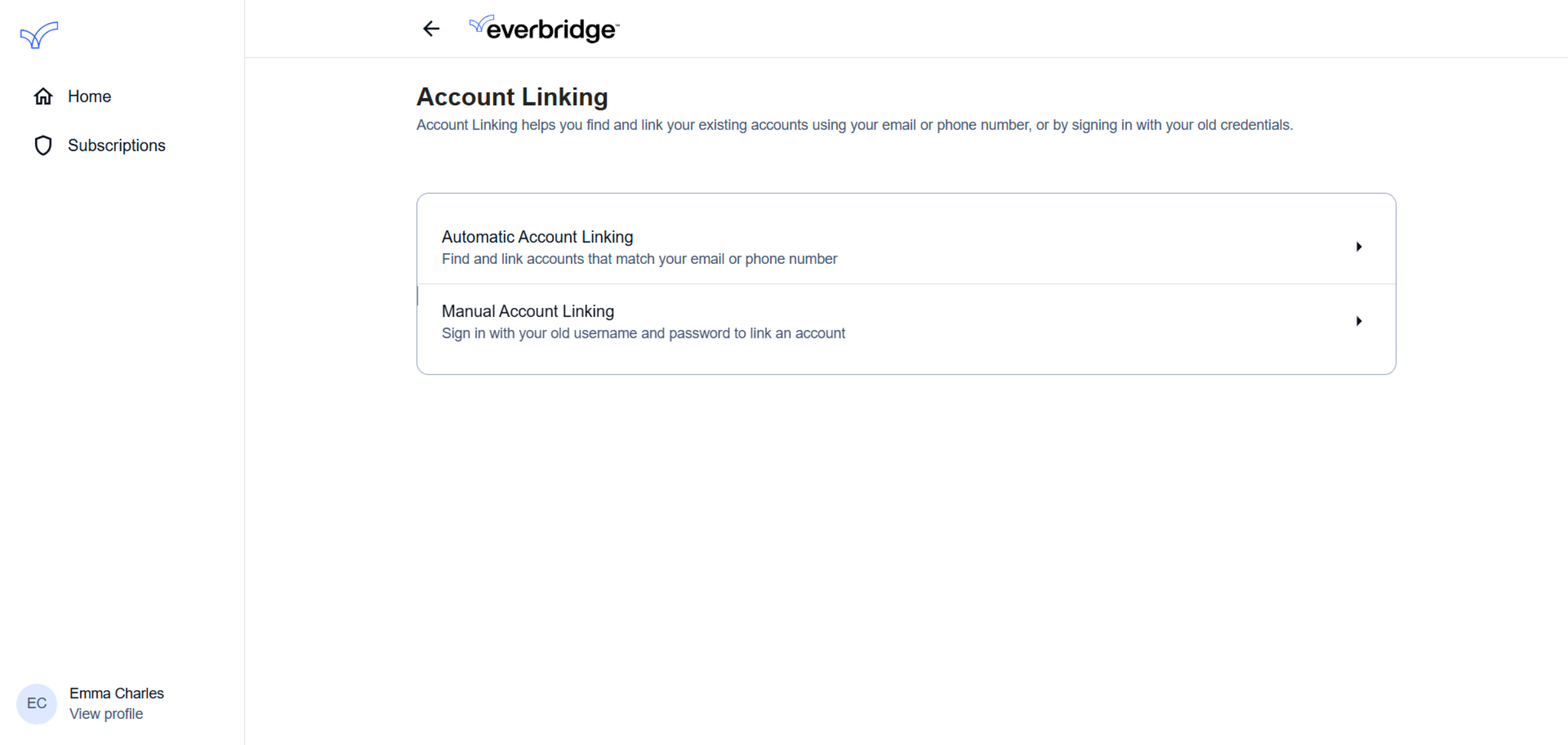
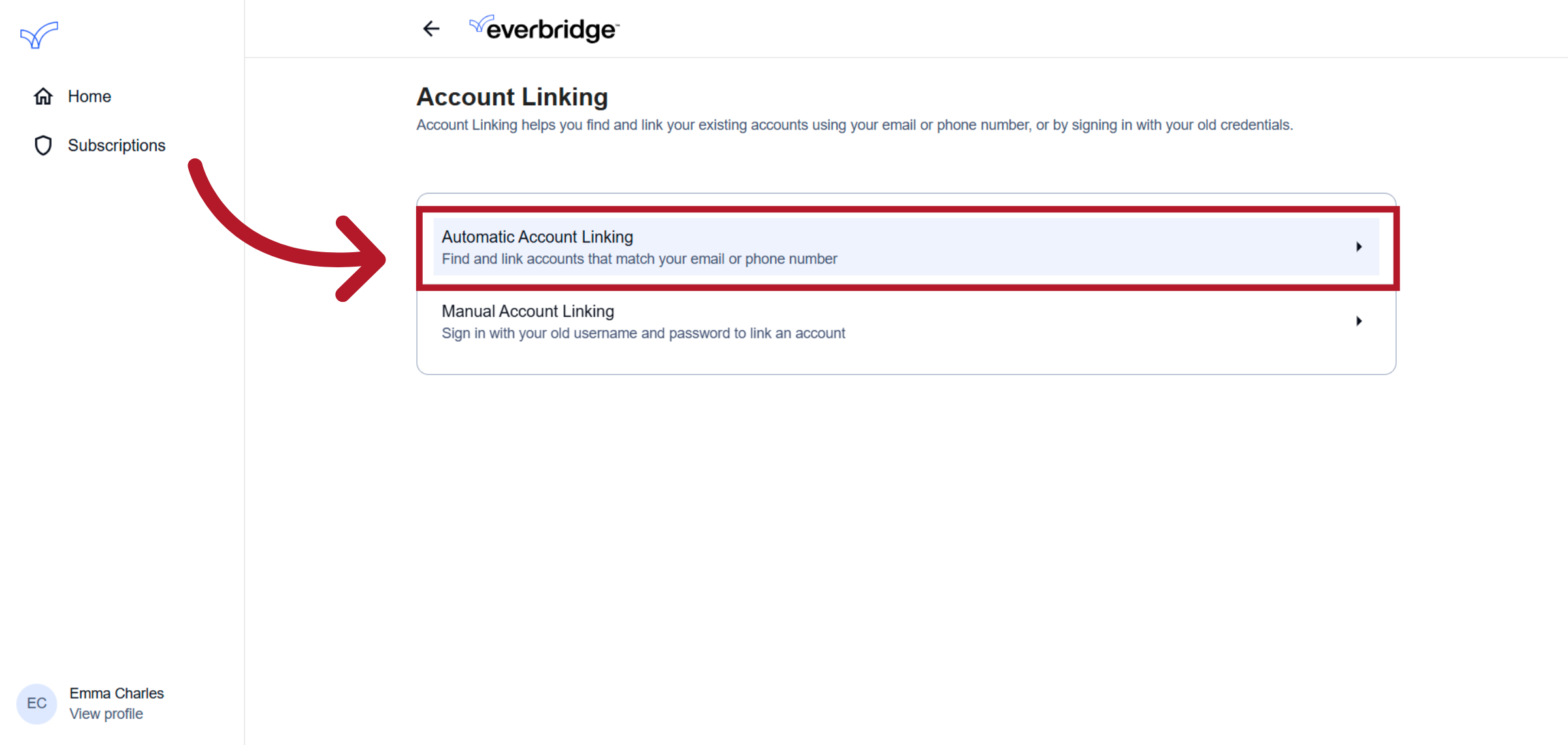
7. Click "Automatic Account Linking"
To automatically link your accounts, click on 'Automatic Account Linking.' This feature will identify and display any accounts associated with your registered email address or phone number. Once activated, matching accounts will be conveniently showcased on your Home page.
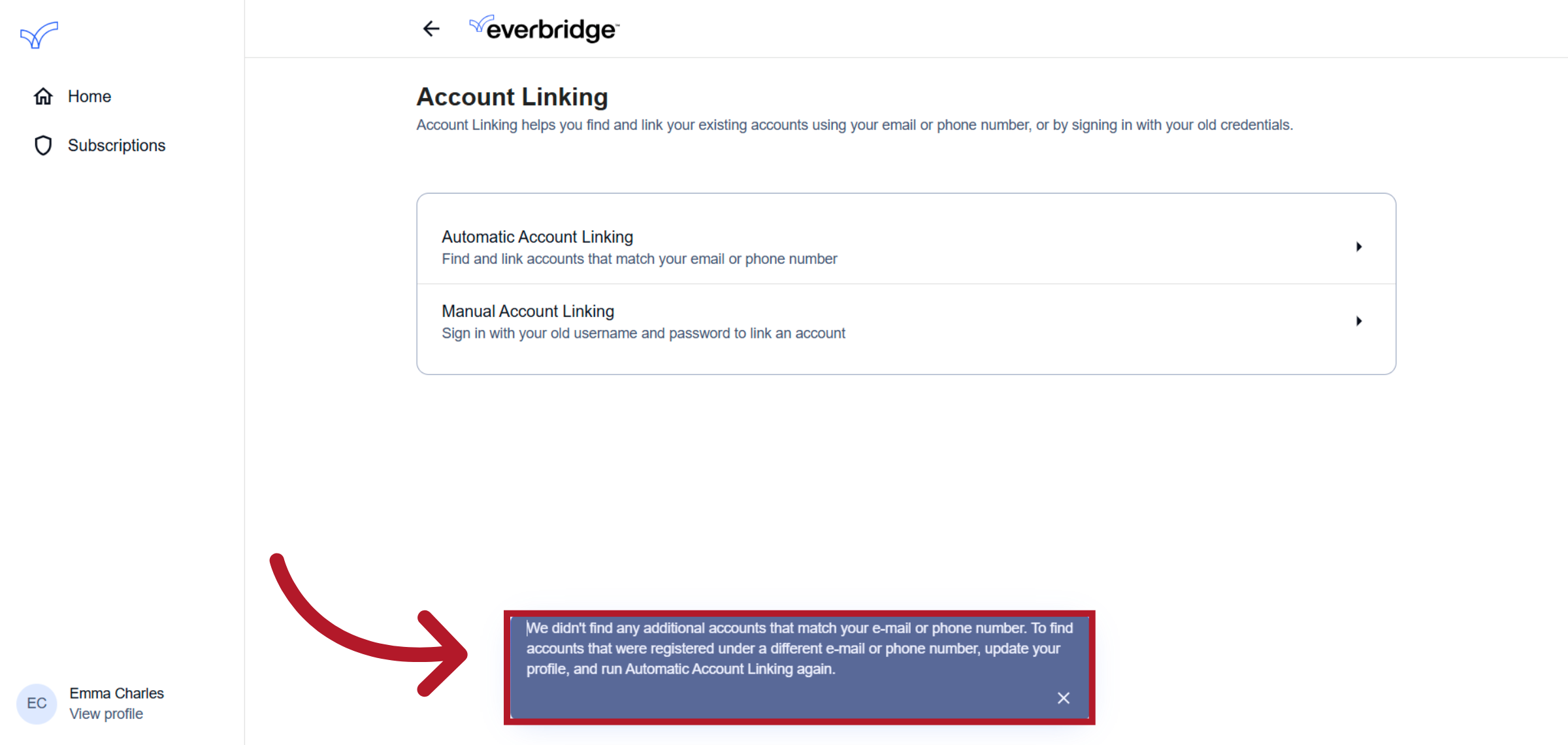
8. No Matches
If no accounts match your email or phone number, a message will appear at the bottom of the page indicating that no accounts were found.
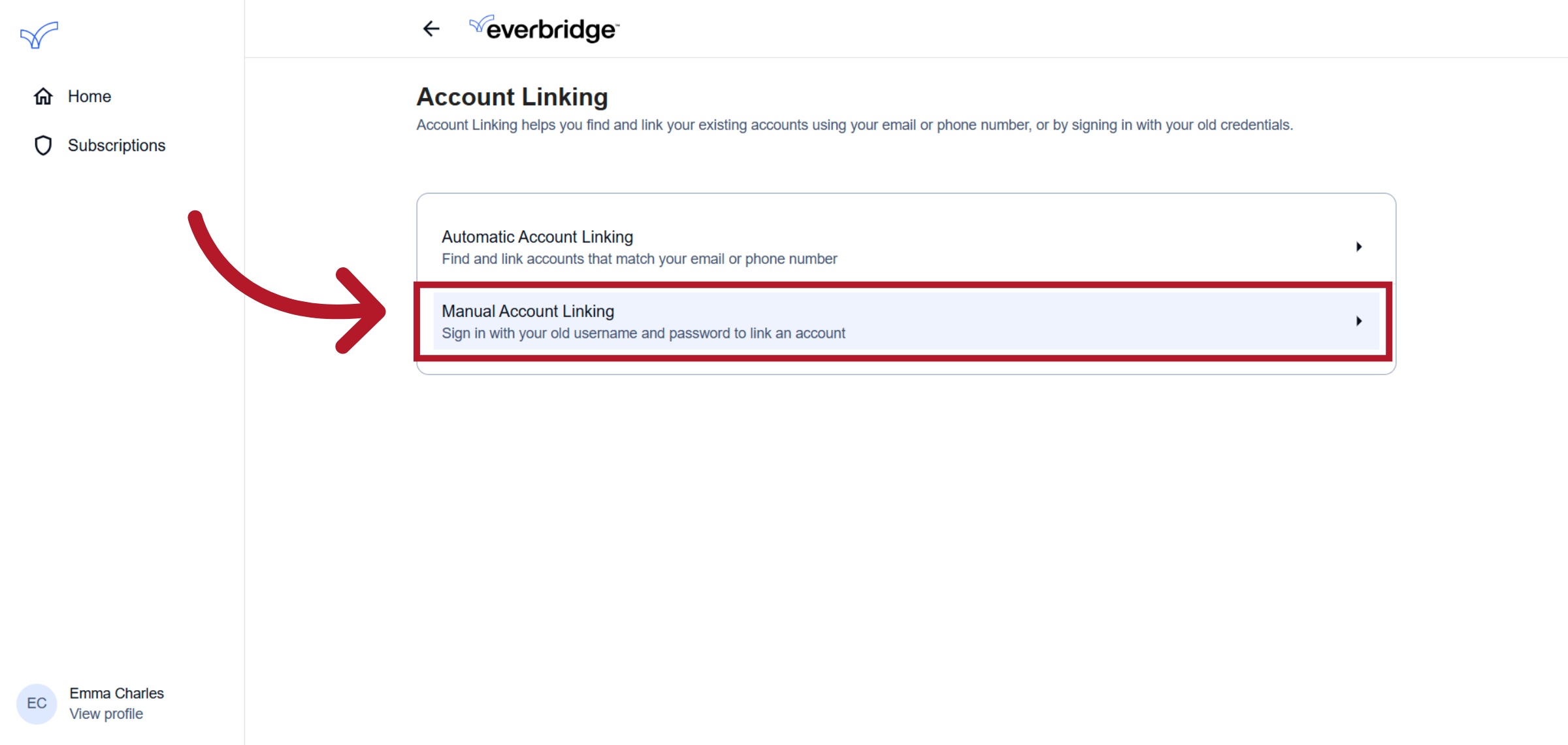
9. Click "Manual Account Linking"
Accounts can also be manually linked using the Member Portal username and password.
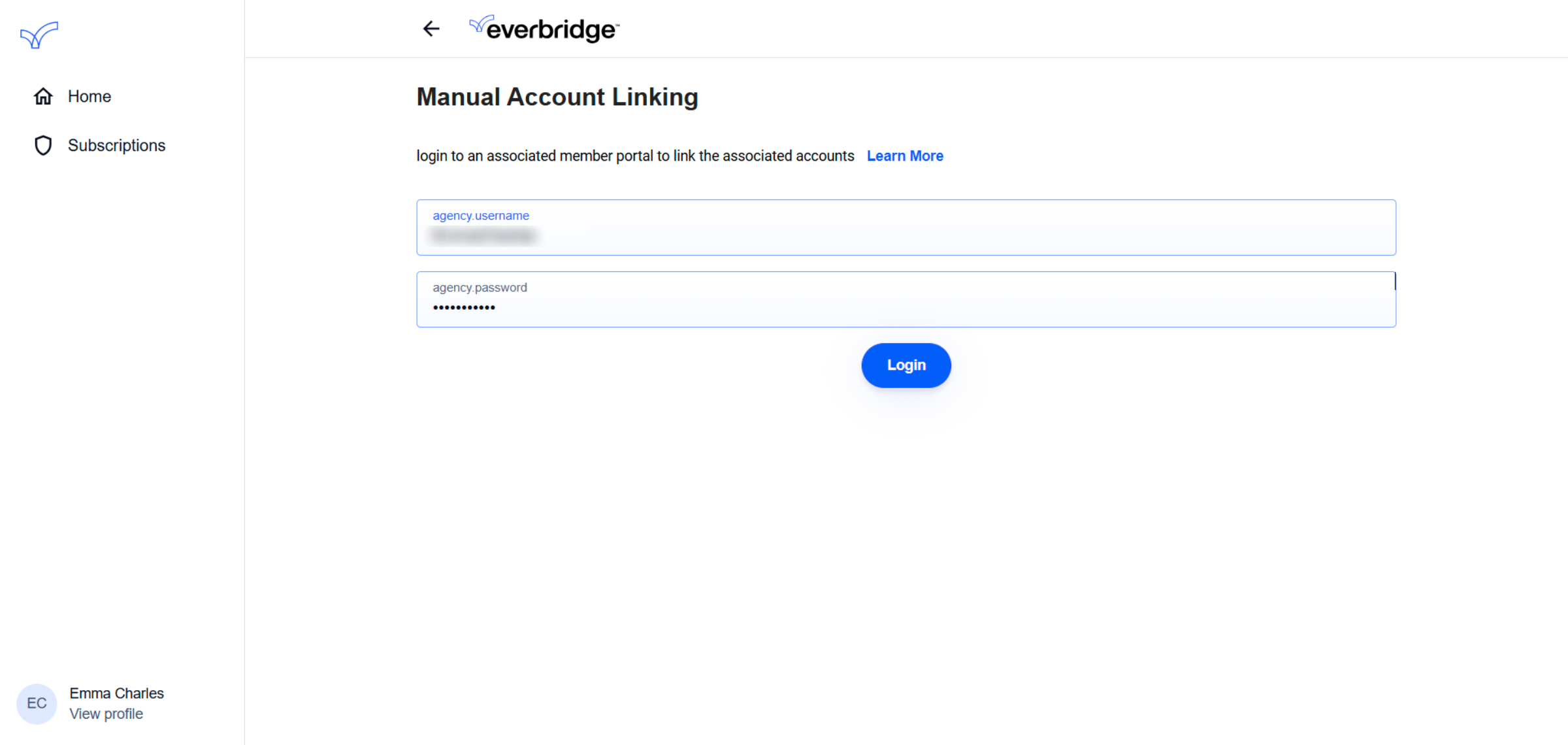
10. Manual Account Linking login
Enter your Member Portal username and password.
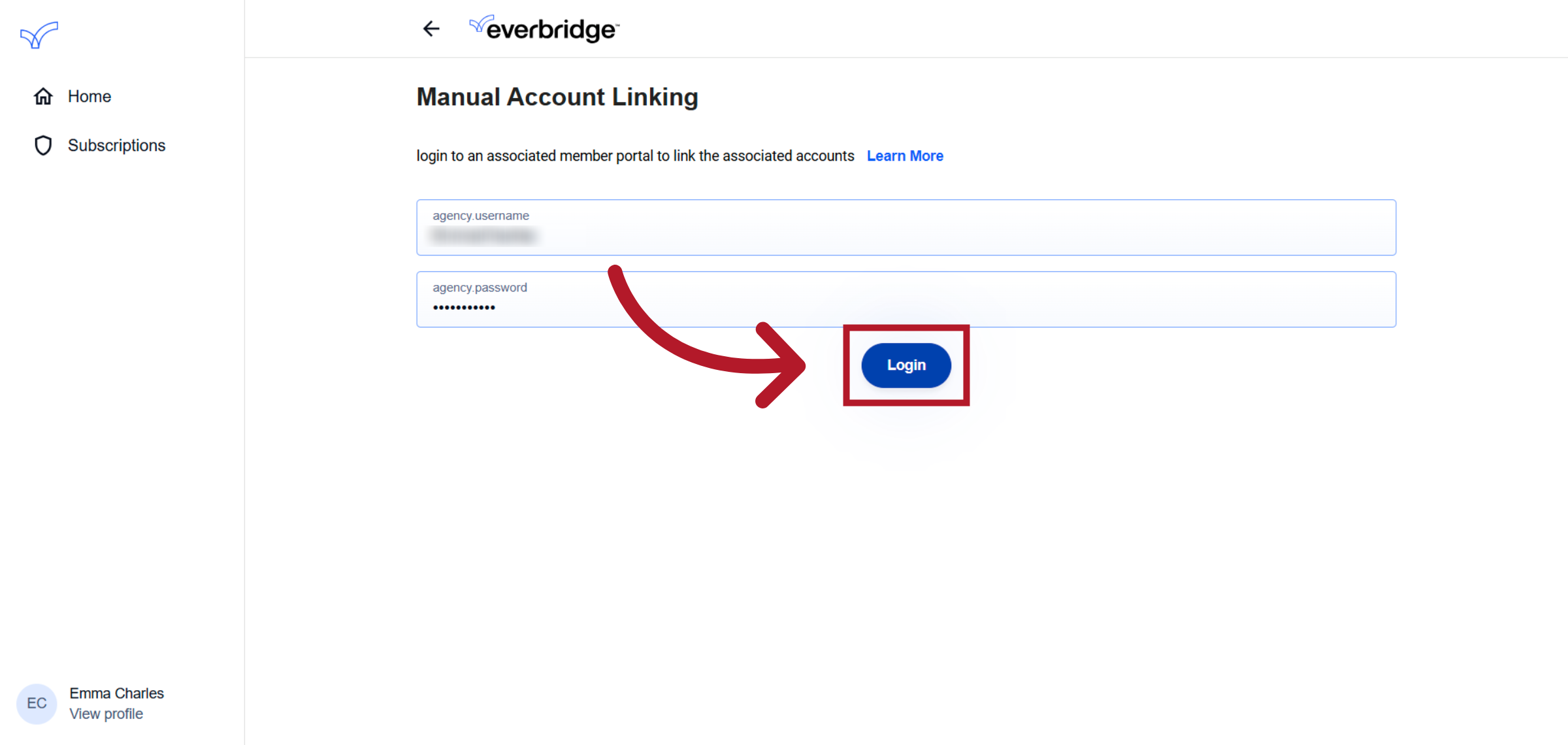
11. Confirm Login
Click login to complete the manual account linking process.
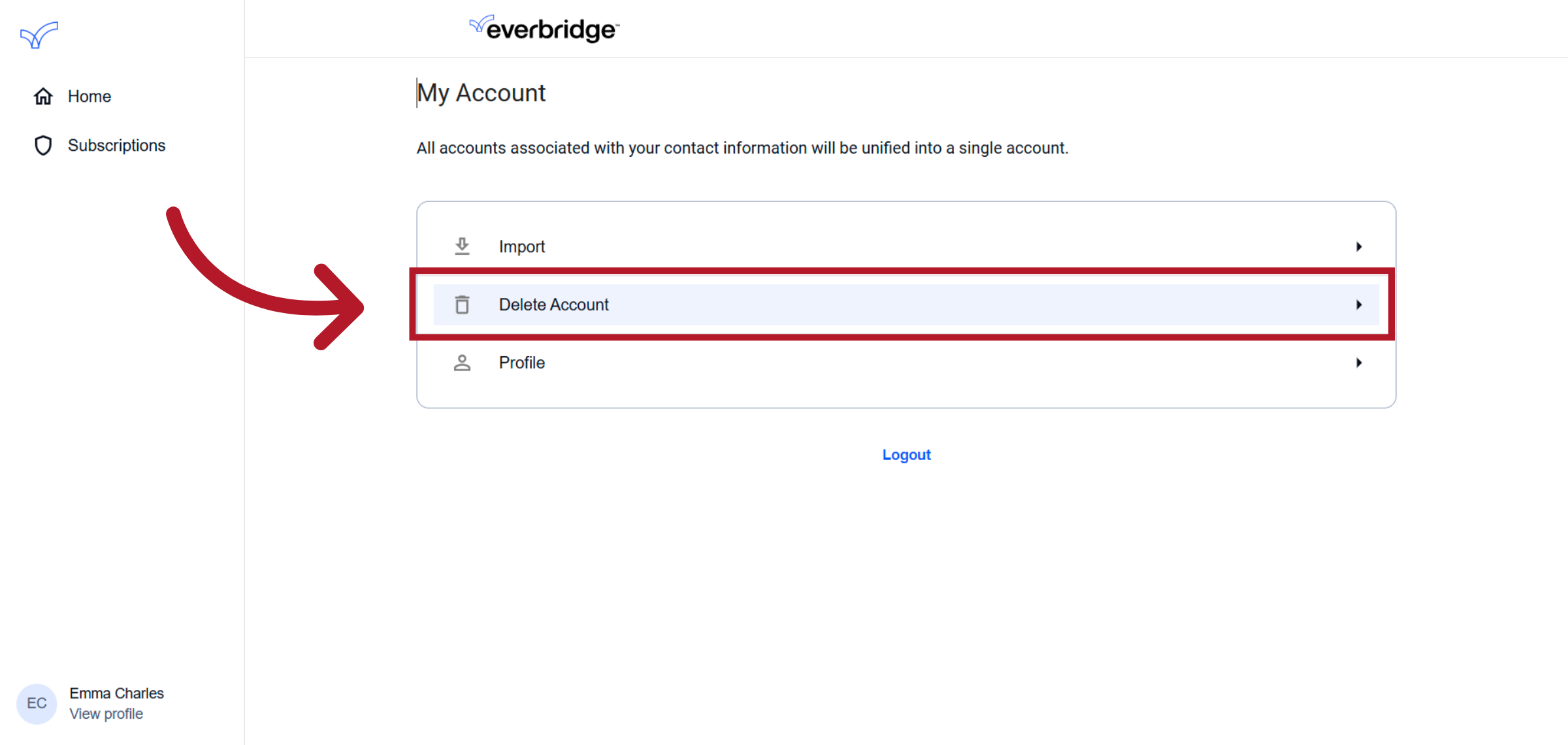
12. Delete Account
In this section, we will delve into the steps involved in deleting an account.
13. Delete Account
Begin the process to delete your account and remove all linked profiles and subscriptions.
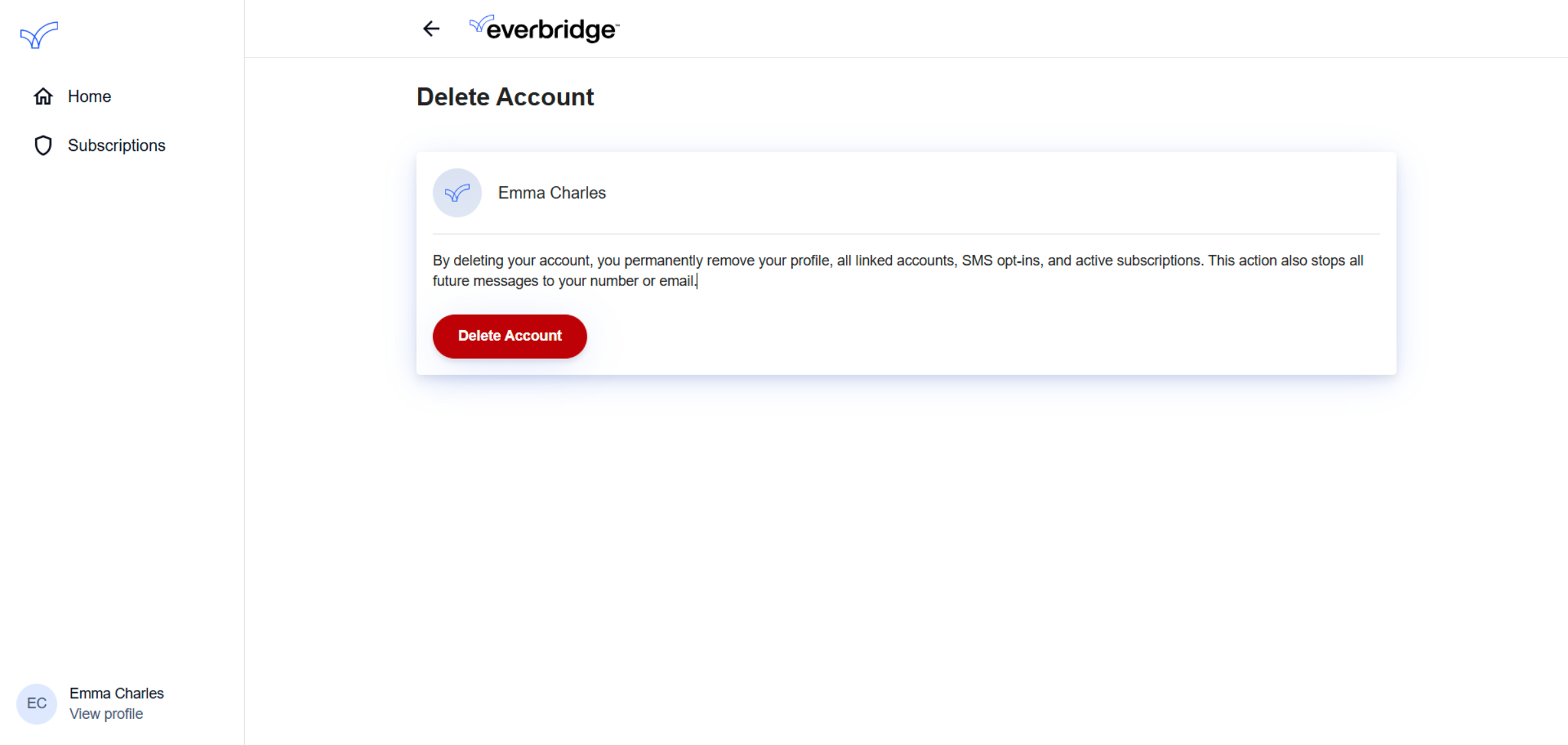
14. Confirm Account Deletion
Deleting an Everbridge Community account will permanently remove your universal profile, unsubscribe you from all Organizations, and revoke any SMS opt-ins
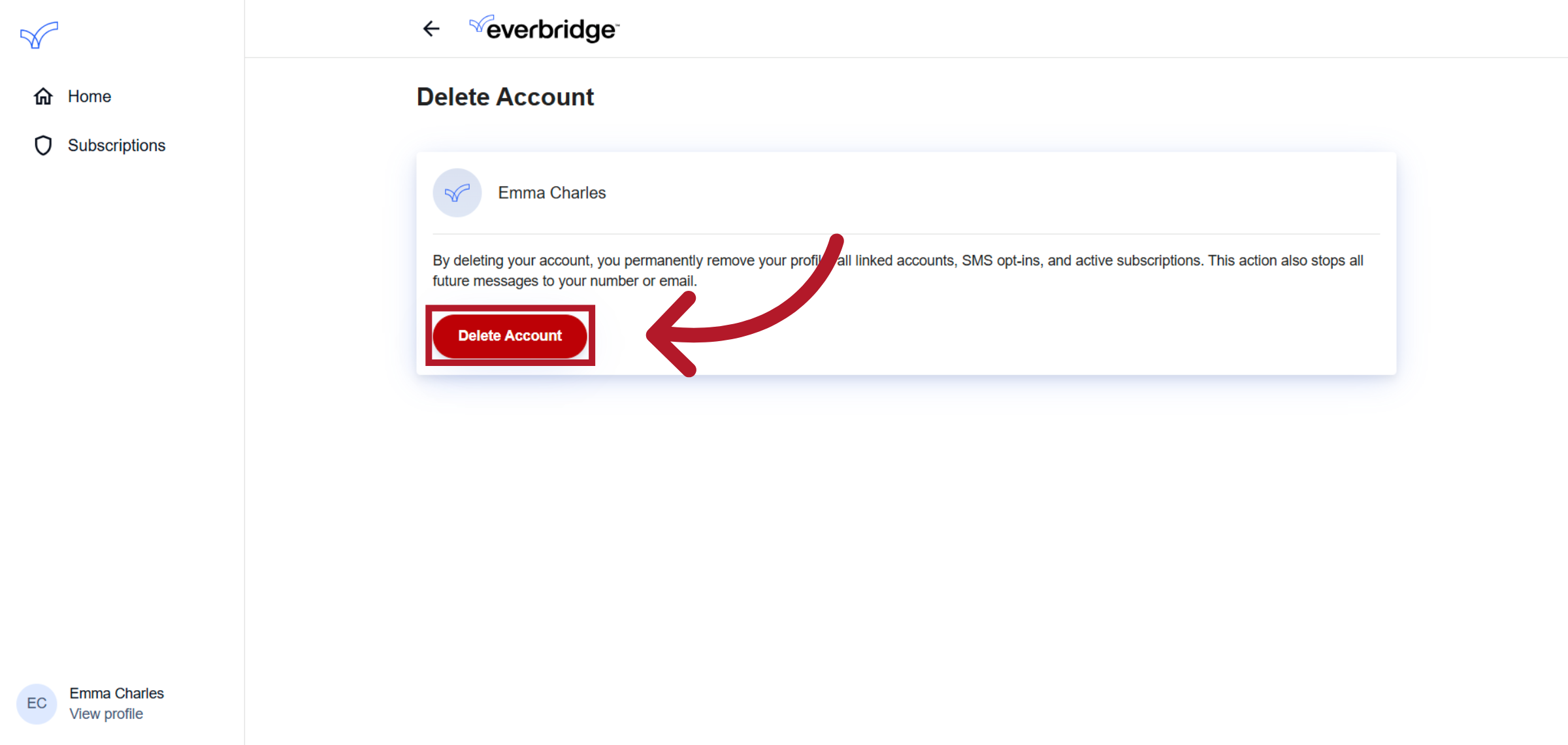
15. Click "Delete Account"
Click here to delete your account.
16. Delete Account
In this section, we will delve into the steps involved in deleting an account.
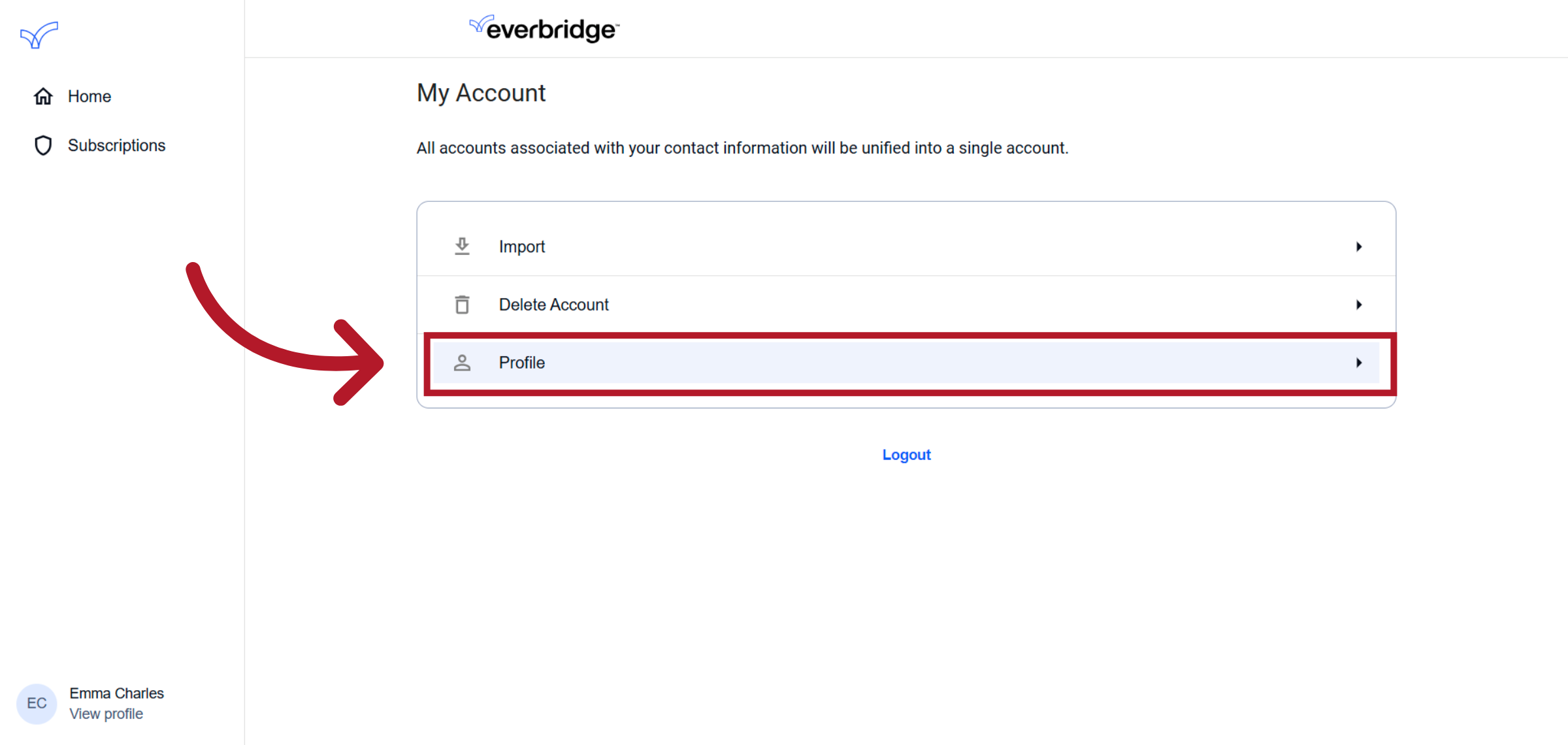
17. Profile
Navigate to the profile section to update your preferences and personal details.
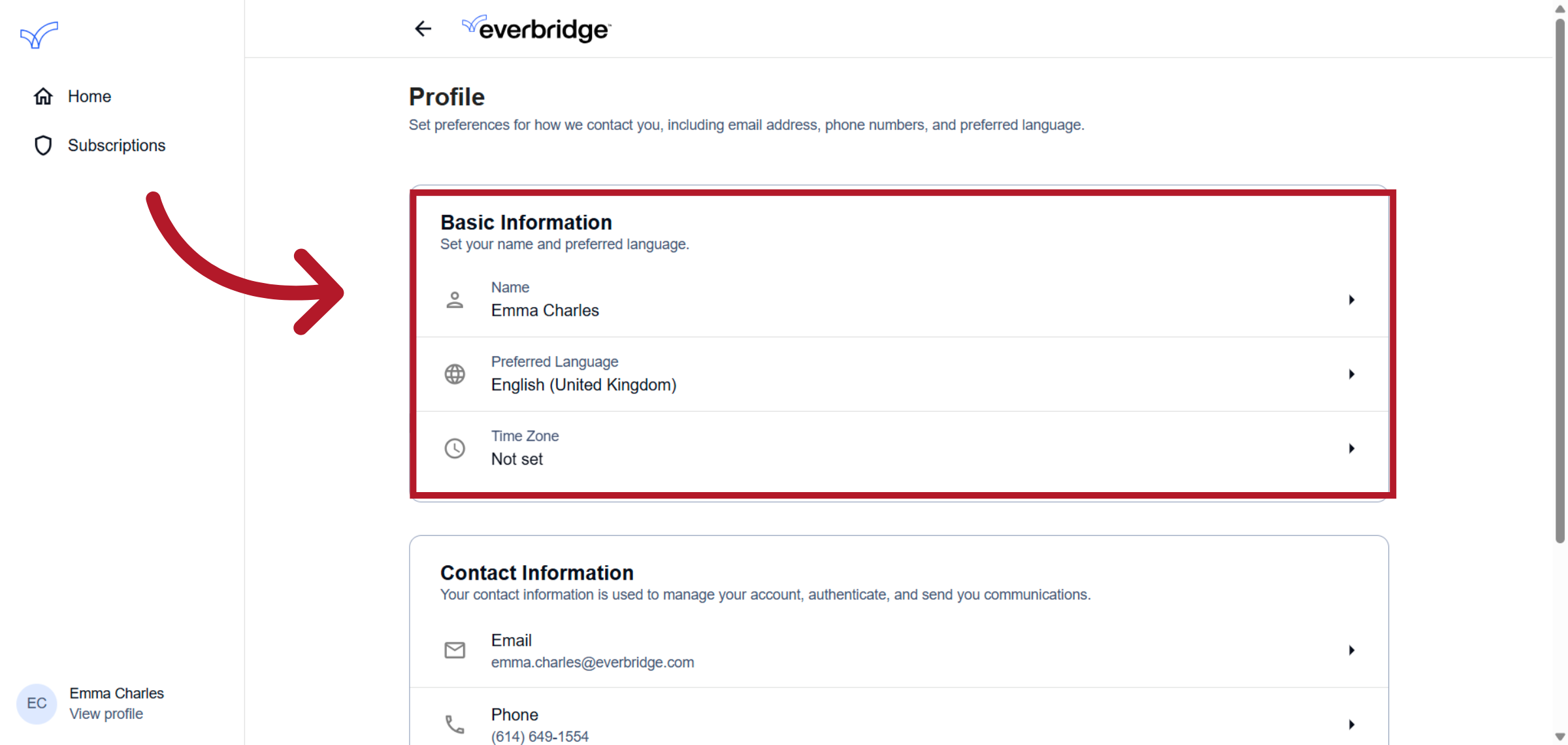
18. Basic Information
To update your profile name, preferred language, or time zone, simply navigate to the appropriate section and modify the content.
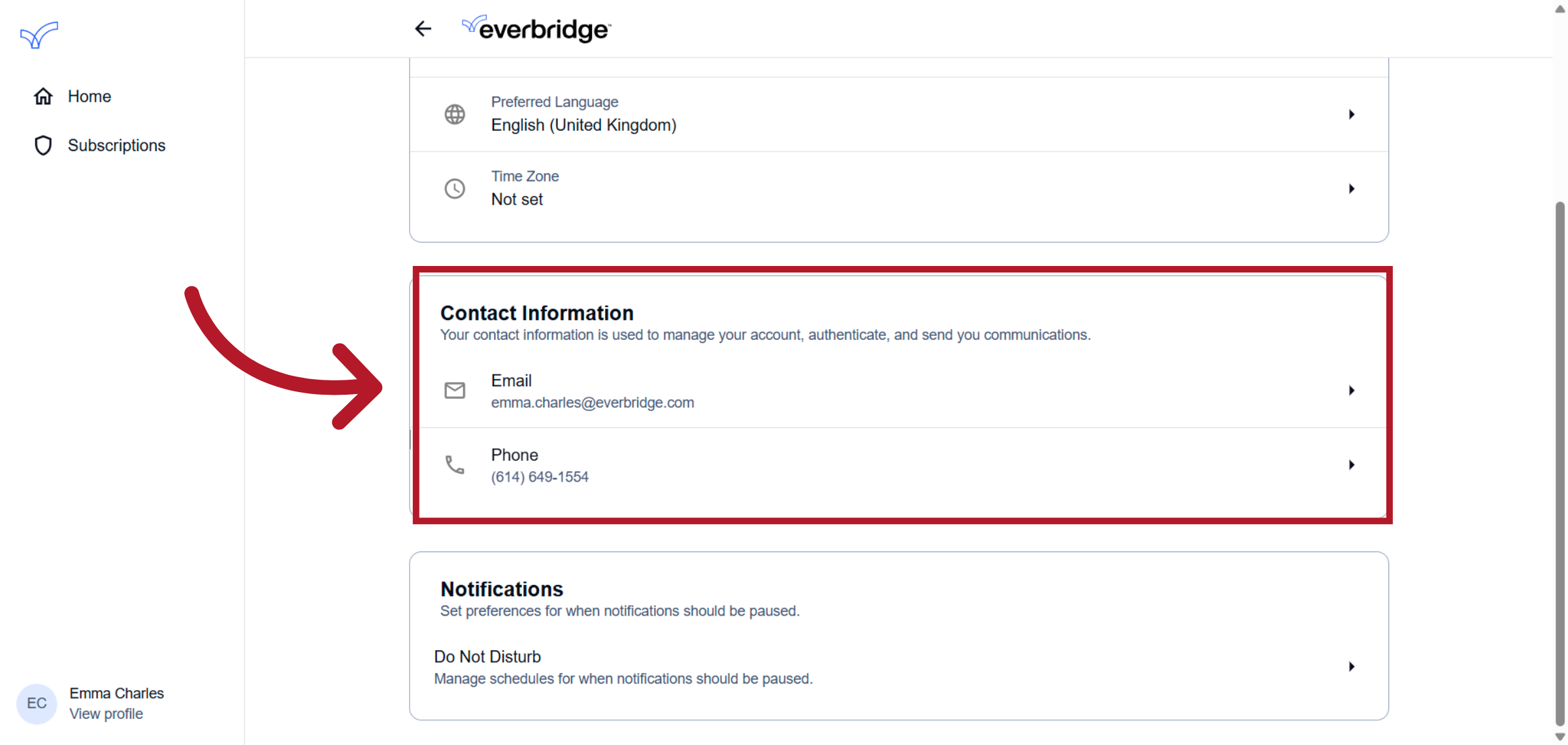
19. Modify Contact Information
You can update your contact information, including your email and phone number. This information is essential for managing your account, authentication, and communications.
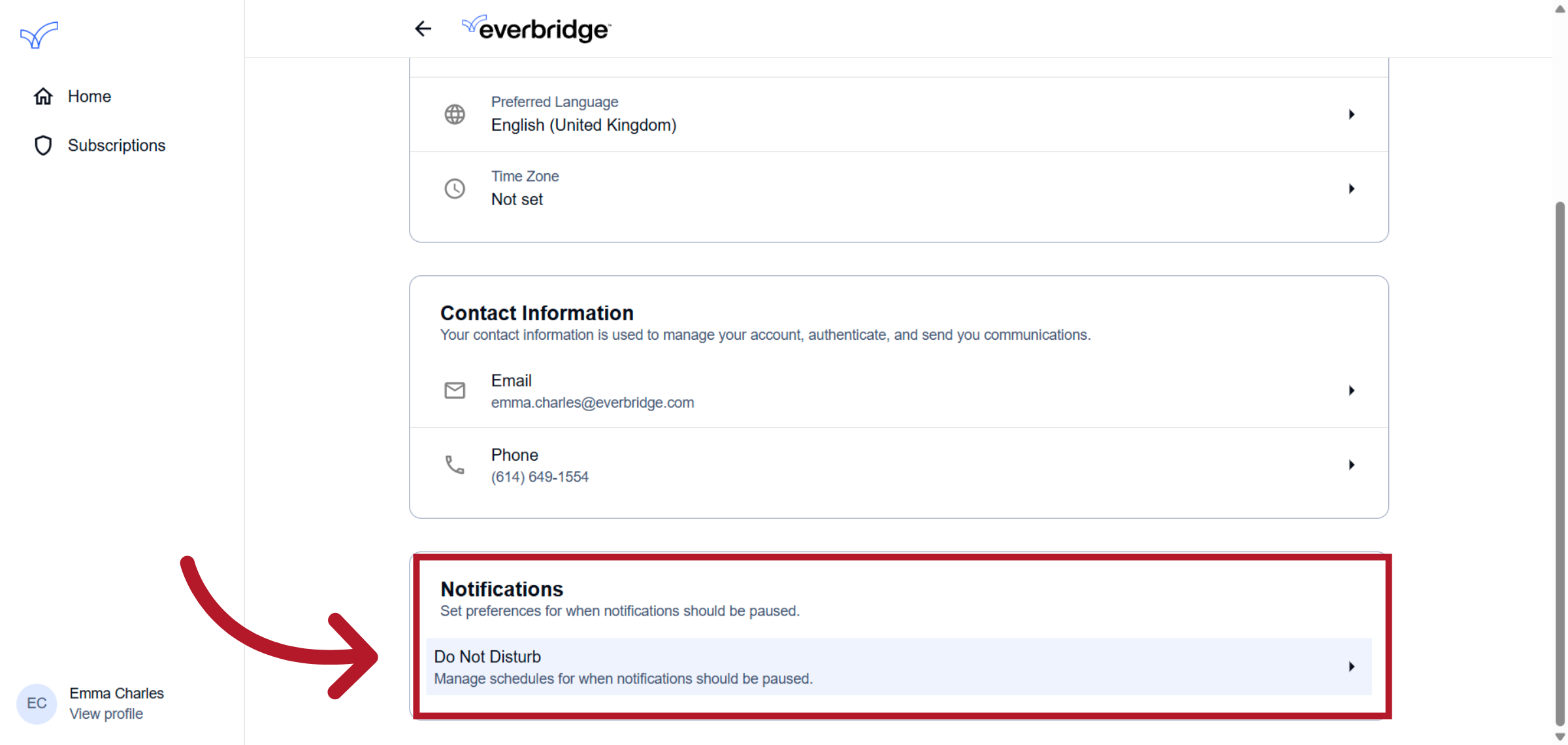
20. Open Do Not Disturb Settings
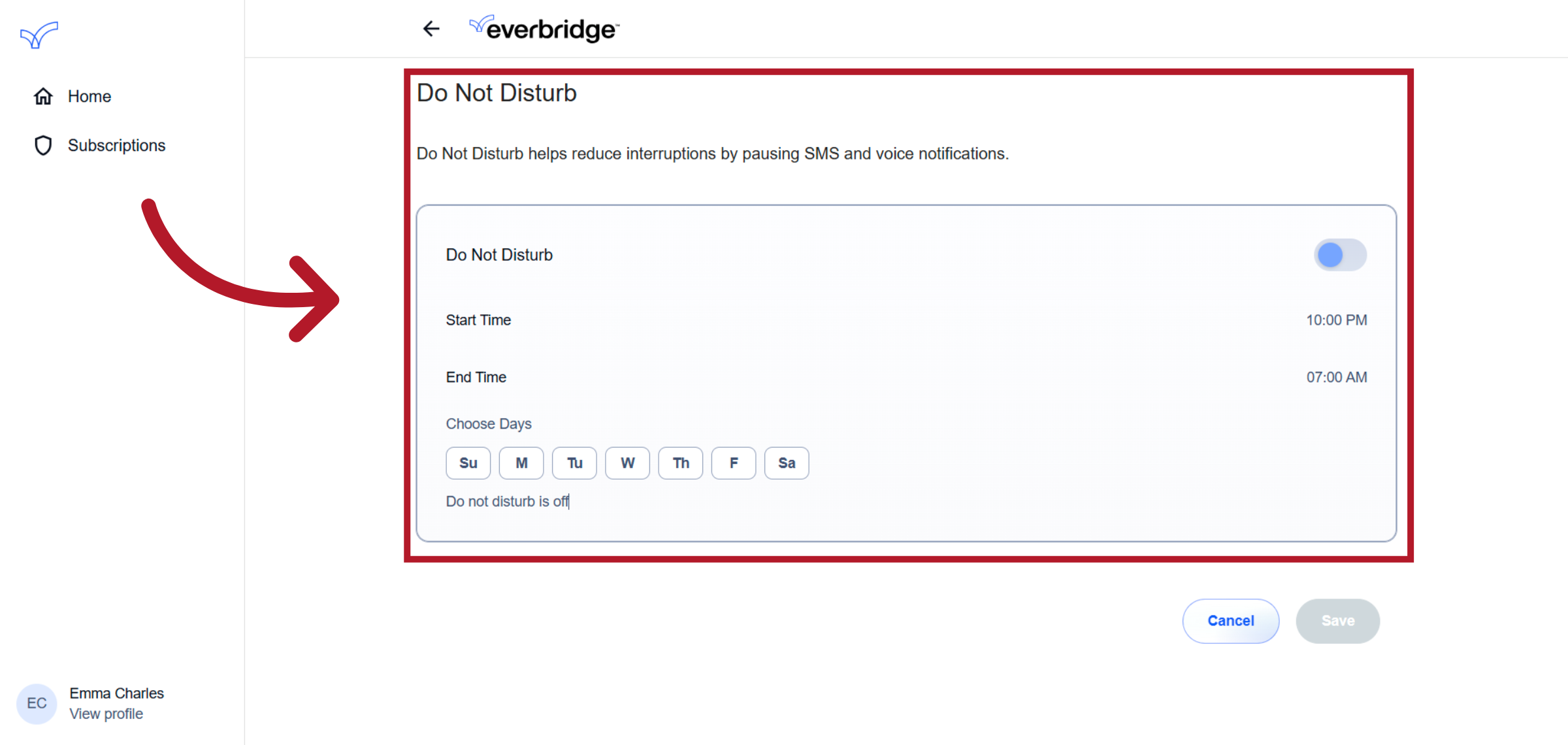
Open the Do Not Disturb settings to set preferences for notification interruptions during specified times.
21. Review Do Not Disturb Options
Review options to pause SMS and voice notifications during your chosen Do Not Disturb period.
This guide provides an overview of the various settings available within the Everbridge Community.
For more information on the Everbridge Community, visit the user guide here: EBS: Everbridge Community User Guide
