
Topic
Resetting your Everbridge Manager Portal password.
Description
This video walks you through the process of resetting your Everbridge Manager Portal password.
Go to manager.everbridge.net or manager.everbridge.eu.
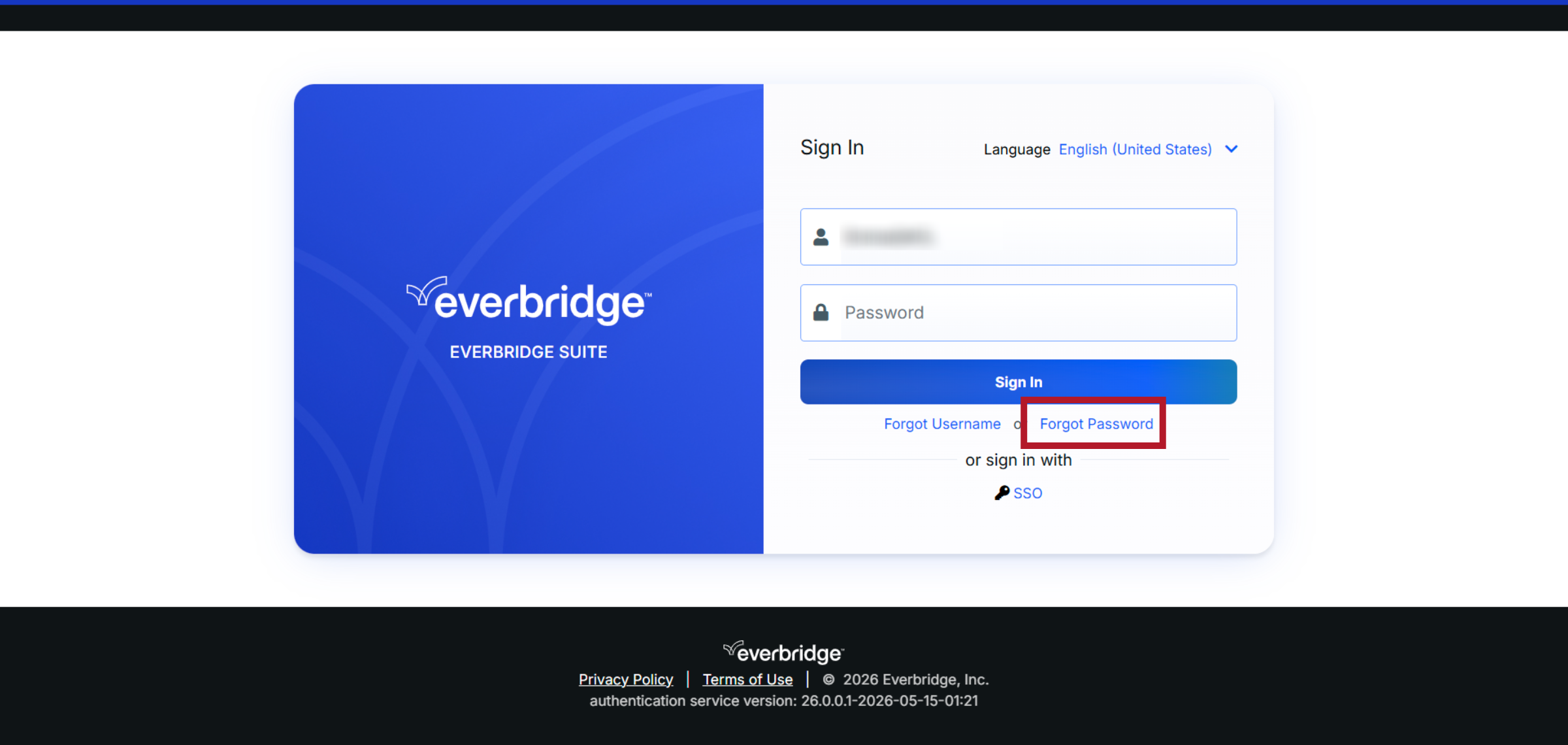
1. Click Forgot Password Link
Click the "Forgot password" link on the login page to start the password reset process.
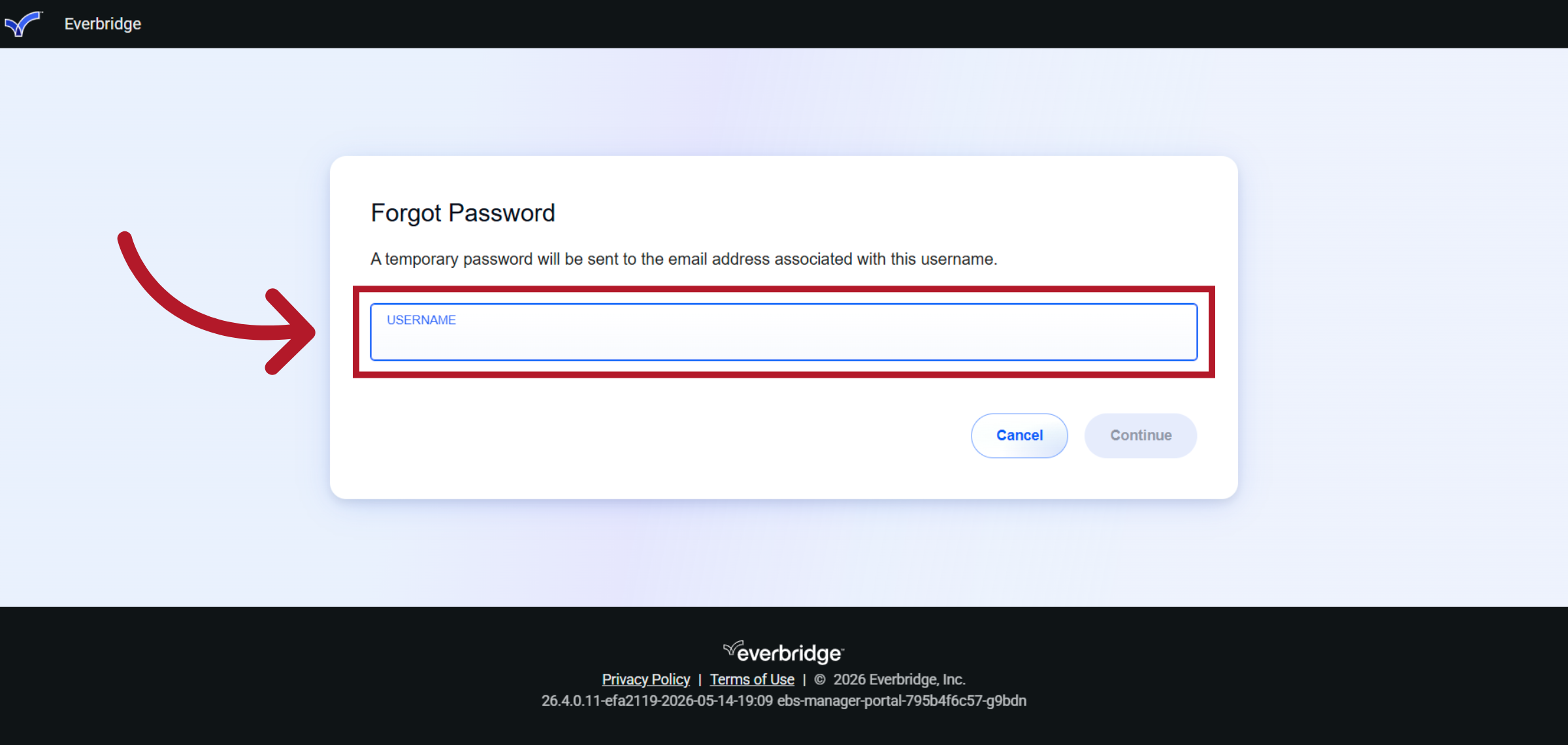
2. Username
You are prompted for a USERNAME. This is case sensitive.
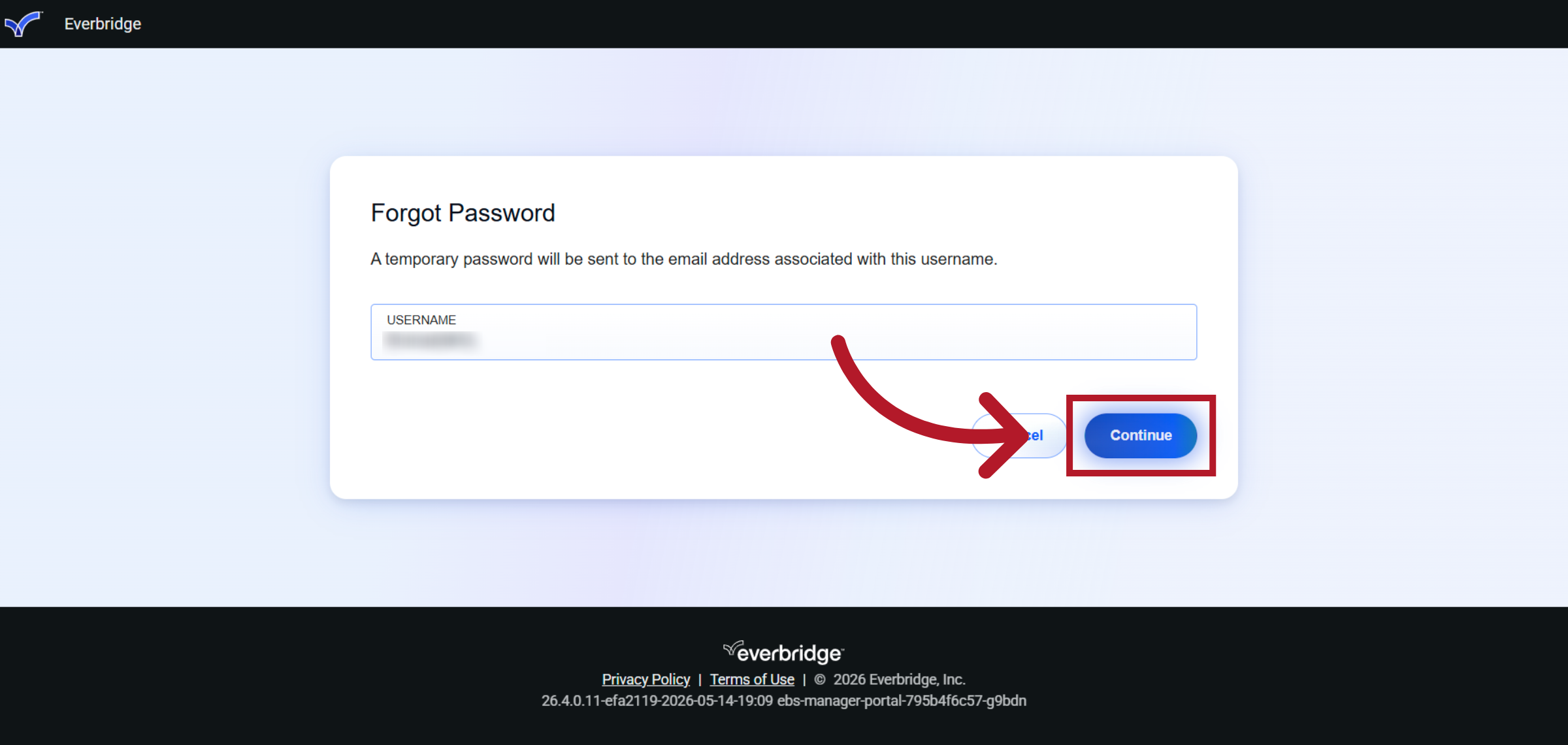
3. SECRET QUESTION
Enter your username in the USERNAME field and then click continue.
4. Submit Secret Question Answer
After you enter your username, you will be prompted to answer your SECRET QUESTION. This is the question that you chose when you registered your account. Note the answer to the secret question is case sensitive and must exactly match the answer in the system.
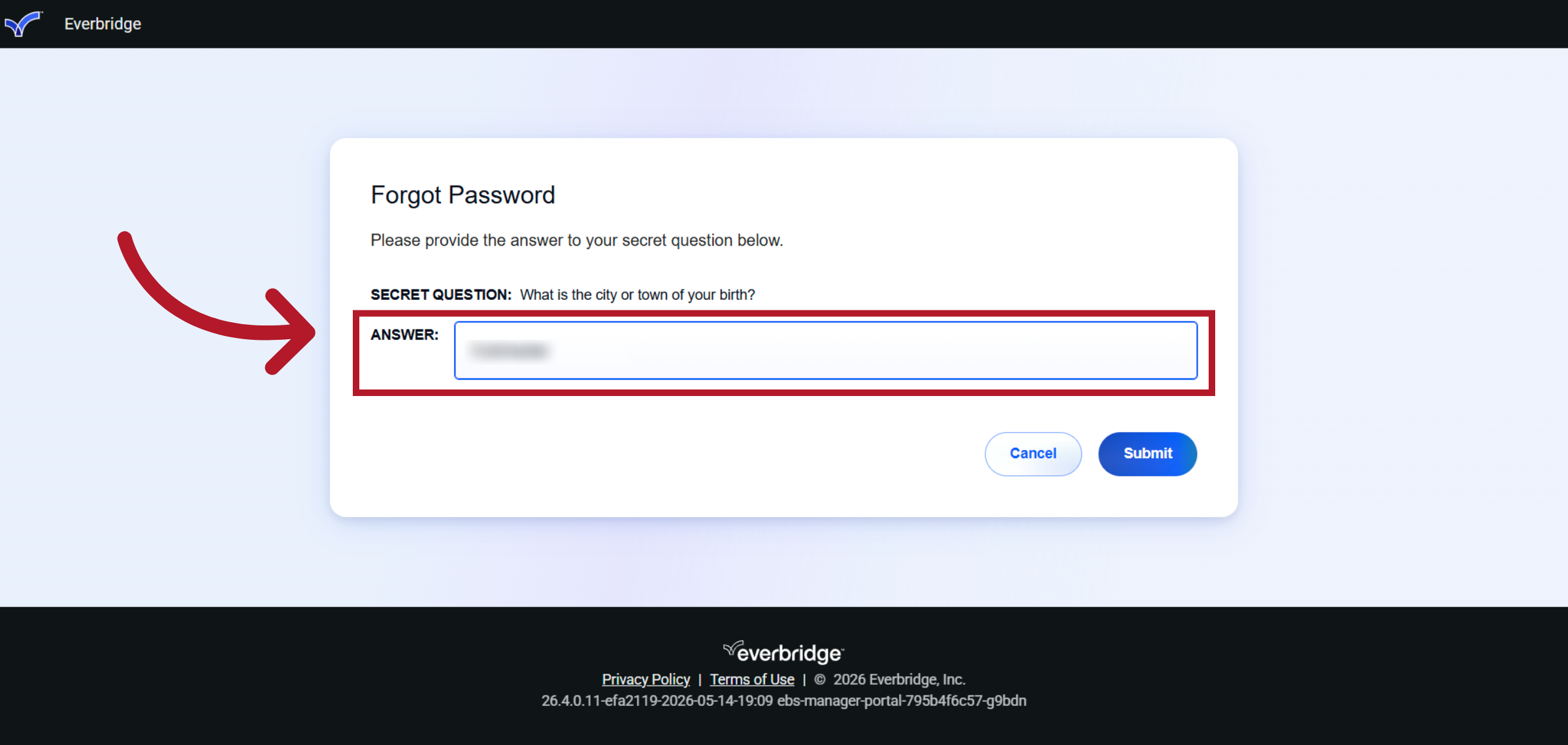
5. Submit Secret Question Answer
Enter the answer to your security question and then click Submit.
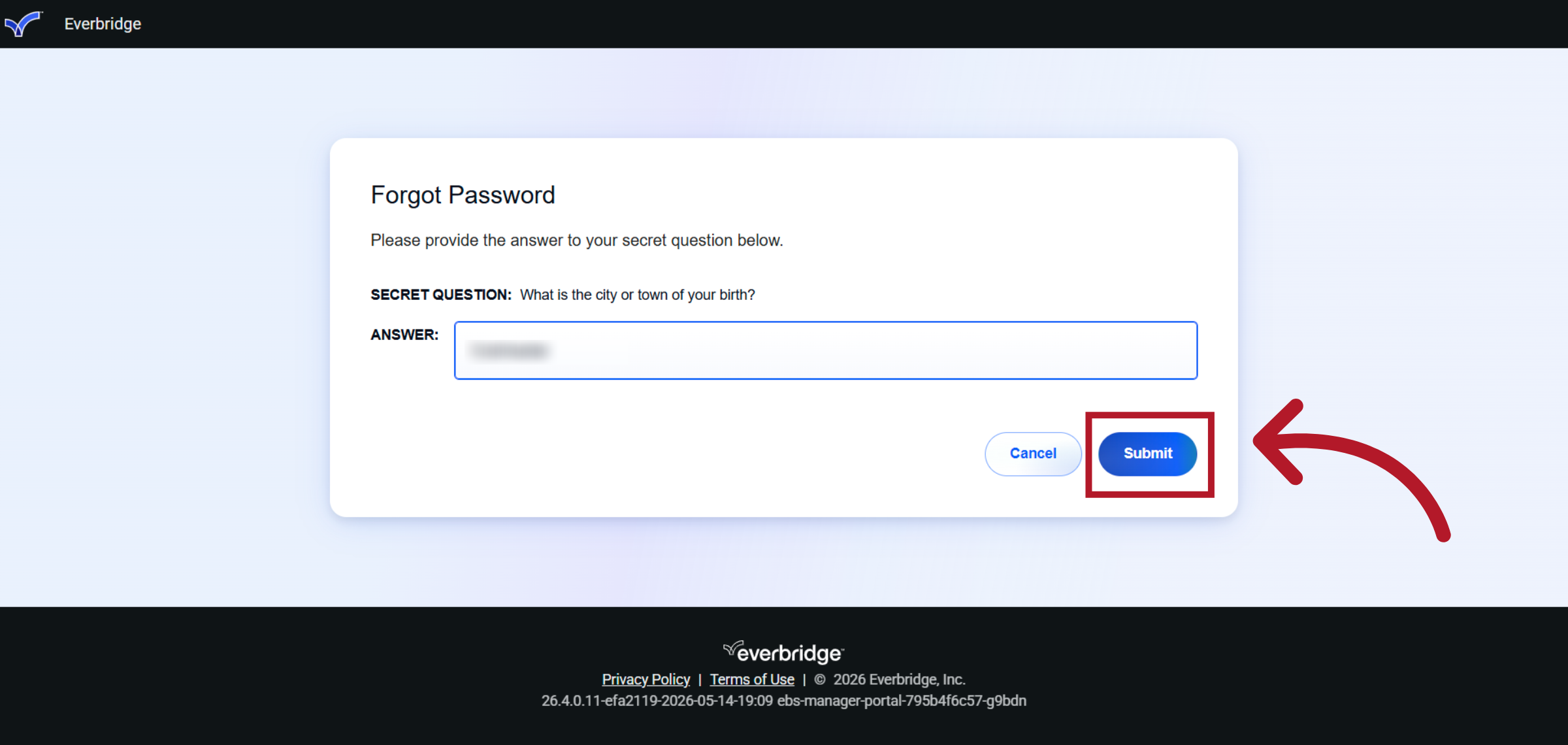
6. Confirm Password Reset Request
If you entered the correct username and answer to the security question, an email will be sent to you with a temporary password and a link to the Manager Portal. Check your email for the temporary password.
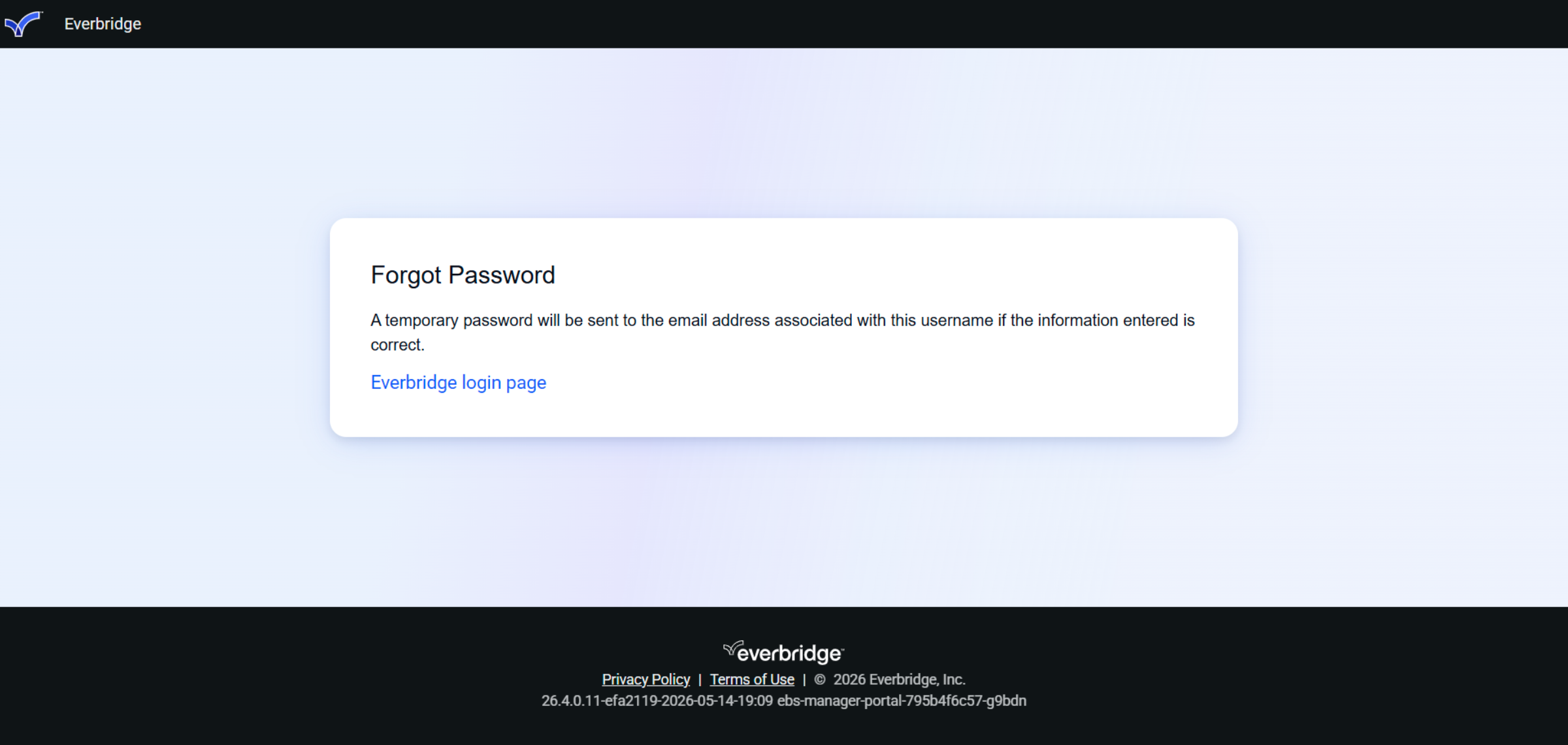
7. Ex email
Here is an example of the email you will receive if you have entered your information correctly. Note the "Temporary Password" and the link to the manager portal. You may log in to the manager portal using the link in the email or the link from the forgot password window.
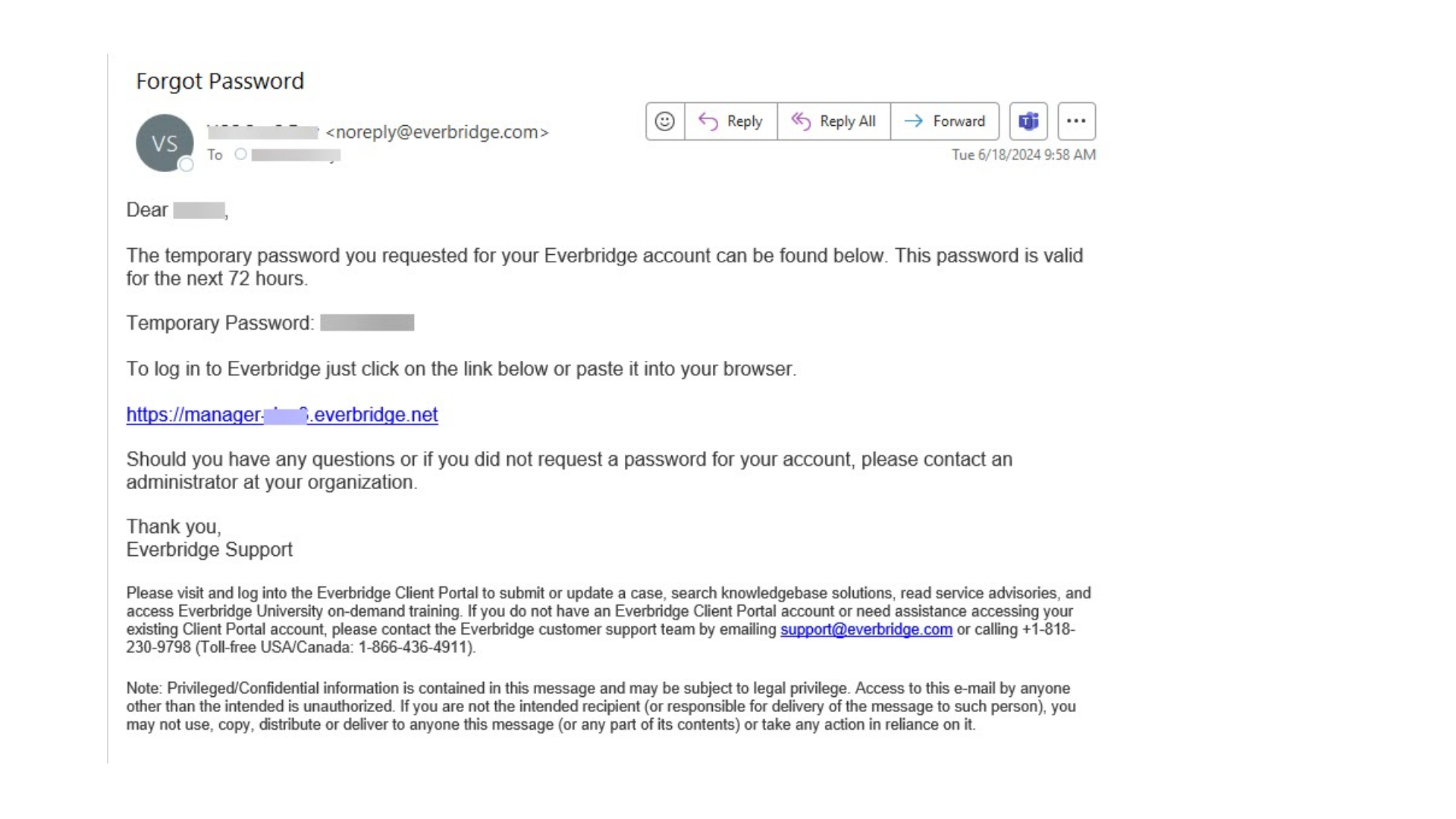
8. Return to Everbridge Login
If you do not use the manager portal link in the email, return to the "Forgot Password" window and click on the "Everbridge login page" hyperlink to log in to the Manager Portal using your temporary password.
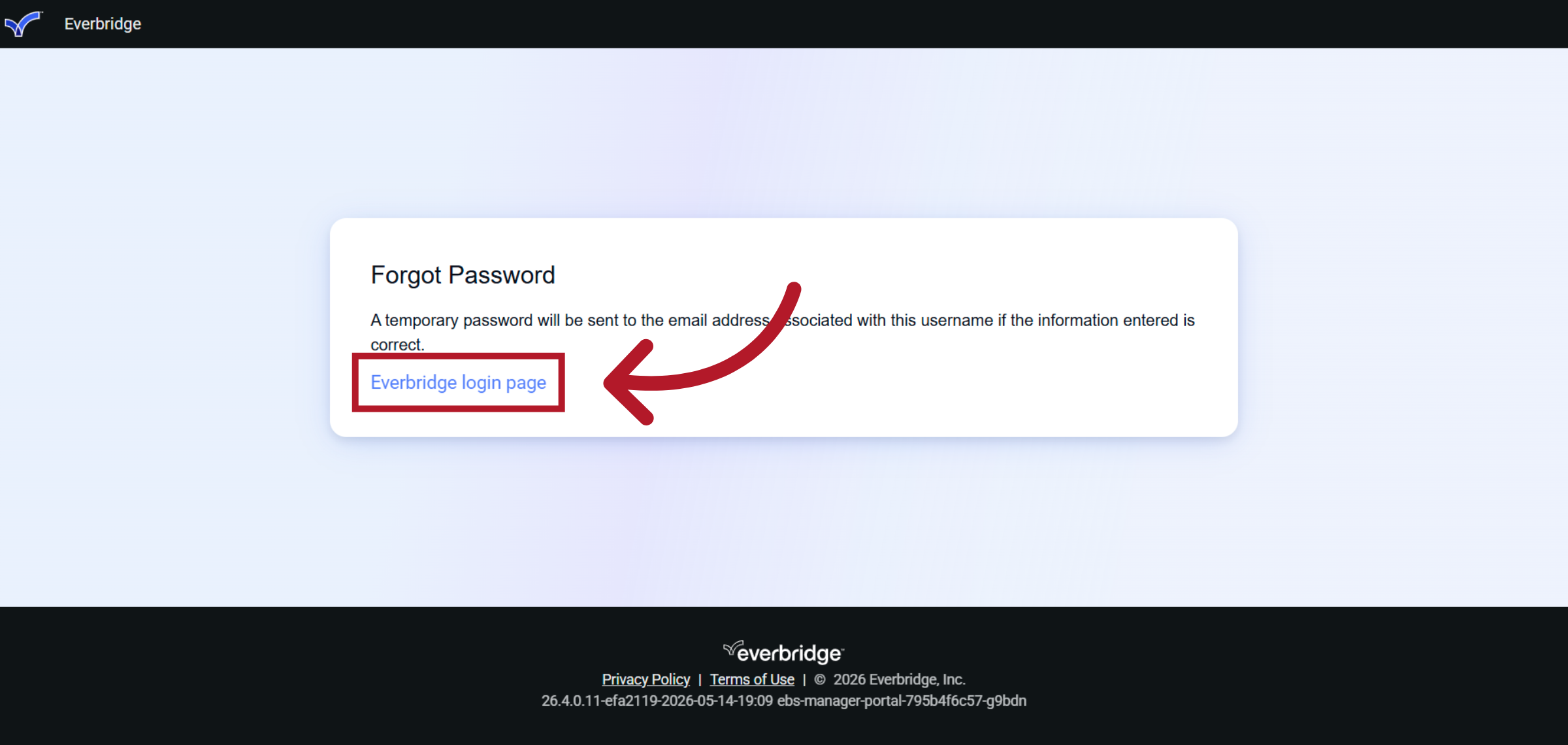
9. Passwords, usernames and answers to security questions are case sensitive. Please contact your Everbridge Administrator If you cannot remember the answer to your security question, or if you are unable to log in after following these instructions.
Important Notes: Passwords, usernames and answers to security questions are case sensitive. Please contact your Everbridge Administrator If you cannot remember the answer to your security question, or if you are unable to log in after following these instructions.
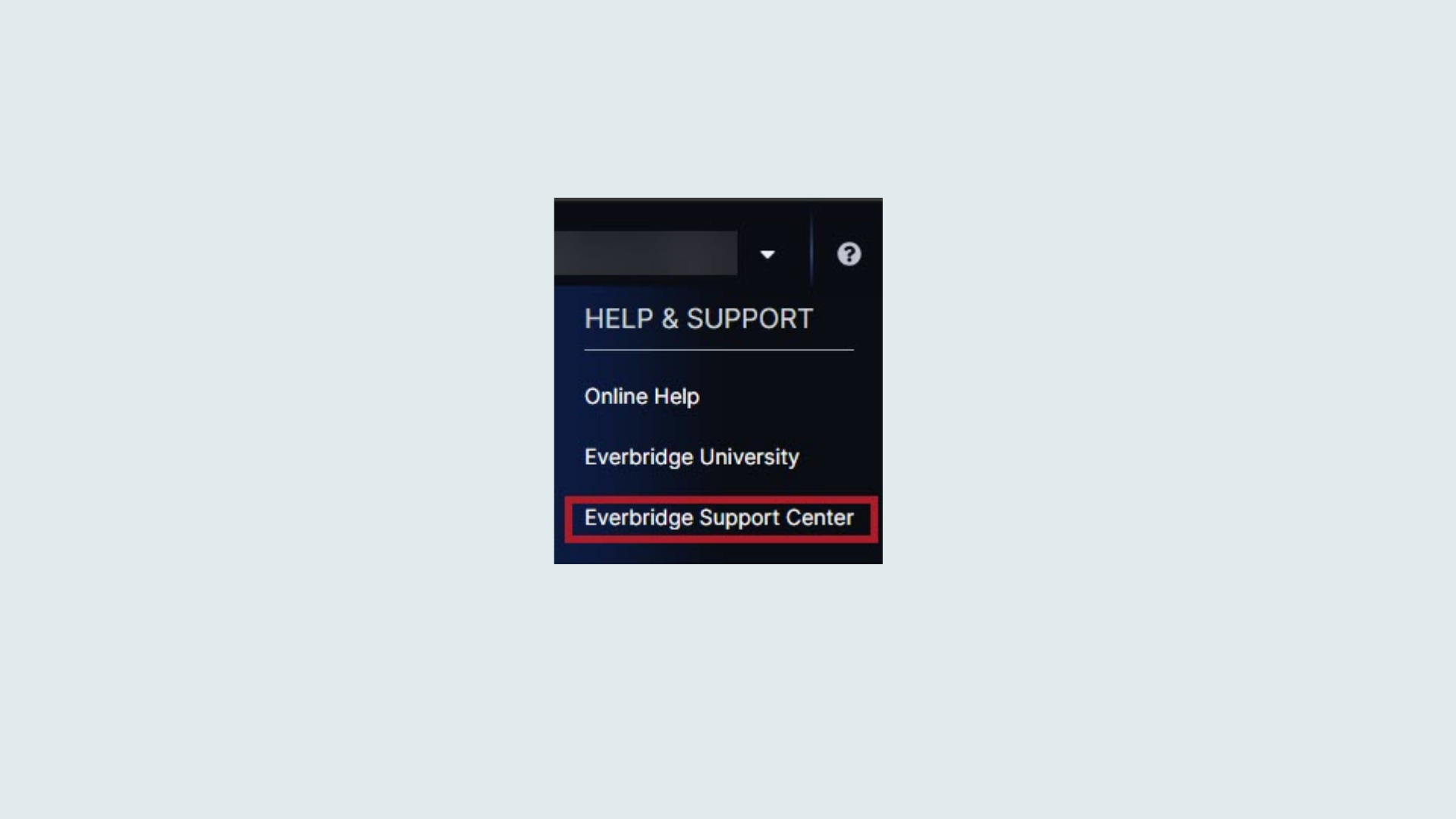
10. HELP & SUPPORT
Access the Everbridge Support Center from the top-right corner of the Manager Portal for more microlearning, release notes, documentation, knowledge articles, Everbridge University training, community Q&A and ideas, security bulletins, service advisories, system status, and for submitting and managing your support tickets.
You have successfully reset your password using the Everbridge Suite password recovery process. You can now log in with your temporary password and update it as needed for security.