Topic
How to send a forgot password email to Everbridge users.
Description
An Everbridge Administrator can send a forgot password email to Everbridge users by following the steps below.
This video covers the process of how to reset a user's password in Everbridge 360™.
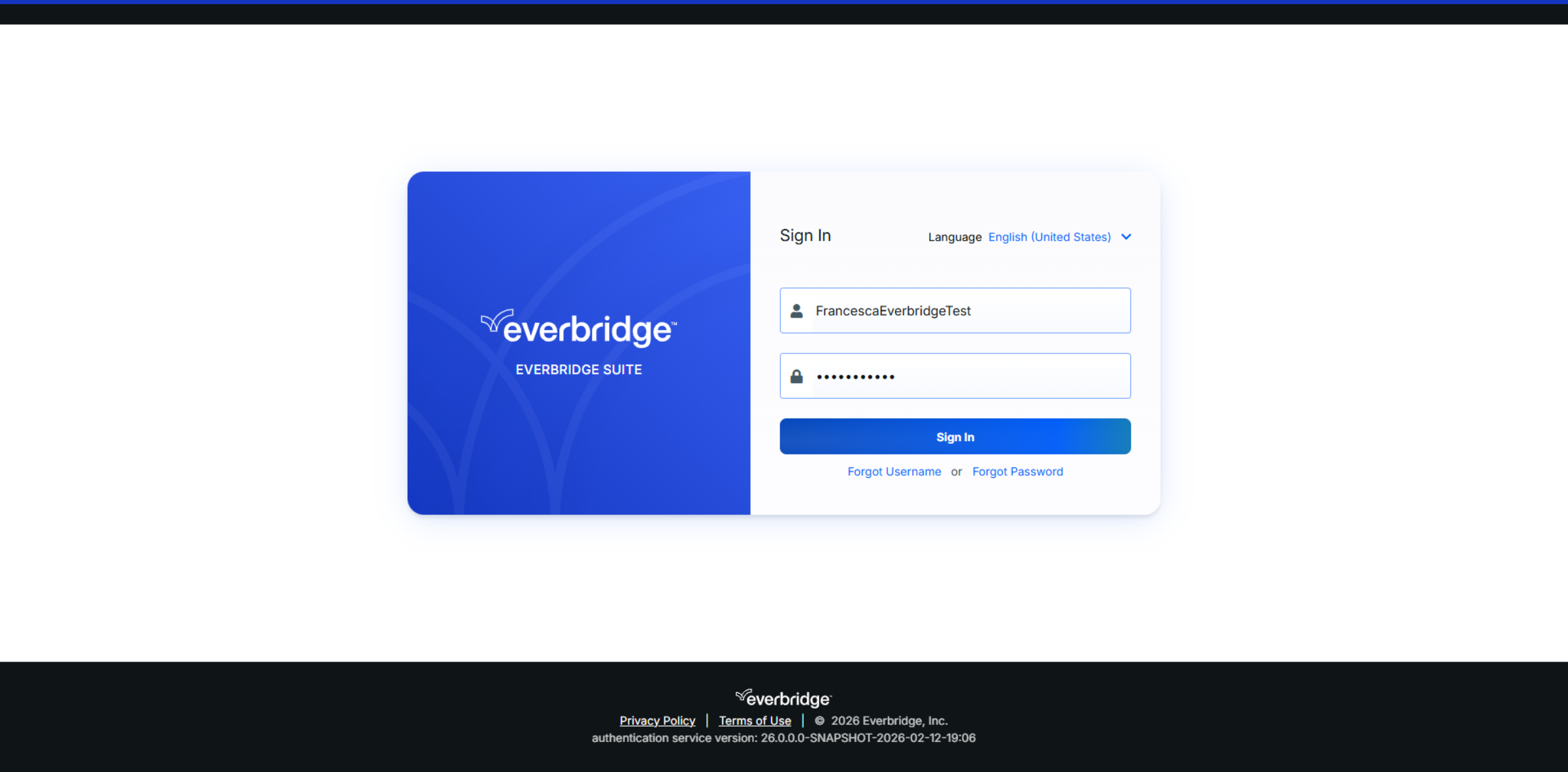
Go to manager.everbridge.net or manager.everbridge.eu
1. Self-Service Forgot Password
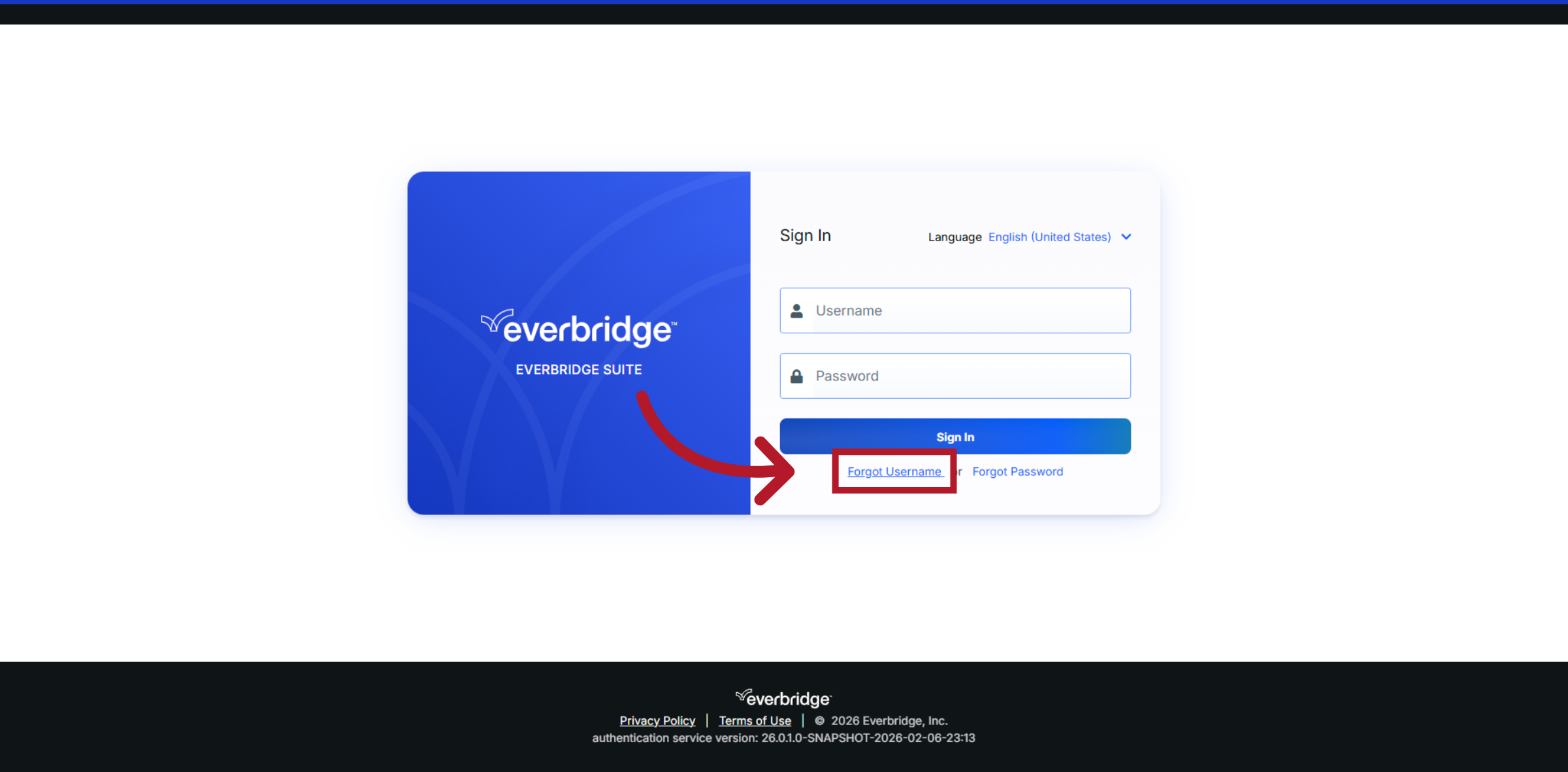
If an Everbridge User forgets their password, they can use the Forgot Password self-service option at the Manager Portal login page.

2. Self-Service Forgot Username
If the User has forgotten their username, they can also follow the self-service option at the Manager Portal login page.
3. Administrator Reset Introduction
If a user is unable to reset their password themselves, as an Administrator within Everbridge, you can also help your users reset their password to regain their access to the Manager Portal. This method bypasses the security question requirement, allowing users to receive a temporary password.

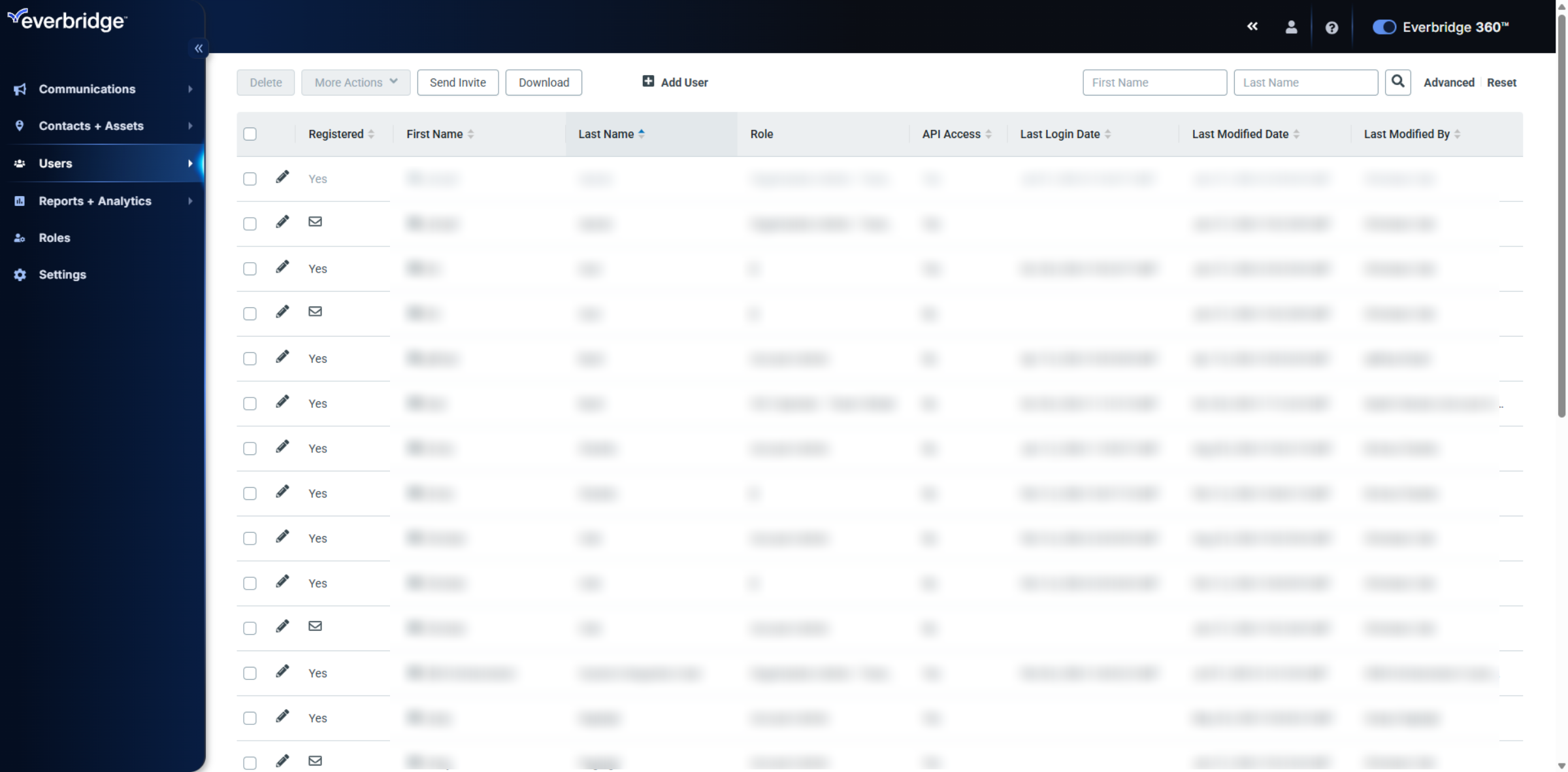
4. User Menu
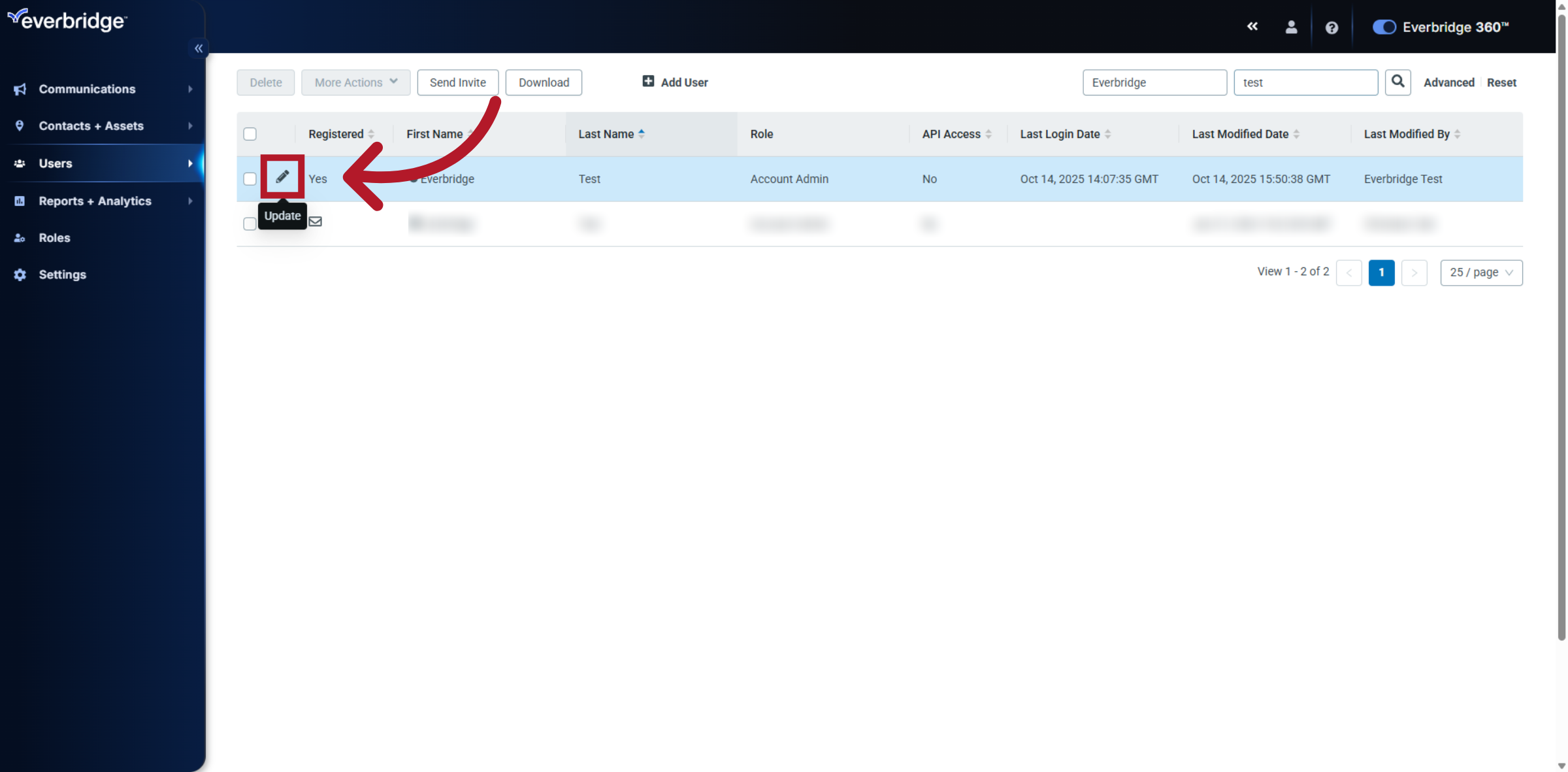
Access the Ursers tab in the Manager Portal.
5. Navigate to User Options
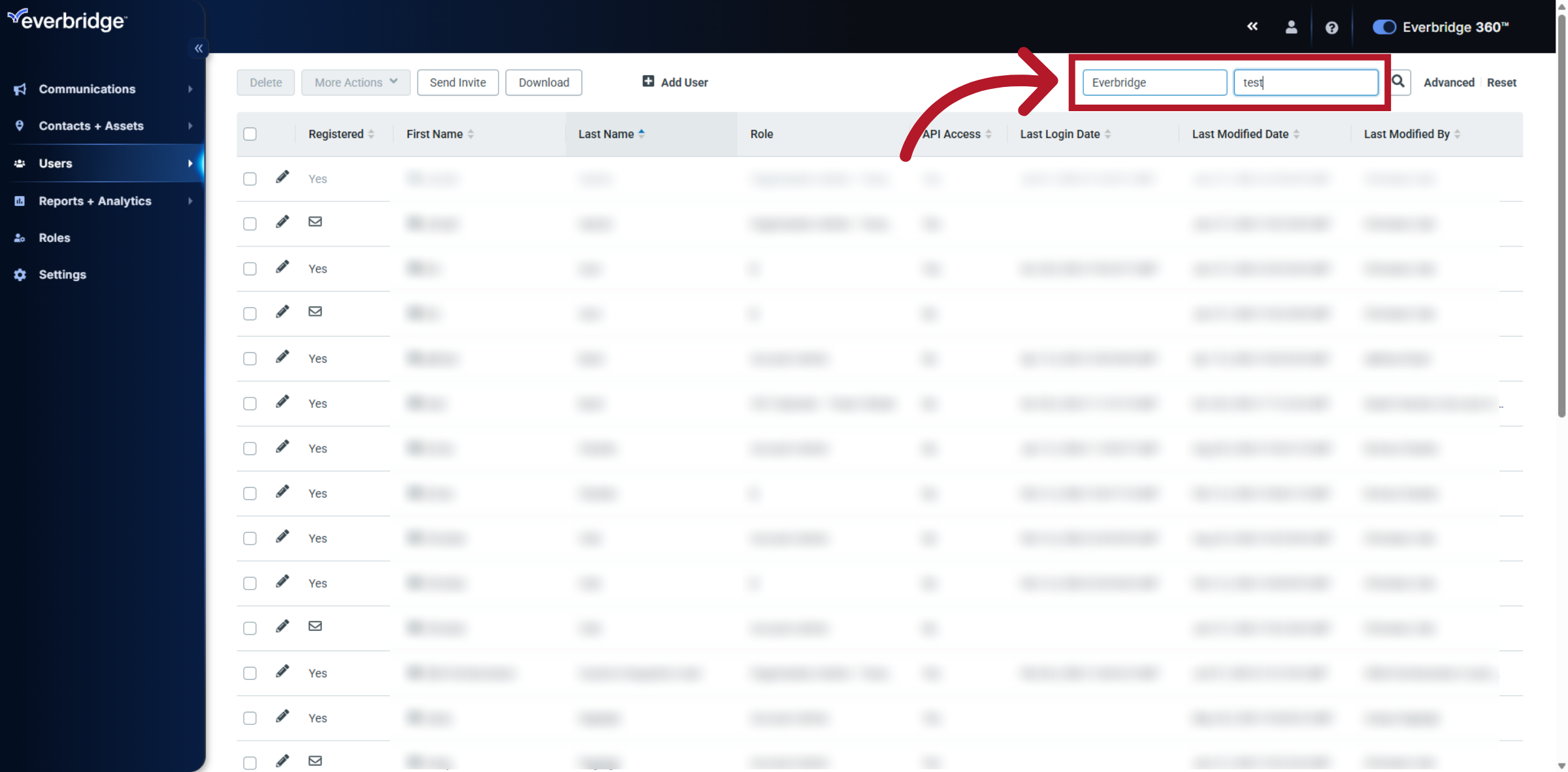
Search through the list of user names to find the person who needs to reset their login credentials.
6. Open User Details
Click the pencil icon next to their name.
7. Open User Action Menu
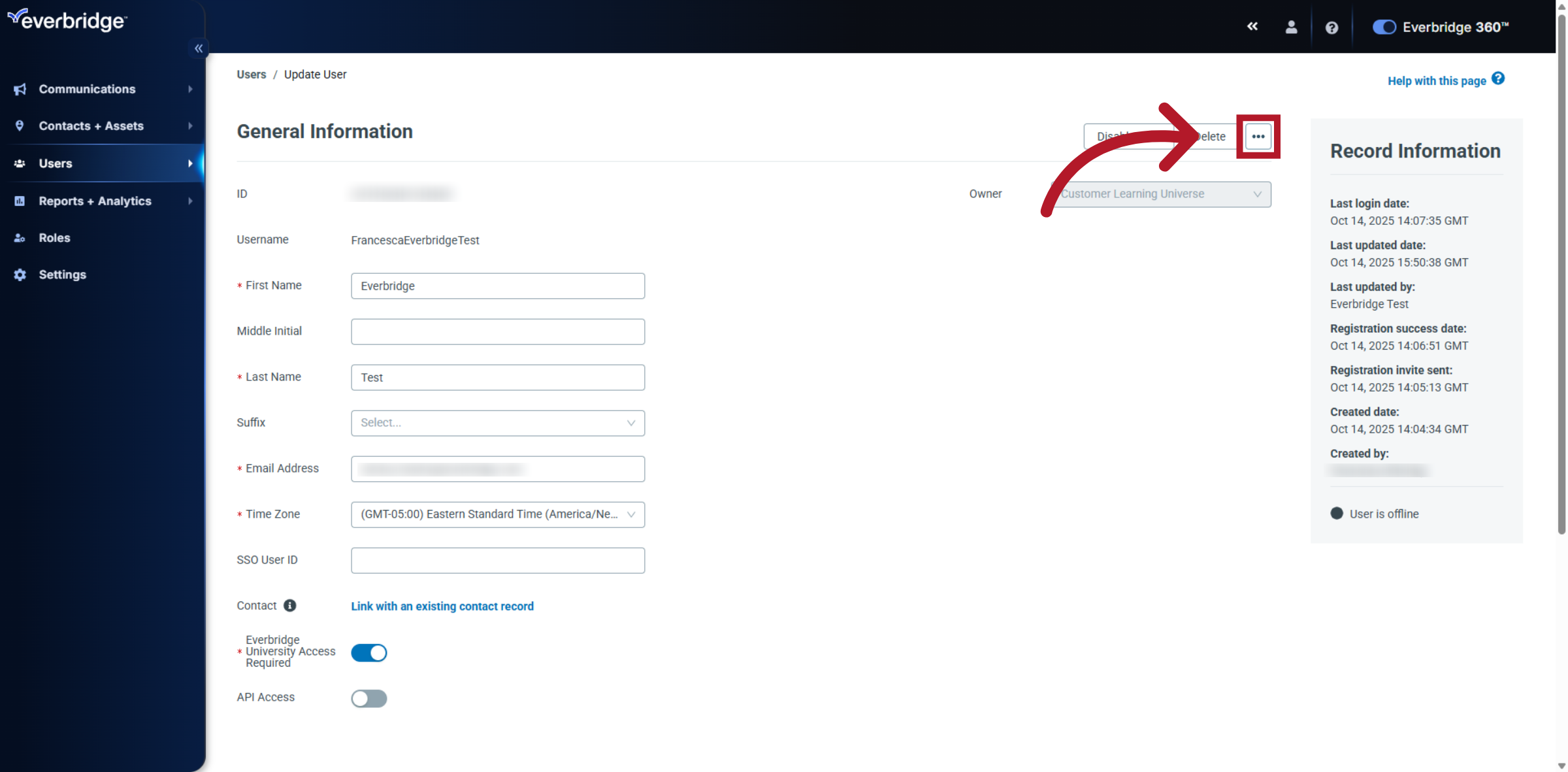
From the user's details page, select the three dots in the top right corner.
8. Send Forgot Password Email
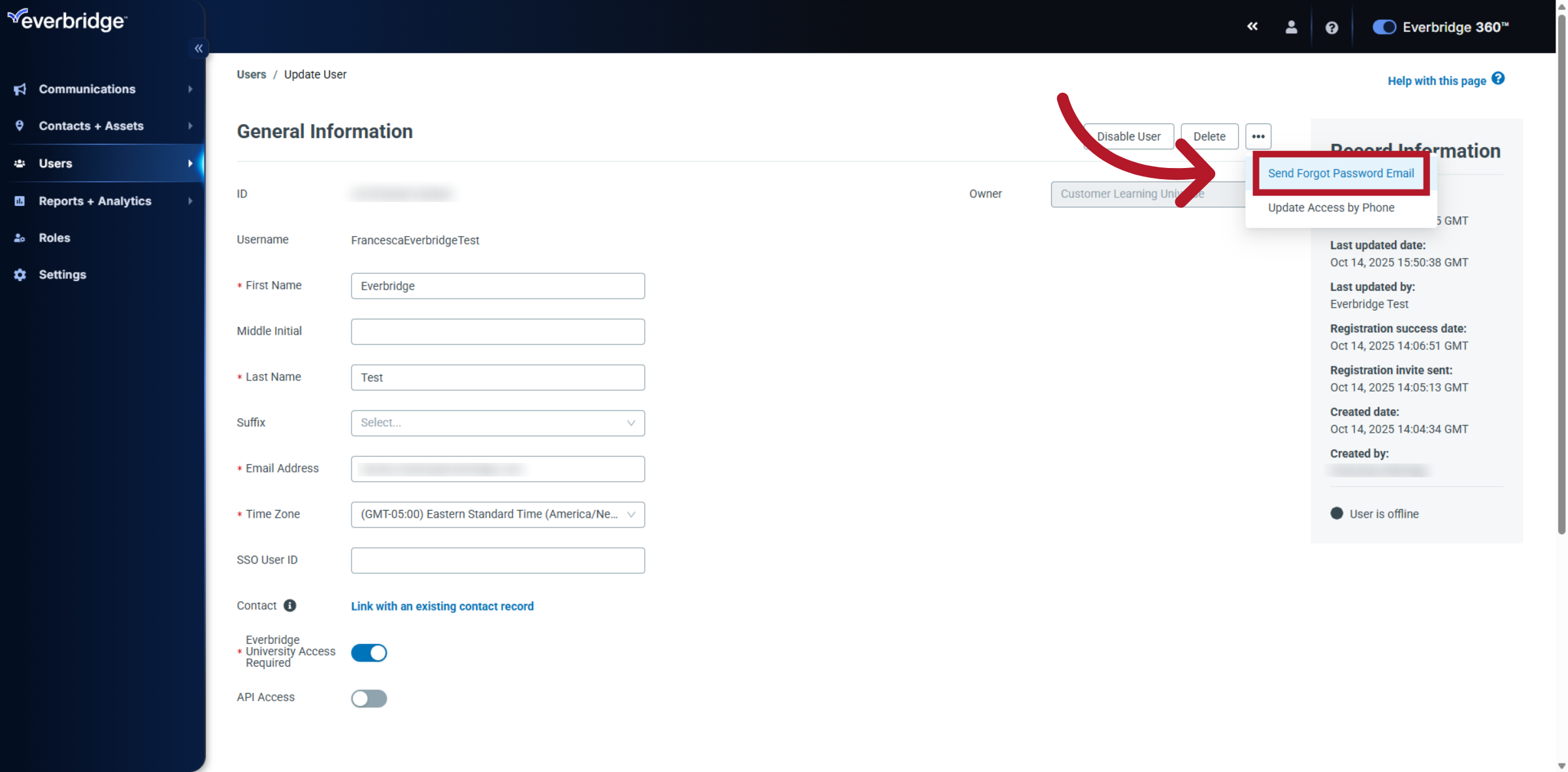
Click the option to send a forgot password email to the user.
9. Confirm Password Email
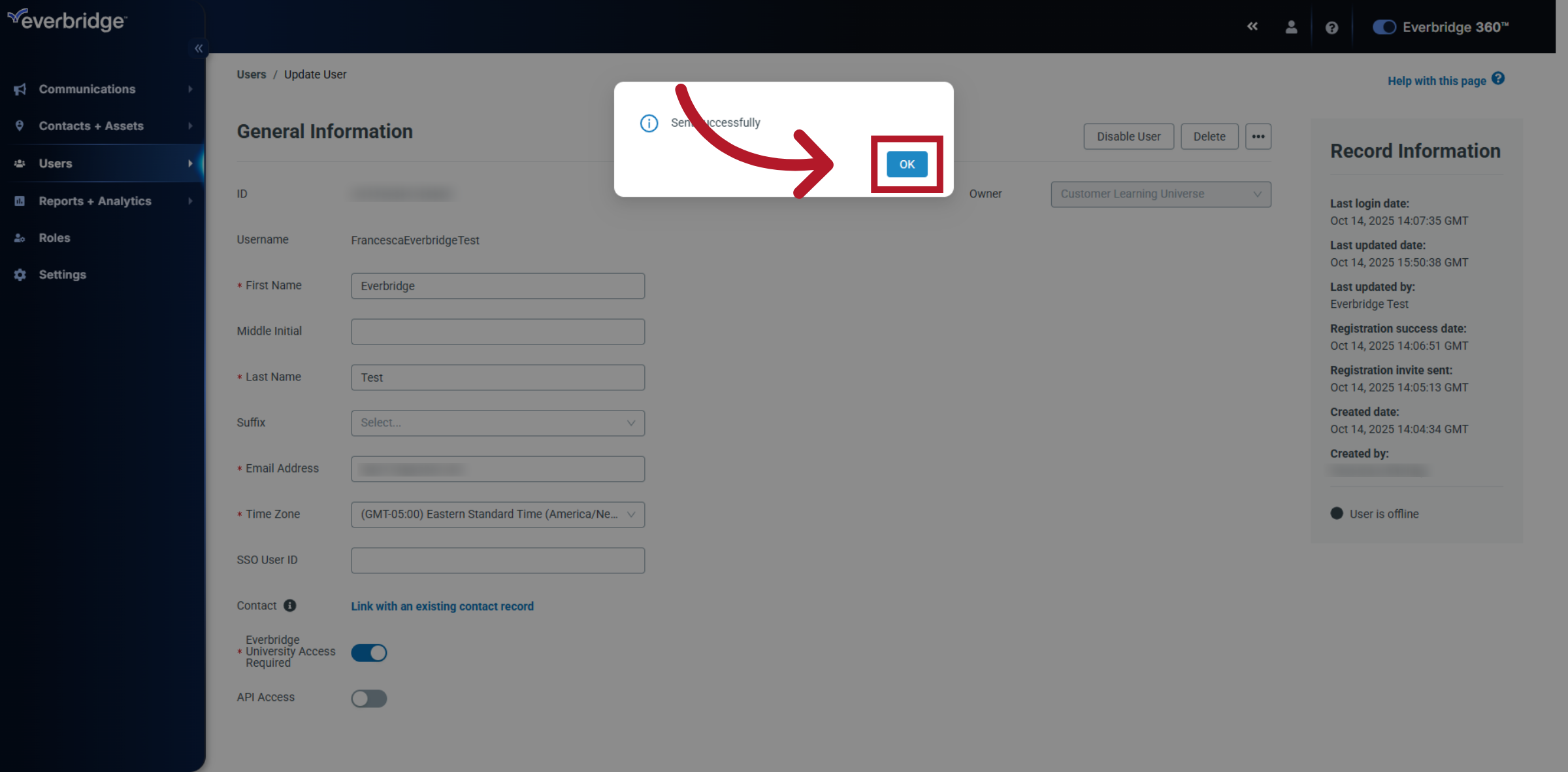
Click OK to confirm sending the forgot password email.
10. Temporary Password Email
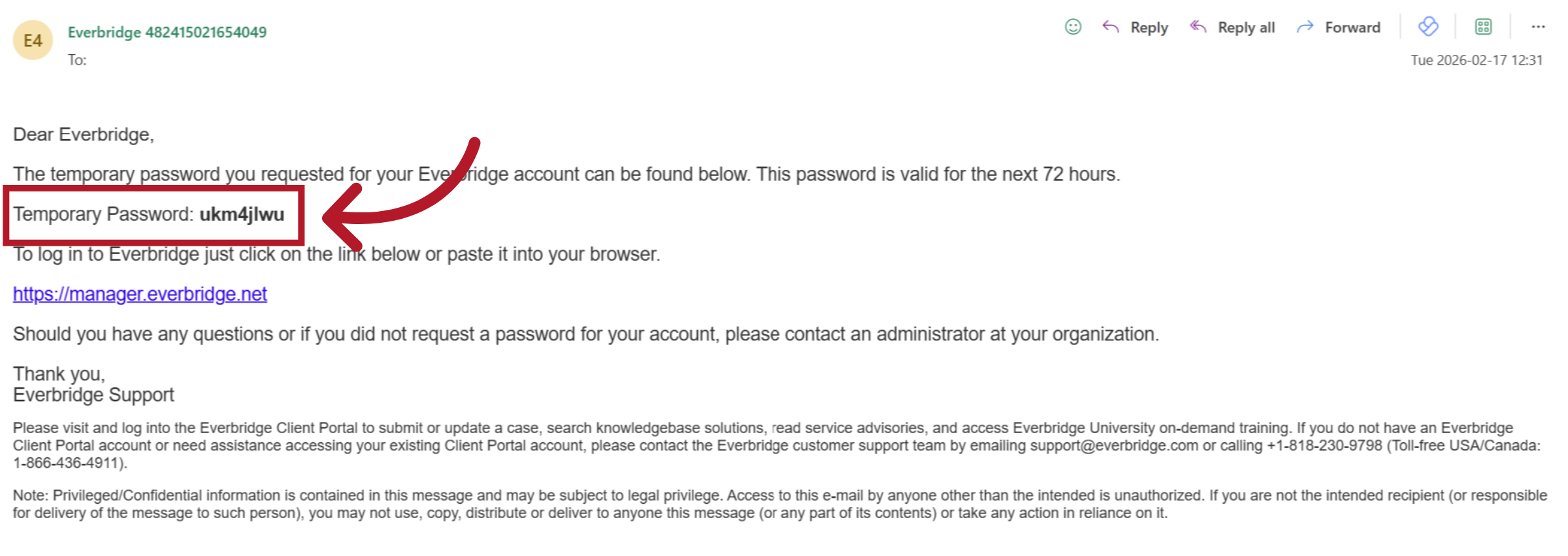
The system sends the user a temporary password that is valid for 72 hours.
11. Change Password
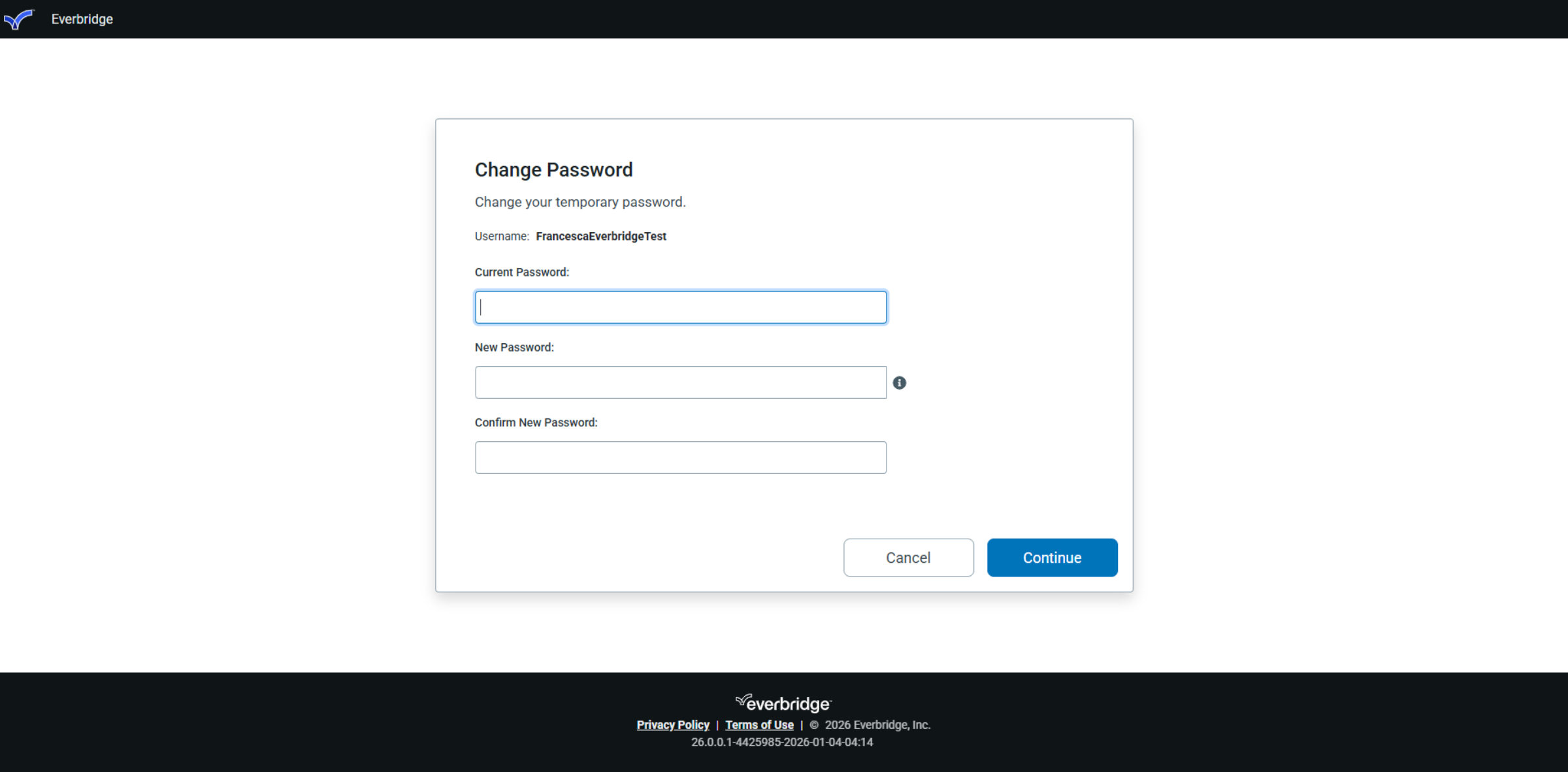
The next time the user attempts to log in with the temporary password, a change password screen will appear.
12. Manager Portal Login
Once the password has been updated, the user can then log in and access their account.