
Backing up your Contact or User Data, before making any large changes, or simply backing them up on a monthly basis is a recommended best practice that can prevent accidental corruption or loss of data.
Go to manager.everbridge.net
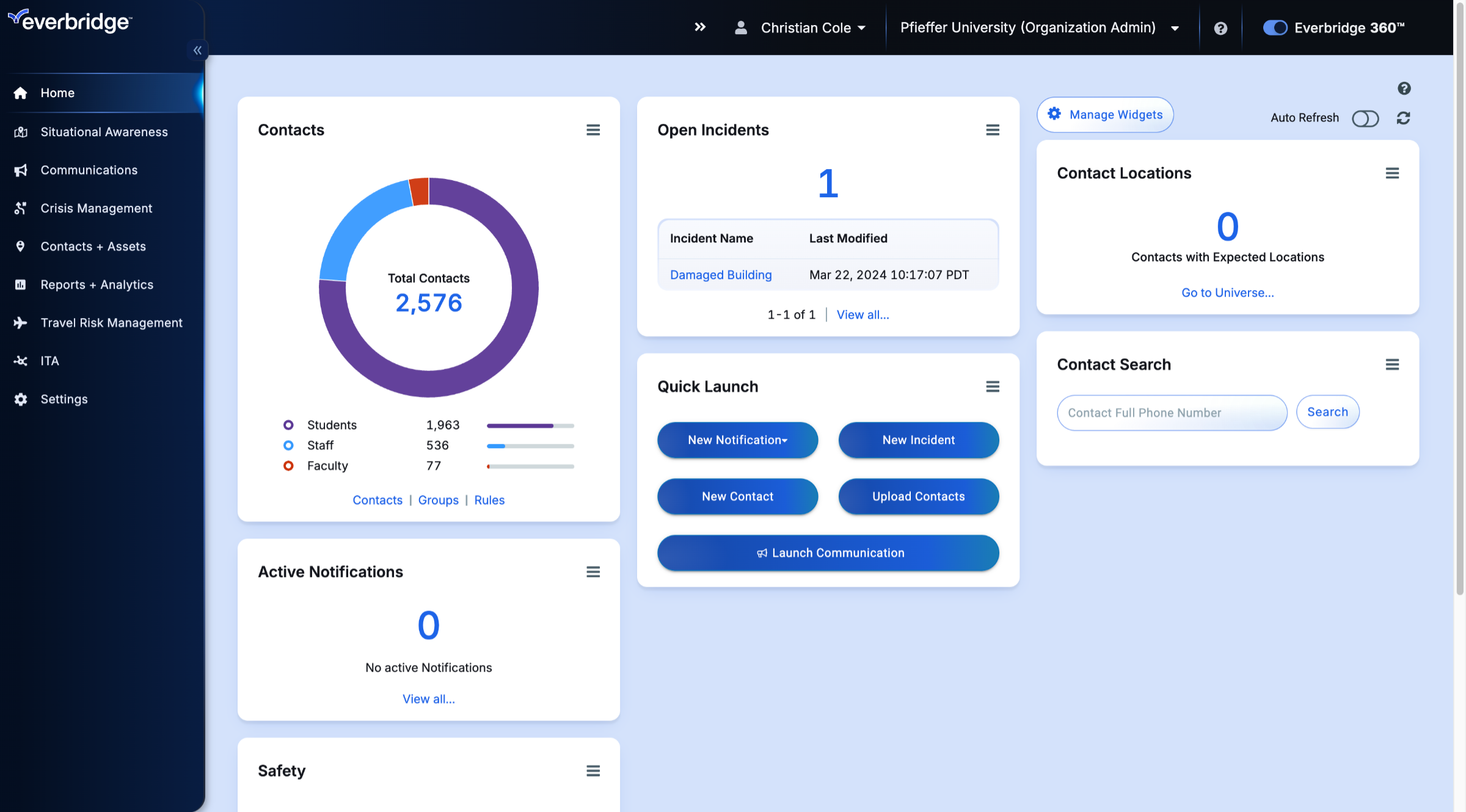
1. Dashboard
Keep in mind that not all roles have the permissions to download this data to create backups. We'll begin with our contact data.
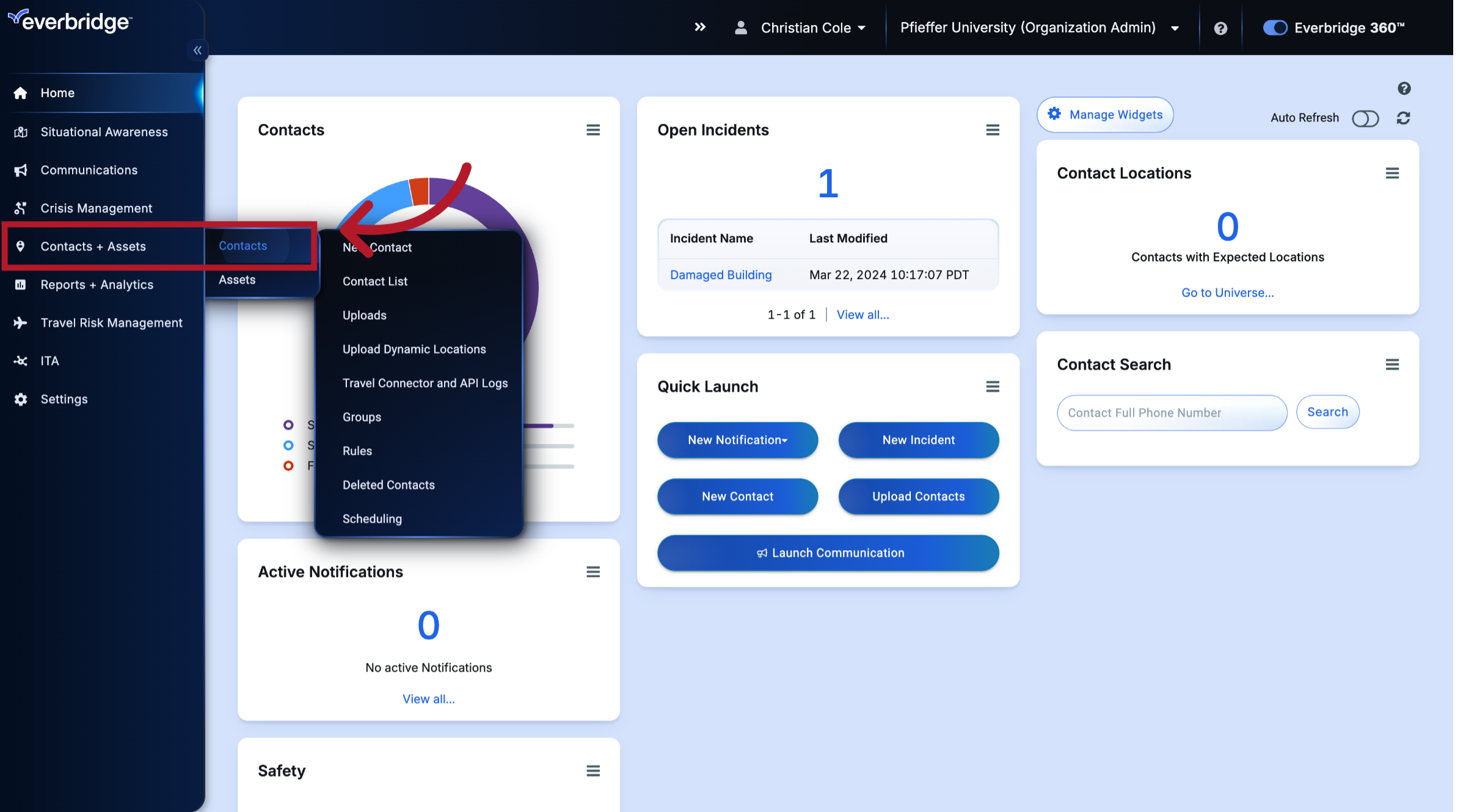
2. Contacts + Assets
Hover over the Contacts + Assets tab.
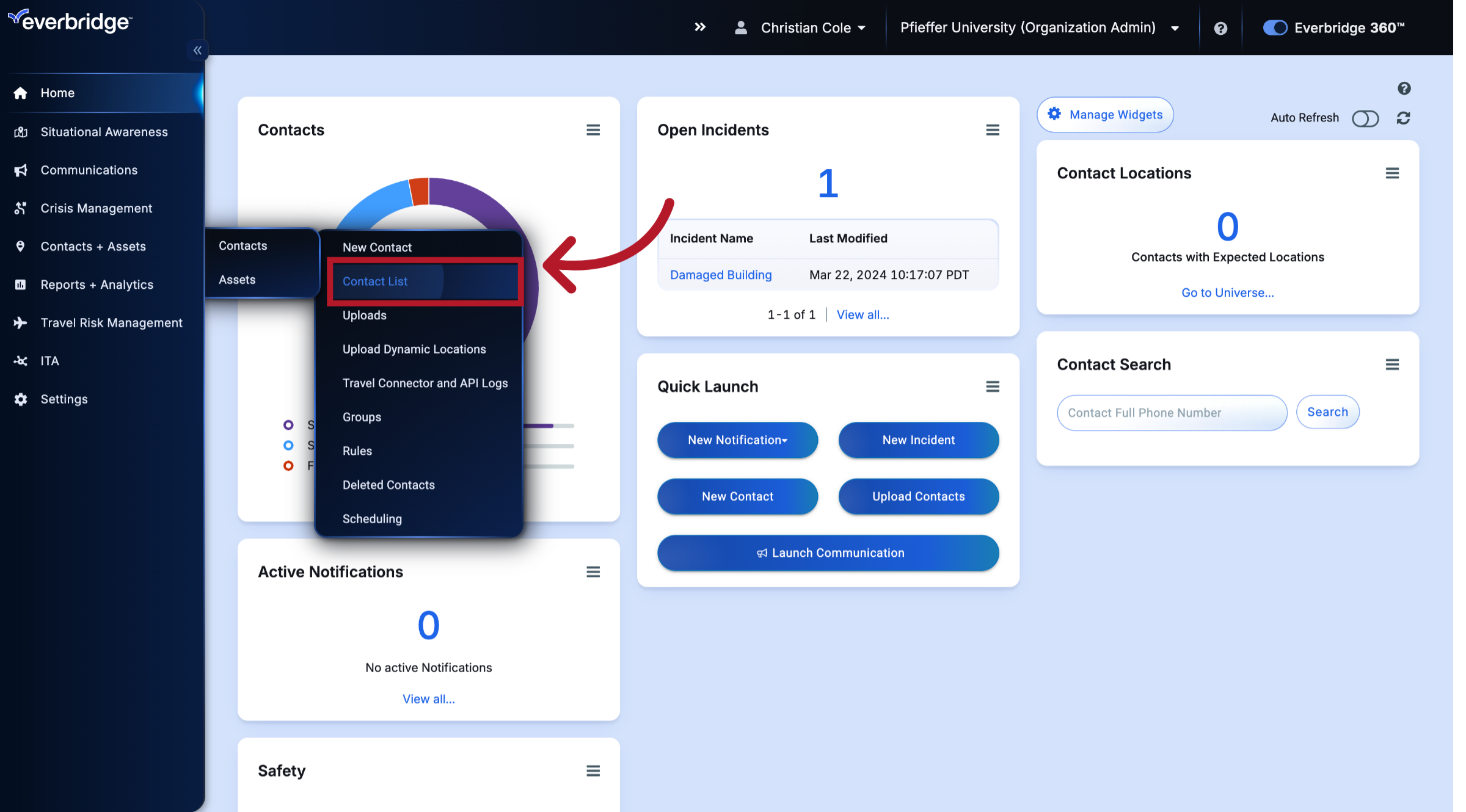
3. Contacts
And click Contact List.
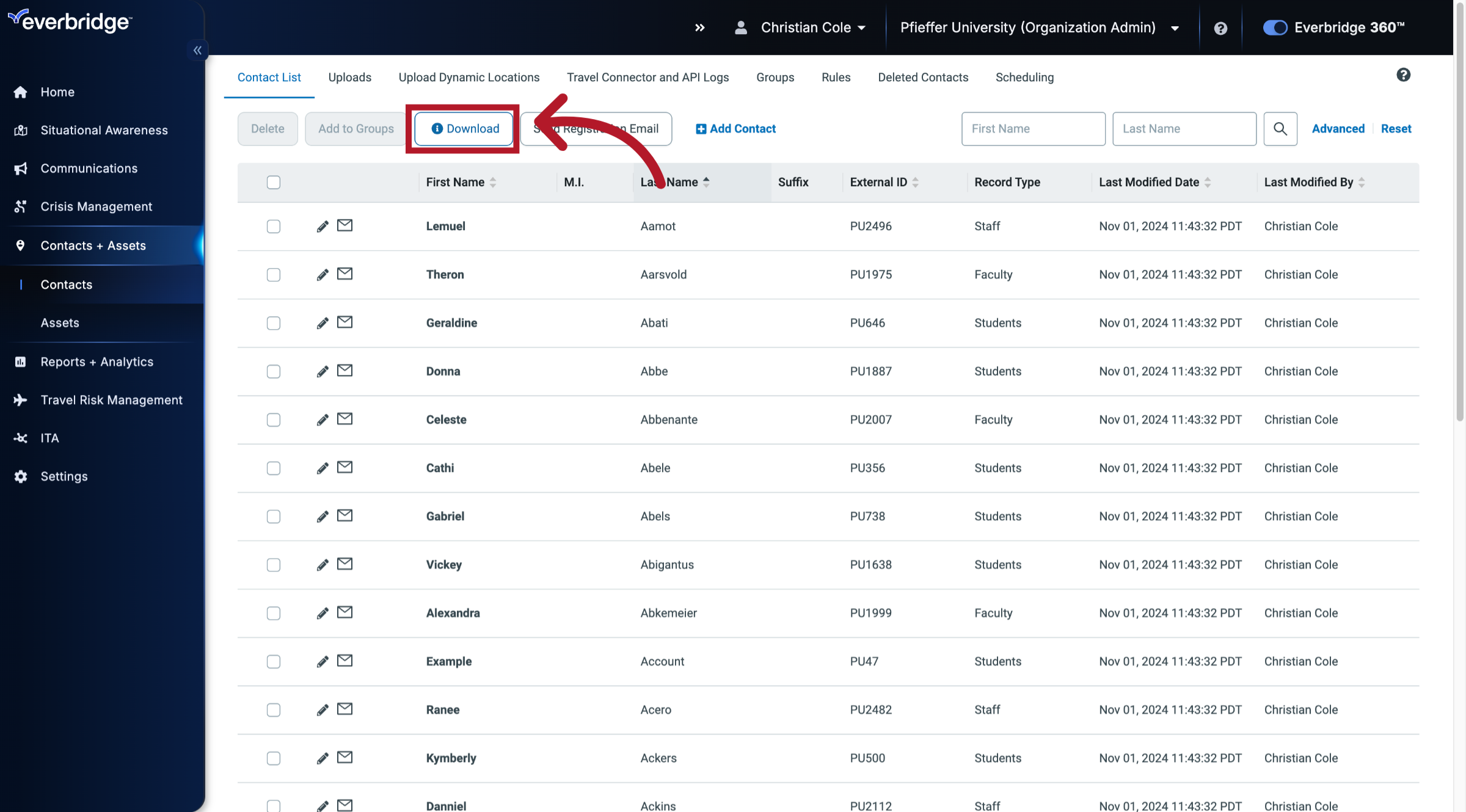
4. Contact List Download
Then click the Download button. This file contains your contacts and their data.
5. Emailed Download File
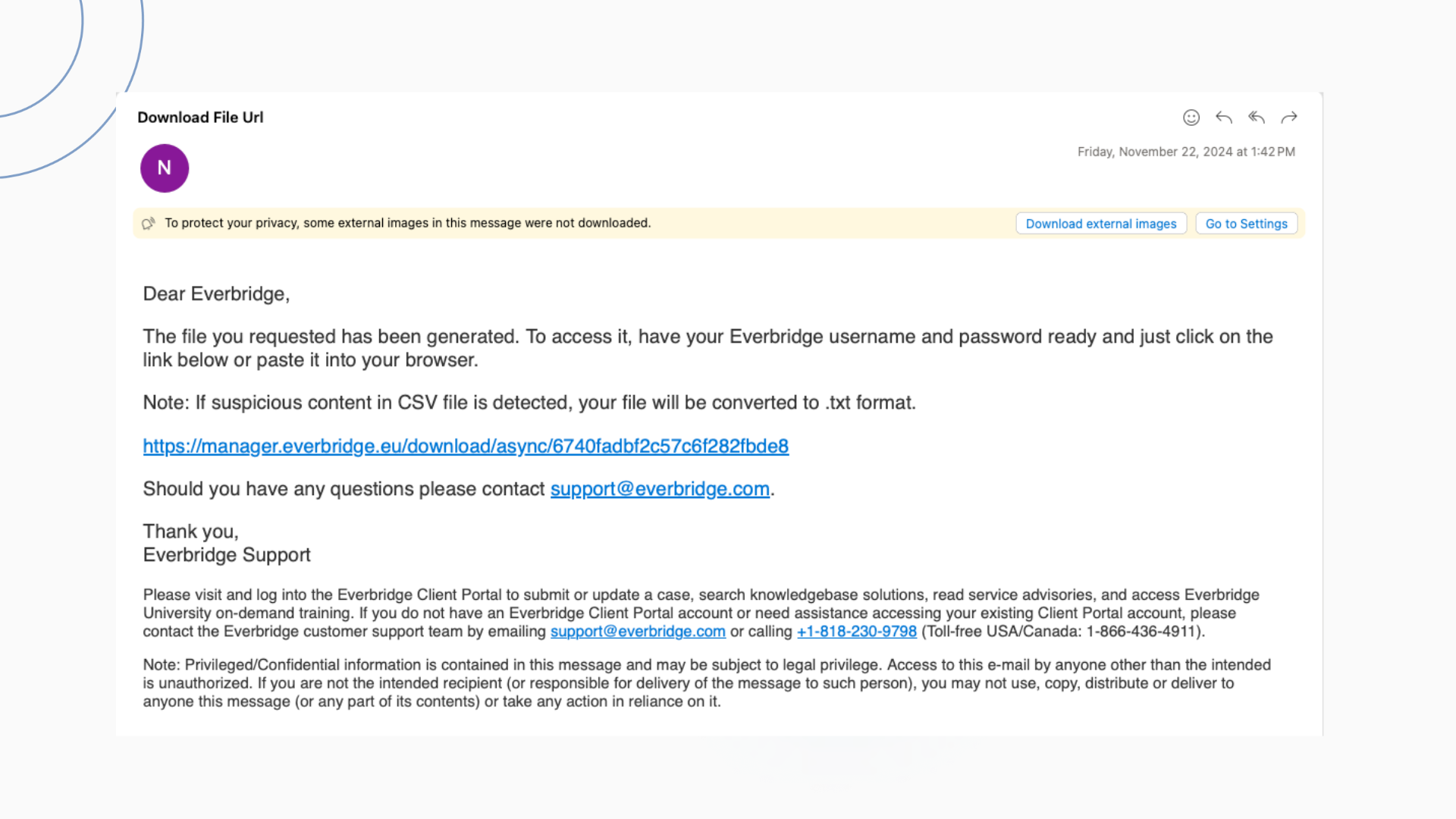
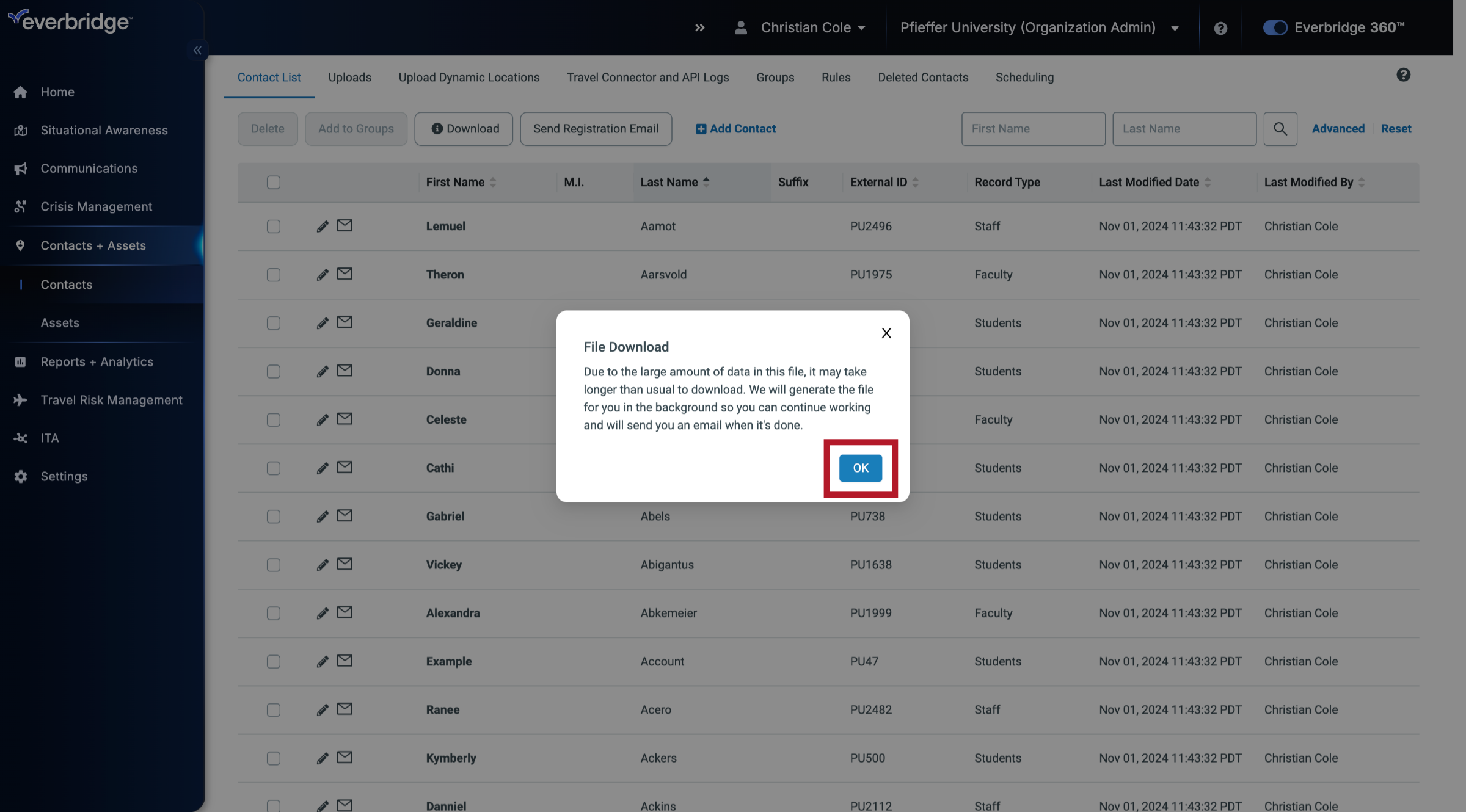
Depending on how many contacts there are in your organization, that file may be emailed to you.
6. File Download
Click OK.
7. User Placement
Users exist on both the Organization level and the Account level. So the steps to create their backups vary slightly.
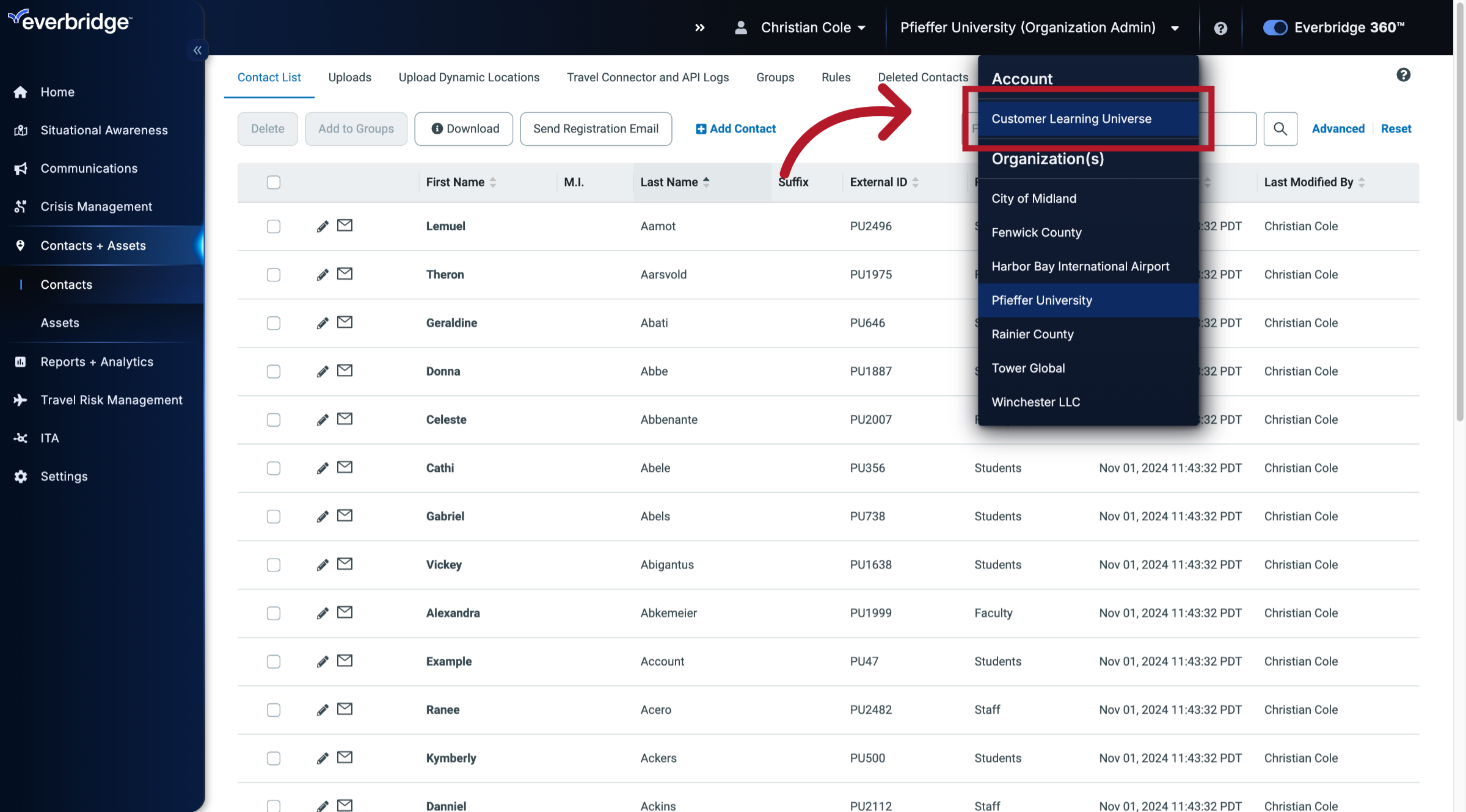
8. Account Level
On the Account level.
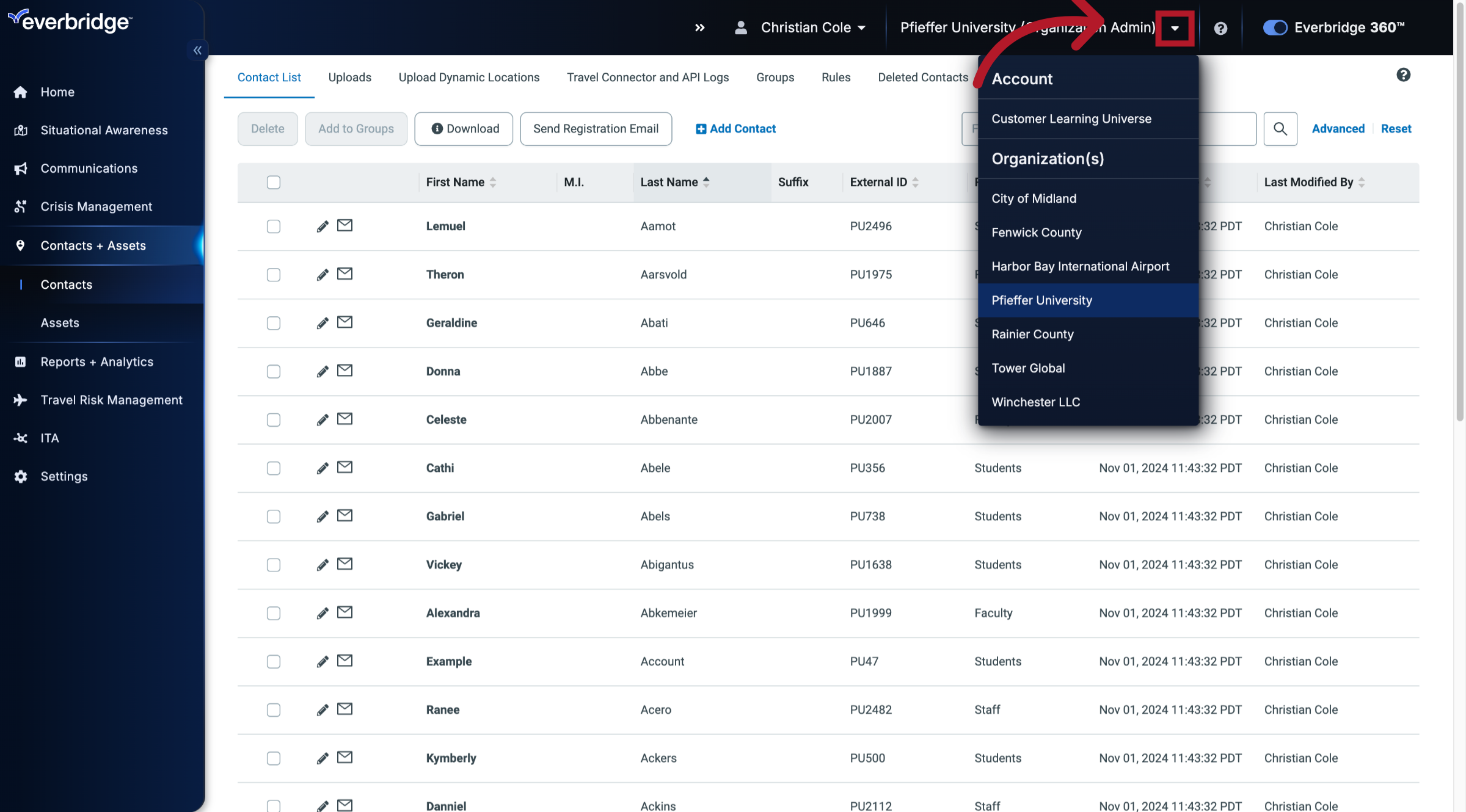
9. Account Selection
Explore the learning universe for in-depth training materials and tutorials.
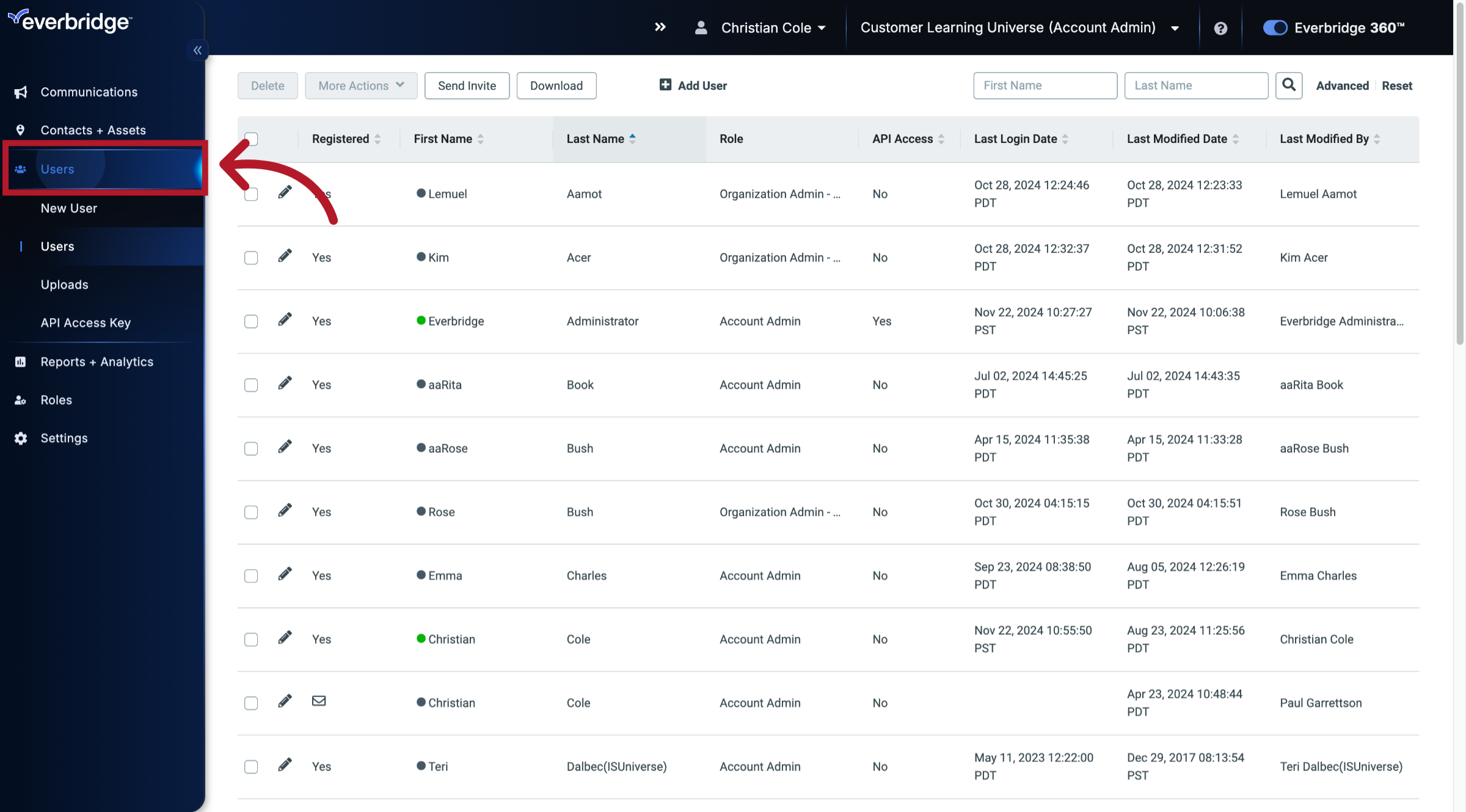
10. Users
Click Users.
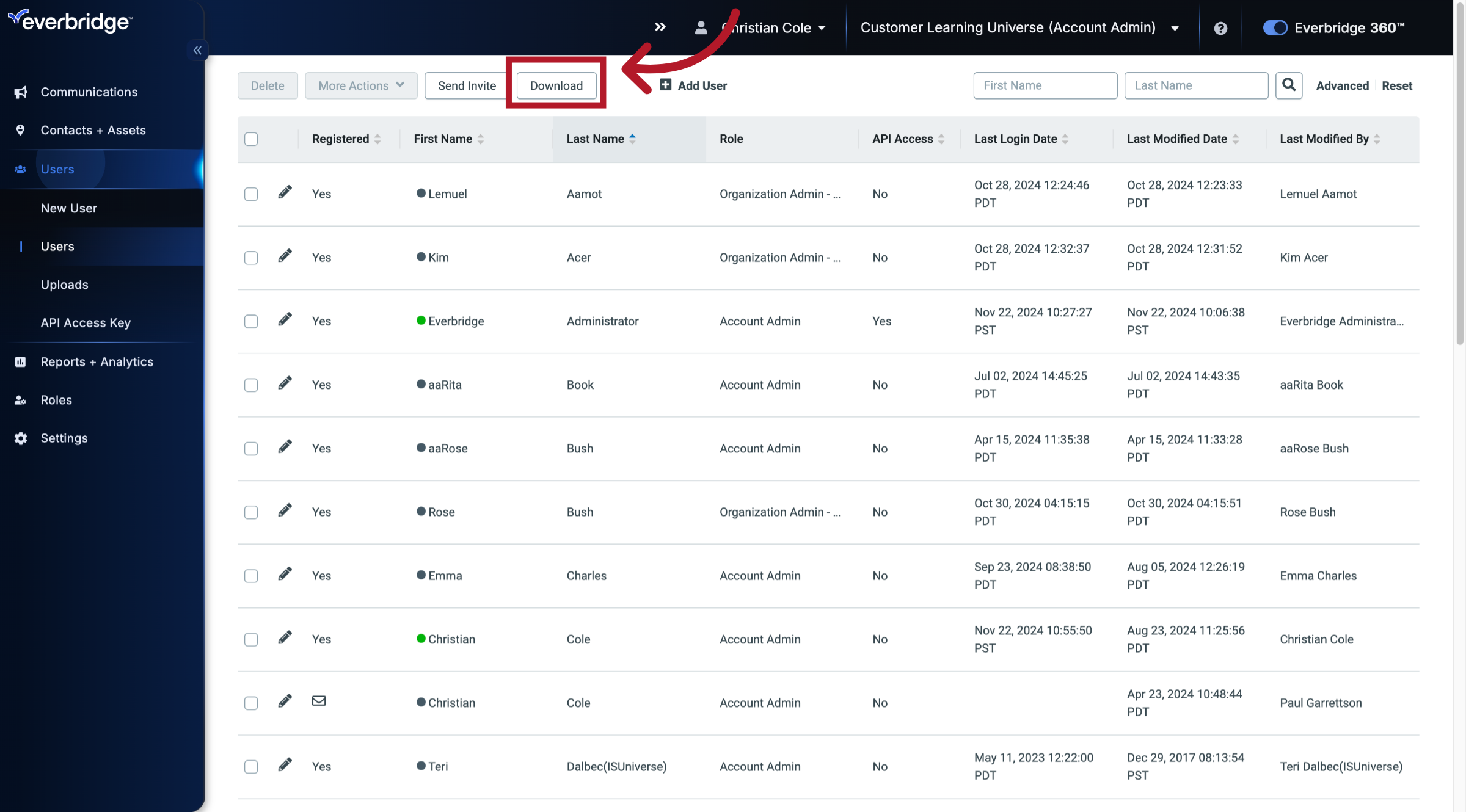
11. Download
And select Download.
12. Settings
On the Organization level, hover over Settings.
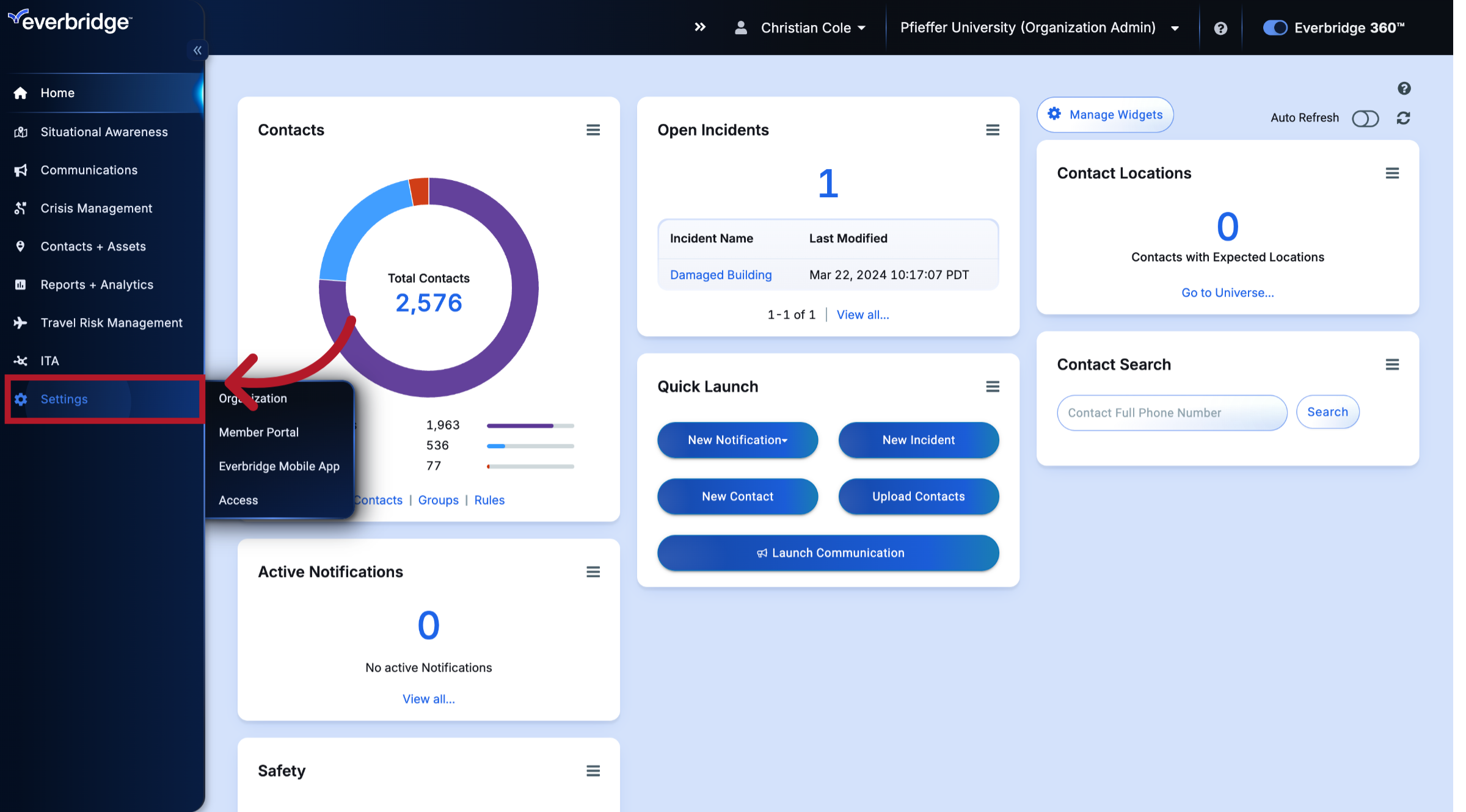
13. Access
Hover over Access.
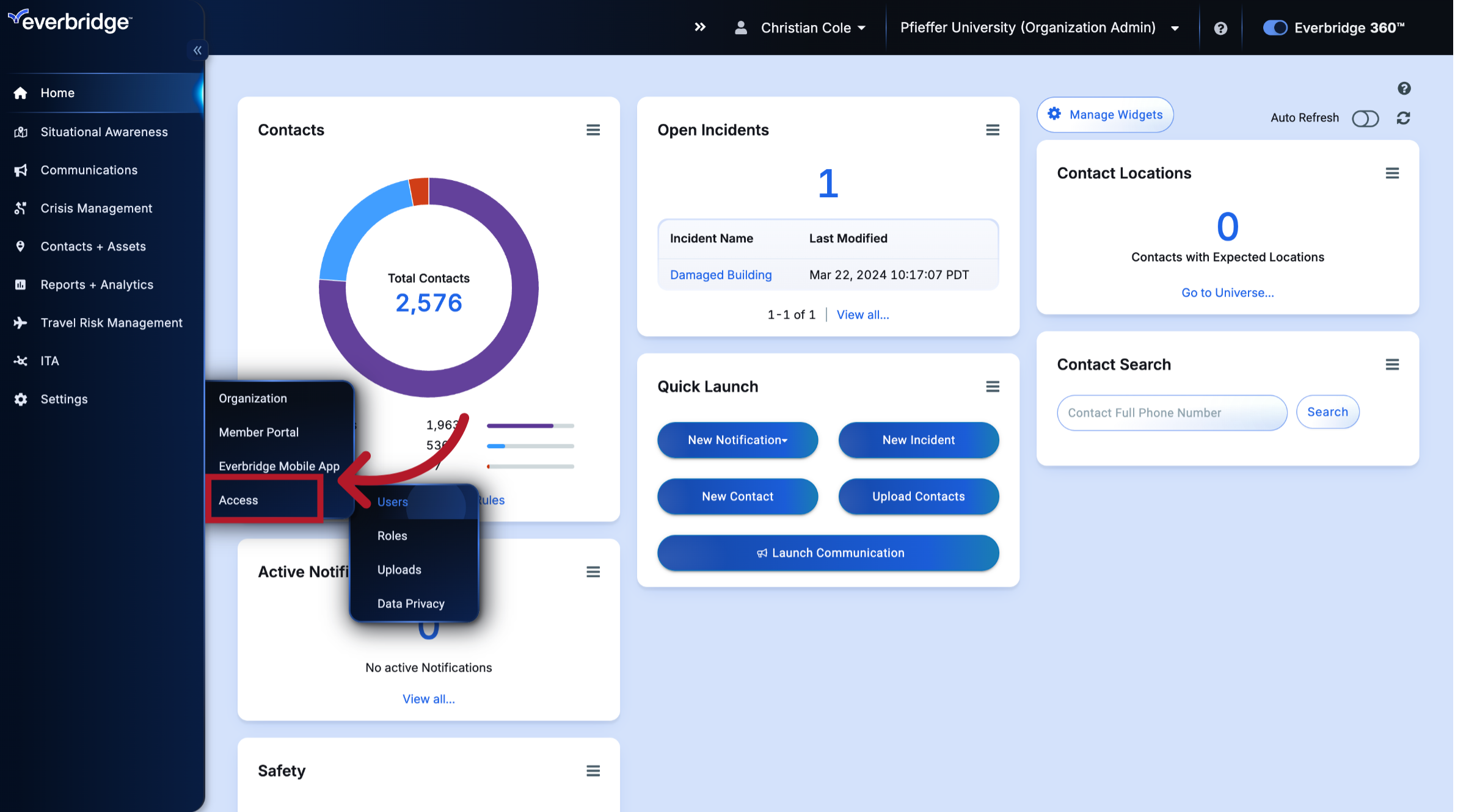
14. Users
Select Users.
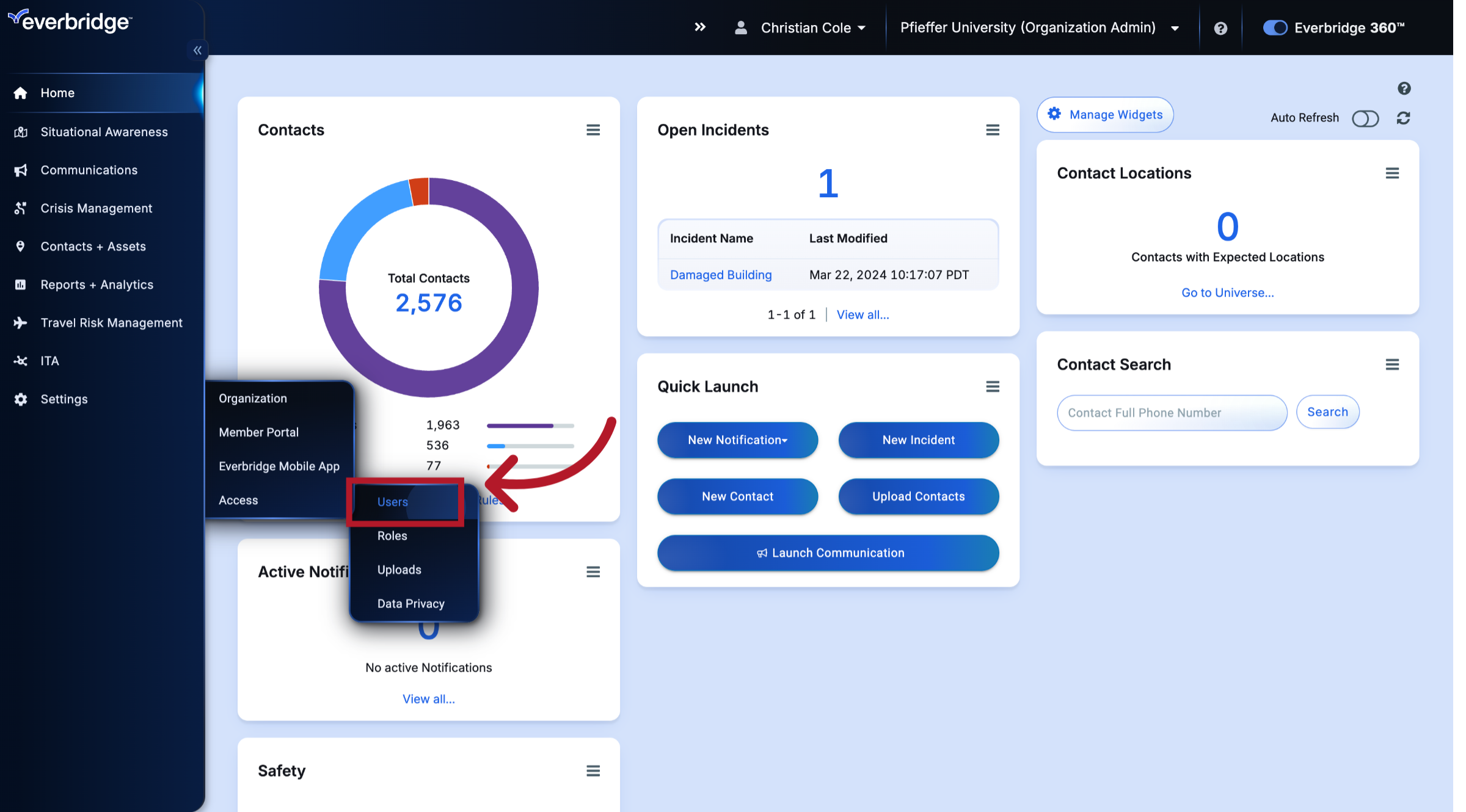
15. Download Button
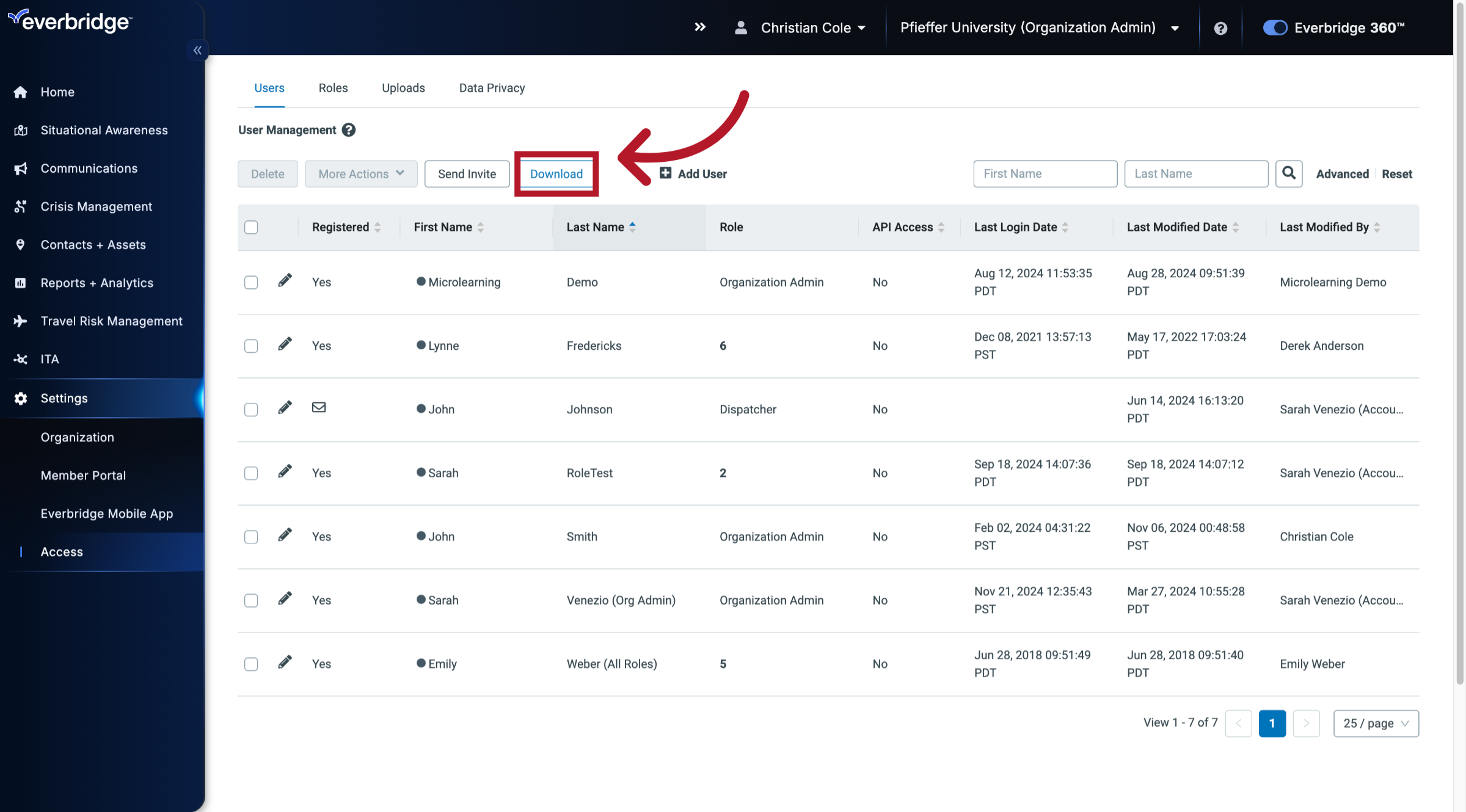
In both places, you'll see a Download button.
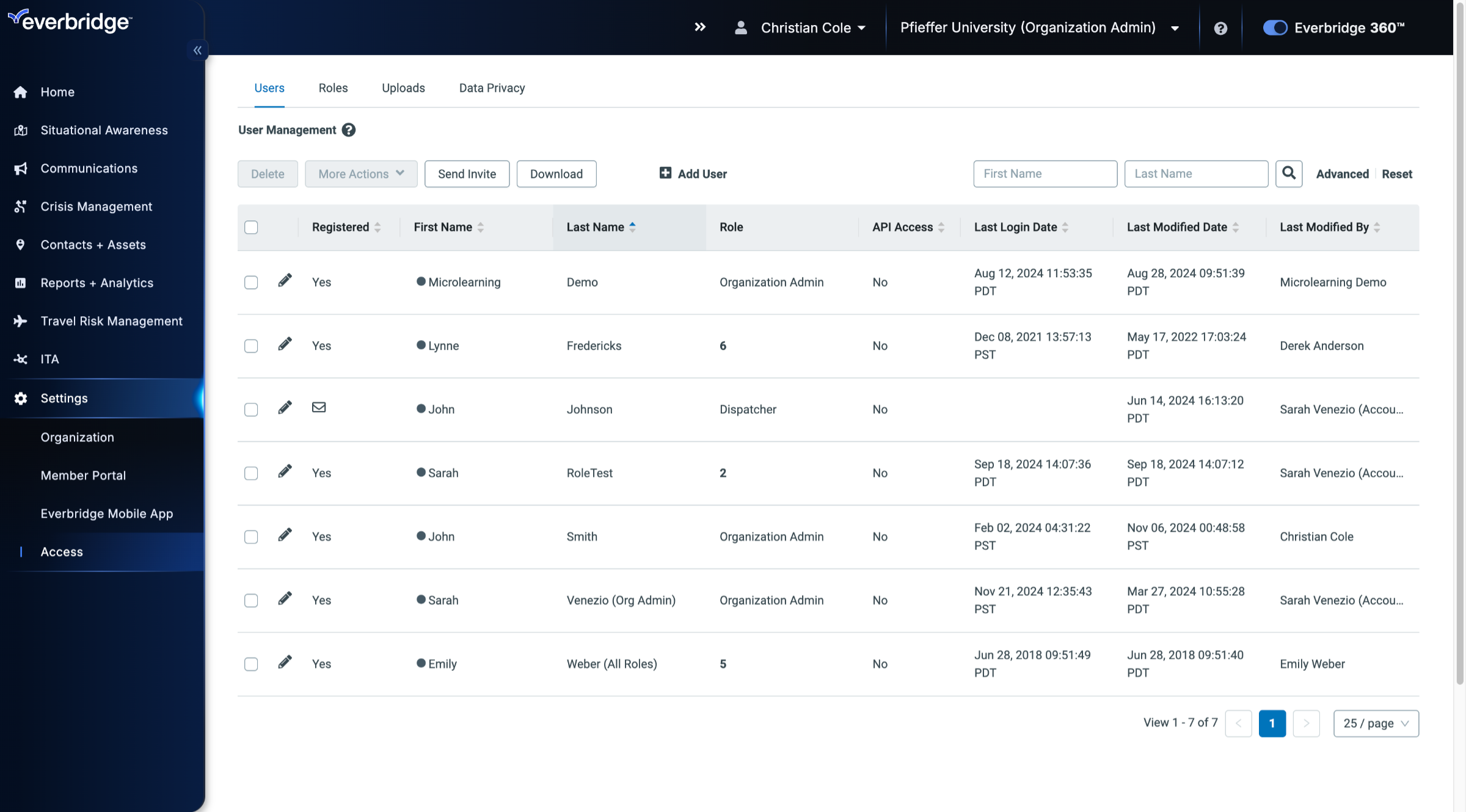
16. Download
Click it to download the CSV file of users and their data. Depending on the number of users, the file may be emailed to you. In both places, you'll see a download button.
In this guide, we covered the essential steps to back up contact and user data in Everbridge Suite. Remember that backing up your data before making any changes is a recommended.
For a comprehensive backup strategy, be sure to include:
Contact List Data - which includes contact records and their group assignments
Notification History Data
Always export the entire contacts dataset before making any changes to ensure you have a complete backup. With these backup procedures in place, you'll be well-equipped to manage and secure your data efficiently.
Article Feedback
While we can’t respond to you directly, we’d love to know how we can improve the article.
Please sign in to leave a comment.